



Back up a site
Make a backup of a site’s database, files or both whenever you need one, stored in your own backup storage.
On this page
Before you start
- Backup storage connected to Nuvlo. See Connect backup storage.
- A site that is running. A stopped site can’t be backed up; start it first.
- A role that can manage sites. By default that is Owner, Admin and Developer.
What a backup contains
What you can back up depends on the kind of site.
| Site | Backup types | What the backup holds |
|---|---|---|
| WordPress | Full, Database only, Files only | The database, and the wp-content folder with your themes, plugins and uploads. WordPress core files are not included; they come from the WordPress release. |
| PHP site with a MySQL, MariaDB or PostgreSQL database created by Nuvlo | Full, Database only, Files only | The database, the site’s source, and the data kept between deploys (persistent paths and environment file). |
| Static site, PHP site without a database, application | Files only | The site’s source and the data kept between deploys. node_modules and .git are left out. |
| 1-Click app | Full, Database only, Files only | The app’s databases and its data volumes. |
A Full backup holds the database and the files together, and can later be restored in full or in part.
Step 1 Open Backups
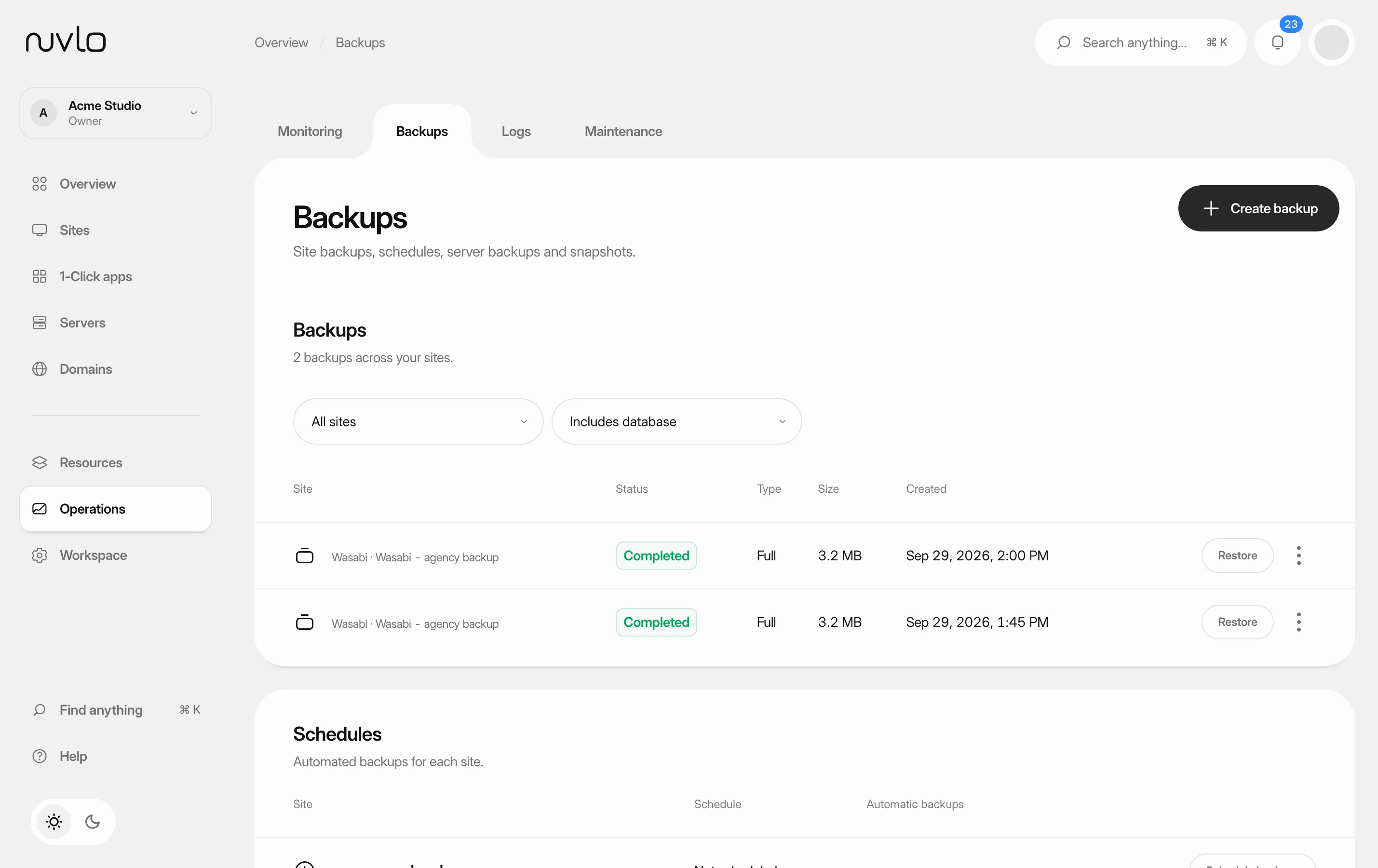
In the sidebar, select Operations and then Backups, or go to Backups. The Backups card lists every backup across your sites.
Click Create backup at the top of the page. Before your first backup, the button is in the middle of the empty list instead.
Step 2 Choose the site and what to back up
In the Create backup dialog, pick the Site.
Under Backup type, choose Full (database + files), Database only or Files only. For sites without a database, only Files only is offered.
Step 3 Choose where the backup is stored
Pick the Storage provider. The Bucket list shows that account’s buckets, with the bucket you chose when connecting already selected.
If Nuvlo can’t list the buckets for these keys, type the name into Bucket name instead.
Step 4 Start the backup
Click Create backup. The backup appears in the list as Running and the list updates on its own. When it is done, the status changes to Completed and the Size column fills in.
You can leave the page while it runs. The backup is made on the site’s server and uploaded from there straight to your bucket, so large sites can take a while.
Back up from a WordPress site’s page
WordPress sites also have their own Backups tab. Open the site from Sites, go to Backups and click Back up now.
Choose What to back up: Files and database, Database only or Files only. The dialog shows which storage and bucket the backup goes to; that comes from the site’s backup settings. To change it, click Change schedule.
Click the button, for example Back up files and database. Nuvlo shows Backup started, and Backup finished with the size once it is done. The list marks each backup as Manual or Automatic.
If you set folders to leave out in the site’s backup settings, manual file backups leave them out too. See Schedule automatic backups.
Find and filter backups
On Backups, filter the list by site, or by type: Full backups, Includes database or Files only. Each row shows the storage account the backup is in.
A failed backup shows why it failed under its status, on Backups and on a WordPress site’s Backups tab.
Restore tests
Once a week Nuvlo test-restores each site’s newest backup on the site’s own server, in a temporary folder and a temporary database that are deleted afterwards. Your site is not touched. The test downloads the backup, checks it is exactly the file that was uploaded, unpacks it, imports the database and checks its tables (for WordPress, that the site address is there).
A backup that passed shows Verified and how long ago under its status. If a test fails, the backup shows Restore test failed with the reason, and the account owner gets a notification and an email. Make a new backup: Nuvlo tests it right away.
The test runs with low priority and is skipped when the server has too little free disk space or memory for it; it is tried again the next day.
Delete a backup
Open the backup’s … menu and choose Delete backup, then confirm. Nuvlo deletes the backup files from your bucket, so the backup can’t be restored afterwards. A backup that is still running can’t be deleted.
Good to know
- Backups and other jobs on the same server run one after another. A backup may wait briefly before it starts.
- You can start up to 5 backups of the same site within 15 minutes.
- Backups made by hand are never removed by a schedule’s Backups to keep setting. Delete them yourself when you no longer need them.
- Your storage provider bills you for the space backups use.
Related guides
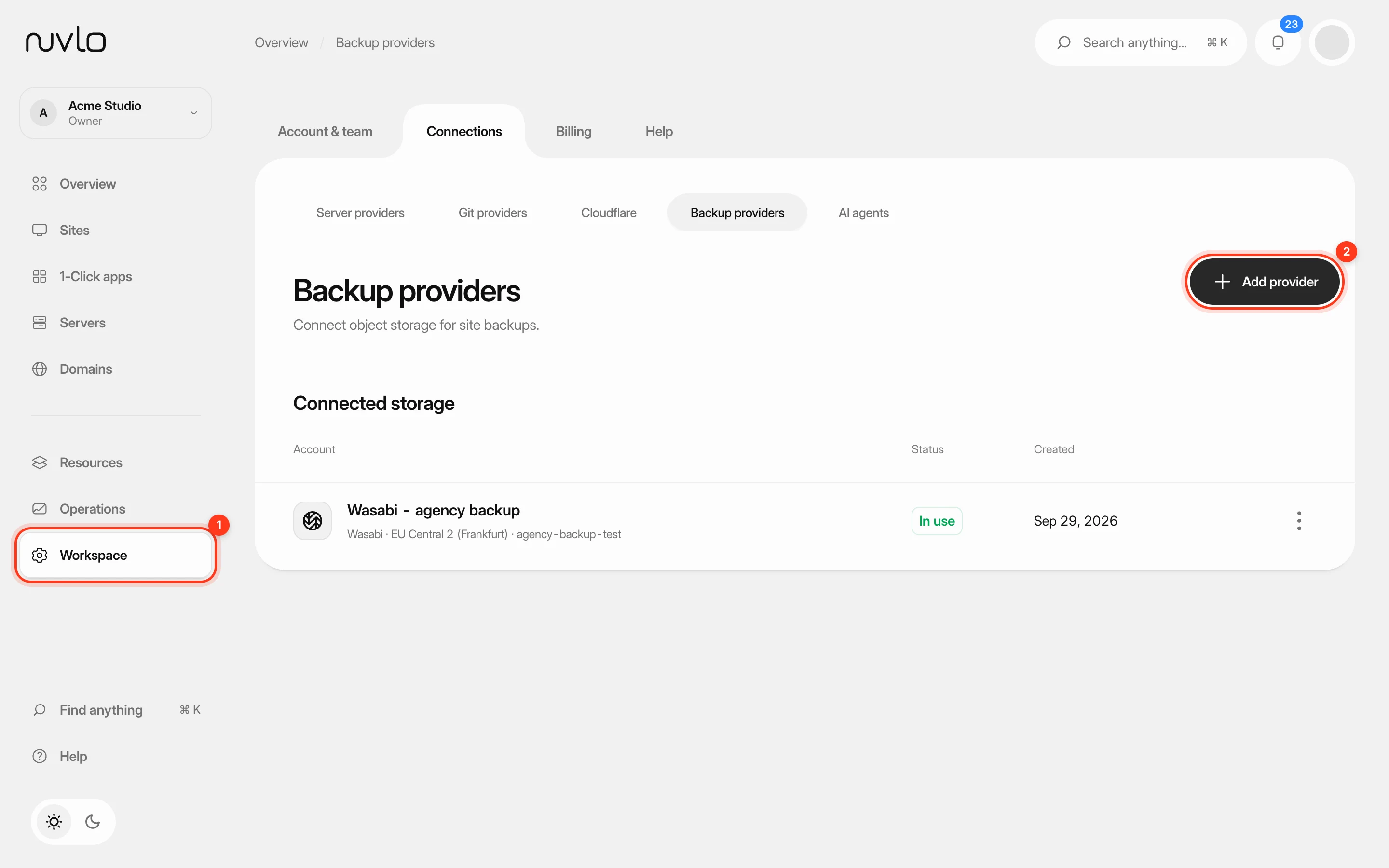 Connect backup storageConnect an S3-compatible storage account such as Wasabi, Cloudflare R2 or Amazon S3, and choose the bucket your site backups go to.
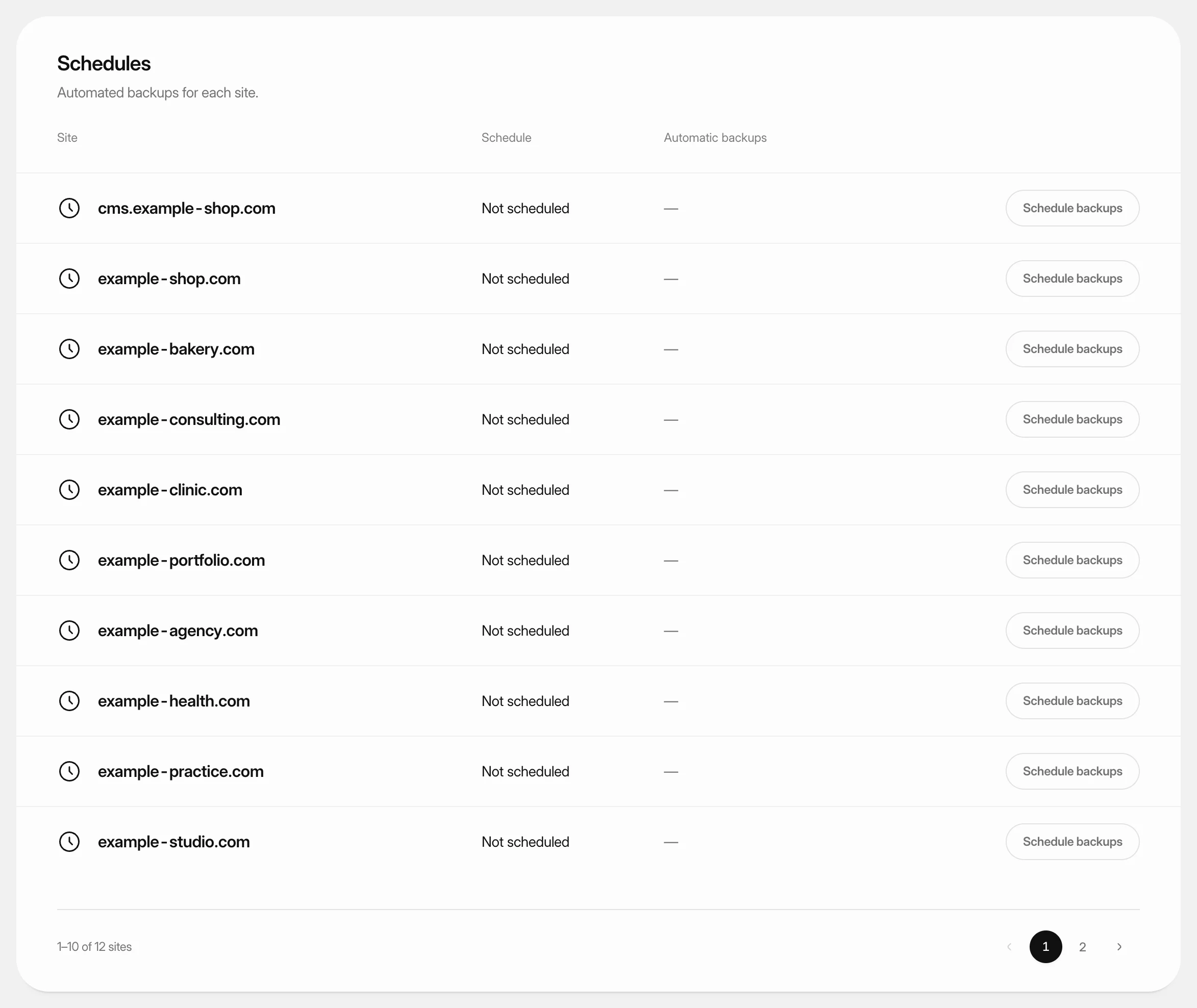 Schedule automatic backupsBack a site up automatically every hour, day, week or month, and keep only as many backups as you need.
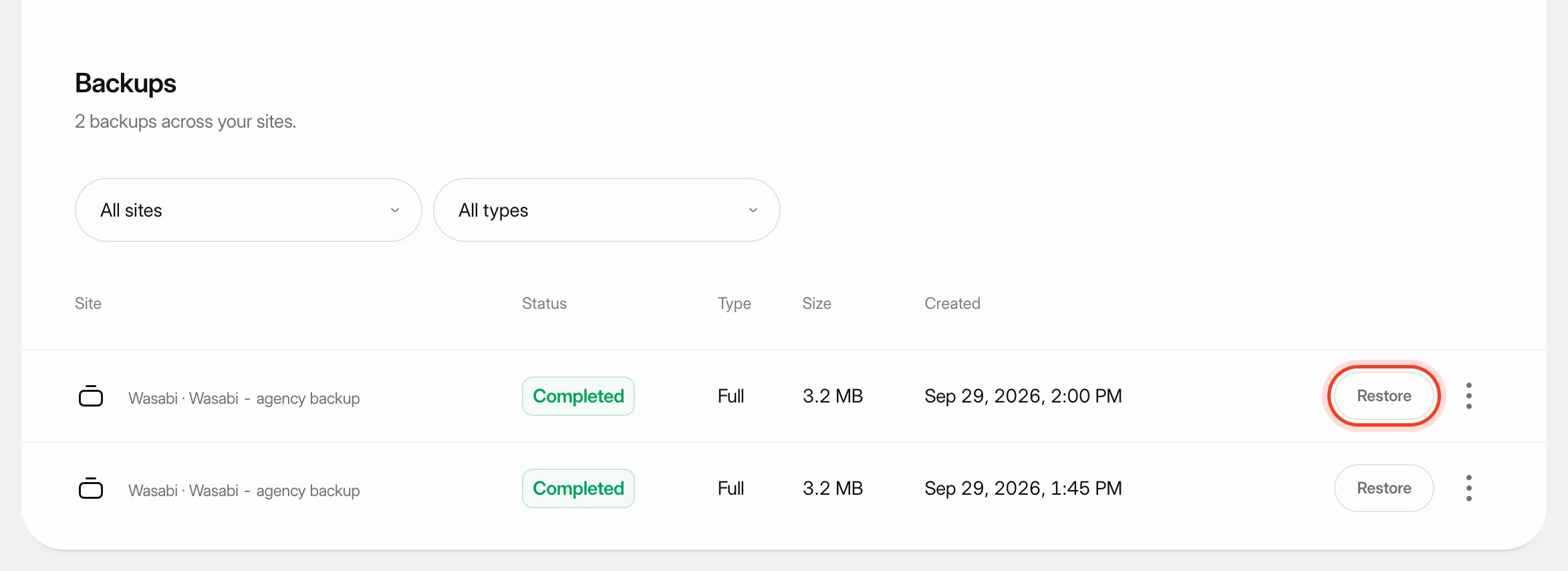 Restore a site backupRoll a site back to one of its backups: the database, the files, or both.
 Back up a site databaseBack up only the database of a site to your own storage, now or on a schedule, and restore only the database when you need to.