



Update PHP and Node.js versions
See which PHP or Node.js version each site on a server runs, apply security updates, and upgrade sites to a newer version after a compatibility check.
On this page
Before you start
- At least one PHP, Node.js or static site on the server. Node.js or PHP is installed automatically when you add a site.
Step 1 Open the Runtimes card
Open the server, click the Settings tab and scroll to Runtimes. Each row is a site with the version it runs and how long that version gets security updates. Static sites show the Node.js version they build with.
Sites with nothing to do show Up to date. Click Check for updates to read the versions again.
Step 2 Apply a security update
Update to followed by a version number, such as Update to 8.4.26, installs a newer release of the same line, with security and bug fixes and no breaking changes expected.
- For PHP, the update applies to every site on that PHP version right away. PHP reloads without downtime.
- For Node.js, Nuvlo installs the release and redeploys the site.
Read the dialog and click Update PHP 8.4 (with your version) or Update and redeploy.
Step 3 Upgrade to a newer version
A button such as Upgrade to PHP 8.4 or Upgrade to Node.js 24 appears when a site is behind the recommended version, or when its version no longer gets security updates. In that last case the button is highlighted.
Click it. Nuvlo checks the project for known conflicts with the new version and lists what it found. Nothing in the project conflicts means you can go ahead; Review these before upgrading lists the points to check first.
- Node.js: click Upgrade and redeploy (or Upgrade anyway after warnings). The current release keeps serving until the new build is live. If the build fails, visitors don't notice and you can switch back.
- PHP: click Switch to PHP with the new version, such as Switch to PHP 8.4. The new version is installed if needed and the site switches right away, without a new release. You can switch back in the site's settings.
Step 4 Remove unused Node.js versions
If Node.js versions remain that no site uses, an Unused versions row appears. Click the Remove button, which names the versions, and confirm. Nothing goes offline. A site you later set to that version installs it again on its next deploy.
Related guides
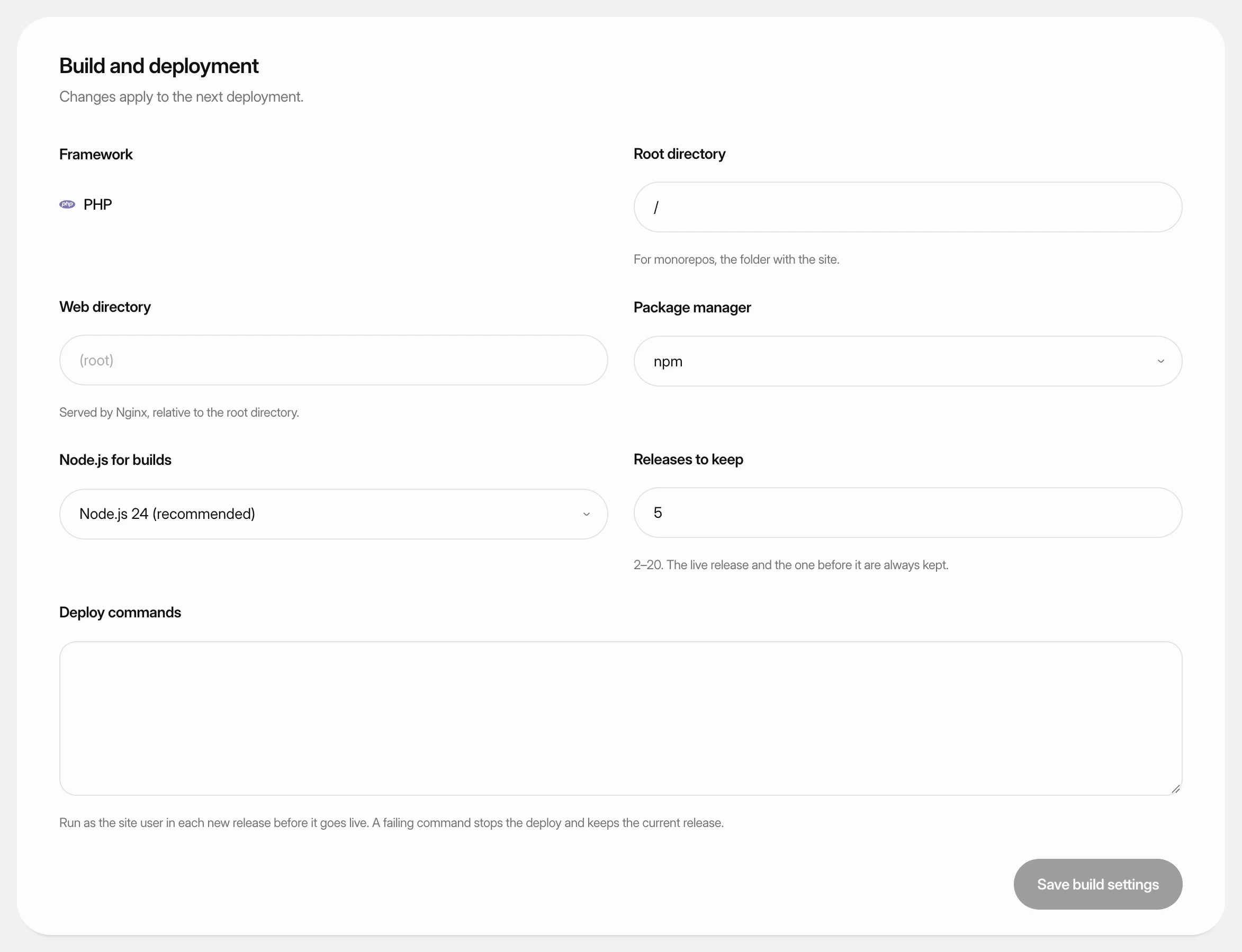 Change build settingsAdjust how Nuvlo builds and releases a static site, PHP site or Node.js app: folders, build command, package manager, Node.js version and how many releases to keep.
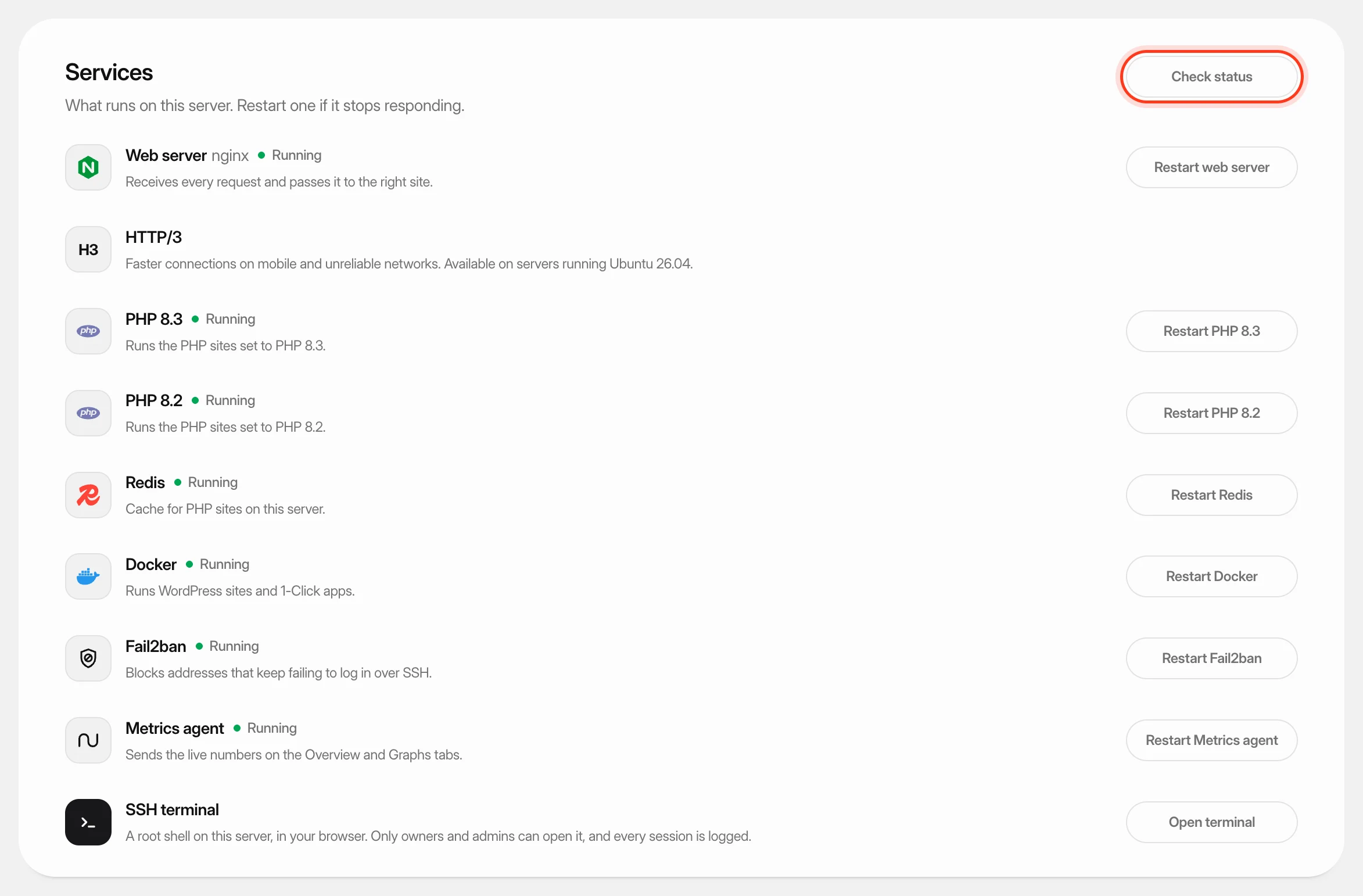 Check and restart server servicesSee which services run on your server, restart one that stopped responding, and turn HTTP/3 on or off.
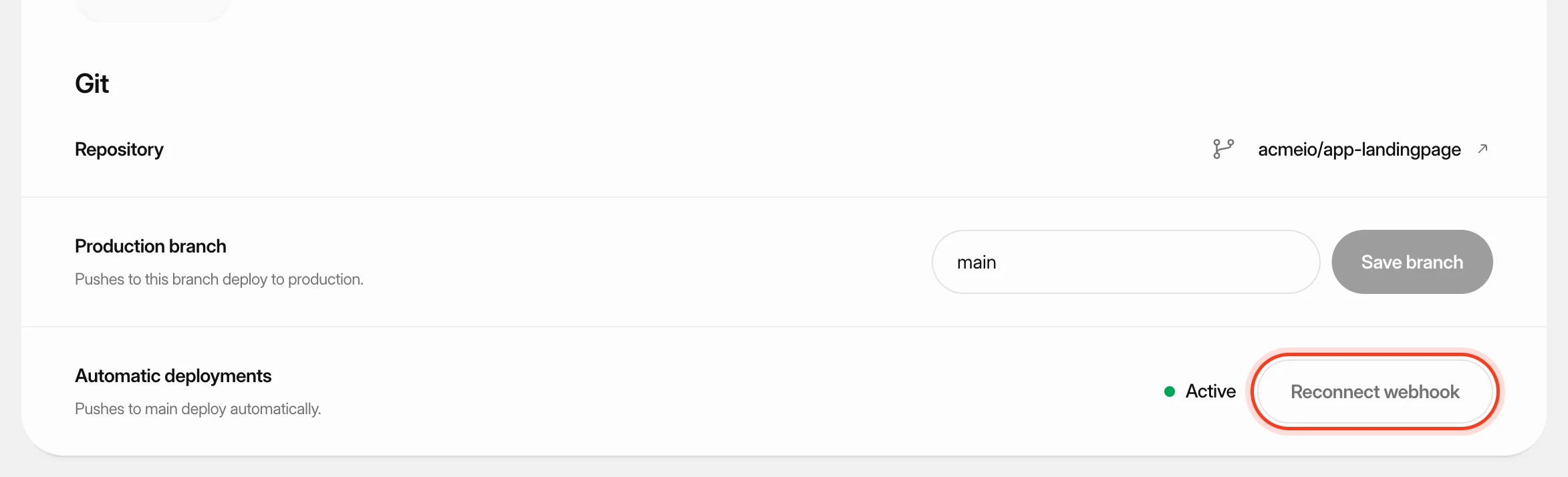 Deploy from GitKeep a site up to date with its GitHub repository: deploy automatically on every push, start a deploy yourself or from another tool, and read the build log when something goes wrong.