



Set what each role can do
Understand the four team roles and change what the Admin, Developer and Viewer roles may view and manage in your workspace.
On this page
Before you start
- The owner or admin role in the workspace. Only the owner can change the Admin role.
The four roles
| Role | By default |
|---|---|
| Owner | Full access to everything. This role can’t be customized. Each workspace has exactly one owner: the person whose account it is. |
| Admin | Full access, including the team. You can restrict it. |
| Developer | Can manage servers, sites, domains and integrations. Can see the team and the activity log, but not change the team. |
| Viewer | Can see everything, change nothing. |
What the permissions cover
Permissions are set per area. View lets a role see an area; Manage lets it make changes there.
| Area | Covers |
|---|---|
| Servers | Creating servers, reboots, disconnecting, firewall and subscriptions. |
| Sites & applications | Deploys, SSL and settings. Manage also gives access to the code on the site, so it shows its environment variables, files and database password. |
| Domains | Adding and removing custom domains on a site. |
| Integrations | Git and cloud provider and DNS connections. |
| Team | Inviting, removing and changing roles, and these permissions. |
| Activity log | Viewing the workspace’s activity feed. |
ImportantManage on Sites & applications lets members read the site’s secrets. Give it only to people you would trust with those passwords.
Step 1 Open Roles & permissions
Click Workspace in the sidebar, then Team, and scroll to Roles & permissions. Each role shows how many areas it can manage and view, and how many members have it.
Step 2 Edit a role
Click Edit permissions next to Admin, Developer or Viewer. Tick View and Manage for each area.
Manage includes View, so ticking Manage also ticks View. Turning off View also turns off Manage.
Step 3 Save the changes
Click Save permissions. The new permissions apply to everyone with that role straight away.
Actions that stay with the owner and admins
Some actions give access that keeps working outside Nuvlo, even after someone leaves the team. These are always limited to the owner and admins, whatever the permissions above say:
- Billing, changing the plan and buying for the workspace.
- Changing role permissions, and the workspace’s own Anthropic or OpenAI key for AI answers.
- Revealing a provider’s API key, a server’s root password or database access.
- Opening the server terminal.
- Deleting or disconnecting a server, and restoring provider backups and snapshots.
- Adding SSH keys while creating a server.
- Reading and changing a site’s web server and WordPress configuration files.
Related guides
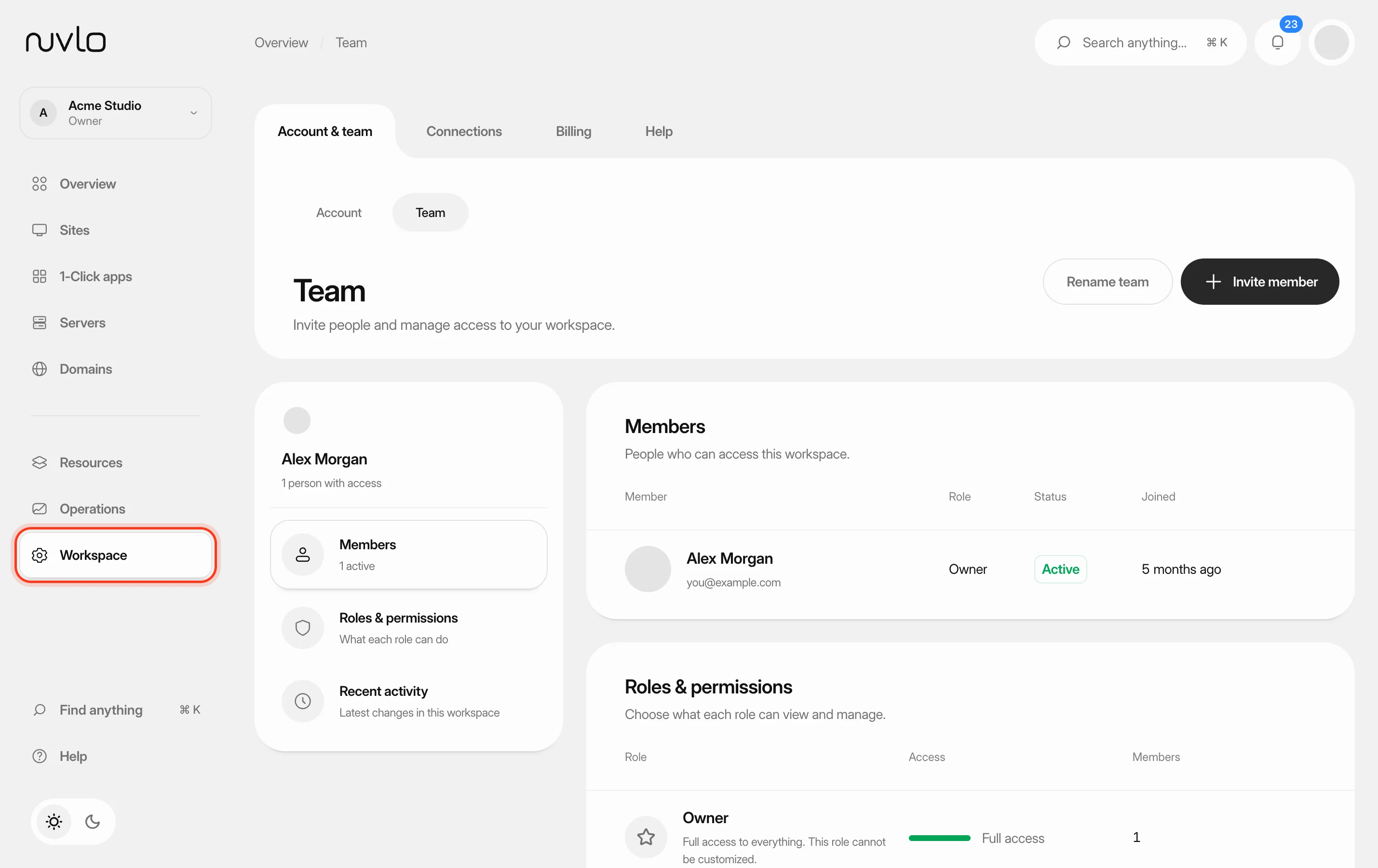 Invite and manage team membersInvite people to your workspace, choose their role, and change or remove their access later. You can also switch between your own workspace and the teams you belong to.
 Create an API tokenCreate a personal token so scripts and automation tools can work with Nuvlo, limited to the areas and the time you choose.
 Turn on two-factor sign-inProtect your Nuvlo account with a code from an authenticator app. Nuvlo asks for the code when you sign in.