



Connect backup storage
Connect an S3-compatible storage account such as Wasabi, Cloudflare R2 or Amazon S3, and choose the bucket your site backups go to.
On this page
- Why backups need your own storage
- Supported storage providers
- What the keys must be allowed to do
- Step 1: Open Backup providers
- Step 2: Choose your storage provider
- Step 3: Create an access key at your provider
- Step 4: Enter the keys
- Step 5: Choose the bucket for backups
- Step 6: Name the connection and connect
- What happens next
- Disconnect a storage account
- Troubleshooting
Before you start
- An account with one of the storage providers listed below.
- Access to that provider’s console, to create an access key.
- A role that can manage integrations. By default that is Owner, Admin and Developer. Viewers can’t connect storage.
Why backups need your own storage
Site backups are not kept on the server they come from. Nuvlo uploads them to an object storage bucket in your own account, so a backup survives even if the server is lost. You pay your storage provider for the space the backups use.
Server snapshots and your cloud provider’s automatic backups are different: they are stored by the provider that runs the server and need no storage connection. See Create and restore server snapshots and Turn on automatic server backups.
Supported storage providers
Nuvlo works with these providers. The middle column is what the connect dialog asks for.
| Provider | What you enter | Key to create |
|---|---|---|
| Wasabi | Access key, Secret key | An access key for the root user, or for a sub-user with access to your bucket. |
| Cloudflare R2 | Account ID or S3 API URL, Access key ID, Secret access key | An R2 API token with Object Read & Write permission, for all buckets or only your backup bucket. |
| Amazon S3 | Access key ID, Secret access key | An access key for an IAM user with S3 access (AmazonS3FullAccess, or a policy for one bucket). |
| Hetzner Object Storage | Region, Access key, Secret key | S3 credentials from your project’s Security page in the Hetzner Console. |
| Hetzner Storage Box | Username, Password | A sub-account with SSH support and External reachability turned on. The password is used once to add Nuvlo’s SSH key and isn’t stored. Use one sub-account per server, and turn on automatic snapshots so deleted backups can be recovered. |
| Contabo Object Storage | Region, Access key, Secret key | The S3 credentials under Account › Security and Access in the Object Storage panel. |
| Backblaze B2 | S3 endpoint, Key ID, Application key | An application key with Read and Write access. |
| DigitalOcean Spaces | Region, Access key, Secret key | A Spaces access key with full access, or Read/Write/Delete on your backup bucket. |
| Scaleway Object Storage | Region, Access key, Secret key | An API key whose preferred Project is the one your bucket is in. |
| OVHcloud Object Storage | Region, Access key, Secret key | An Object Storage user in your Public Cloud project. |
| IONOS Object Storage | Region, Access key, Secret key | An access key from Key management in the DCD. |
| IDrive e2 | Region endpoint, Access key ID, Secret access key | An access key for your region with read and write access to your backup bucket. |
| Vultr Object Storage | Hostname, Access key, Secret key | The keys shown on your Object Storage subscription’s overview. |
| Google Cloud Storage | HMAC access key, HMAC secret | An HMAC key for a service account with Storage Object Admin. |
| Storj | Access key, Secret key | S3 credentials with full access, or access to your backup bucket. |
| MinIO | Server URL, Access key, Secret key | An access key on your MinIO server. The server must be reachable on a public address over HTTPS. |
| Custom S3-compatible | Endpoint URL, Region (optional), Access key, Secret key | Any other storage with an S3 API, reachable over HTTPS. A key with read and write access to your backup bucket. |
Wasabi, Amazon S3 and the others without a region field work out the region from the bucket you choose.
What the keys must be allowed to do
- Read, write and delete files in the backup bucket. Delete is used when you delete a backup, and when a schedule removes old backups.
- List buckets is optional. Keys limited to one bucket work too; you then type the bucket’s name instead of picking it.
- Create buckets only if you want Nuvlo to create a new bucket for you while connecting.
Wasabi, Backblaze and DigitalOcean show the secret part of a new key only once, so keep that page open until you have pasted it into Nuvlo.
Step 1 Open Backup providers
In the sidebar, select Workspace and then Backup providers, or go to Backup providers.
Click Add provider. Before you connect your first account, the button is in the middle of the empty Connected storage card.
Step 2 Choose your storage provider
The Connect backup storage dialog opens. It has three stages: Provider, Keys and Bucket.
Click the provider your storage account is with.
Step 3 Create an access key at your provider
On the Keys stage, click Open followed by the console name (for example Open Wasabi console). Your provider’s console opens in a new tab.
Create an access key with the permissions from the table above. If you are not sure where to find it, expand Where do I find these keys? in the dialog for short instructions for that provider.
For Backblaze B2, also copy the Endpoint shown on your bucket. For Cloudflare R2, copy the S3 API URL; it contains your account ID. For Vultr, copy the Hostname from the overview.
Step 4 Enter the keys
Paste the key and its secret into the two key fields. Depending on the provider, also fill in:
- Region for DigitalOcean Spaces, Hetzner, Contabo, Scaleway, OVHcloud and IONOS.
- Region endpoint for IDrive e2, like
y7s7.da.idrivee2-28.com, from Enabled regions on its dashboard. - Account ID or S3 API URL for Cloudflare R2. Either the 32-character account ID or the full URL works.
- S3 endpoint for Backblaze B2, like
s3.eu-central-003.backblazeb2.com. - Hostname for Vultr, like
ams1.vultrobjects.com. - Server URL for MinIO, like
https://minio.example.com. - Endpoint URL for Custom S3-compatible, like
https://s3.example.com, and its Region if your provider gives one.
For providers without an endpoint field, Use a custom endpoint lets you enter a private or regional endpoint. Most people leave it empty.
Click Continue. Nuvlo checks the keys with your provider before anything is saved, and lists the buckets they can see.
Step 5 Choose the bucket for backups
Under Where should backups go?, pick one of your existing buckets, or choose Create a new bucket to keep backups apart from your other files.
A new bucket gets a suggested name like nuvlo-backups-3fa91c. You can change it. Bucket names are 3 to 63 characters long and use lowercase letters, numbers, dots and hyphens, starting and ending with a letter or number. For Wasabi and Amazon S3 you also choose the new bucket’s Region.
If your keys can only reach specific buckets, Nuvlo can’t list them. You then see a Bucket name field instead: type the name of the bucket the keys can use.
Step 6 Name the connection and connect
Name (optional) is how this storage account appears in Nuvlo. Left empty, it is named after the provider and bucket, for example Wasabi · nuvlo-backups-3fa91c.
Click Connect storage, or Create bucket and connect if you chose a new bucket. Nuvlo checks it can reach the bucket, saves the connection and shows a message such as Wasabi connected. Backups go to nuvlo-backups-3fa91c.
The account now appears under Connected storage. Its status reads Not in use until a backup or schedule uses it, then In use.
What happens next
The bucket you chose becomes the default for this storage account. Backup and schedule forms pick it for you.
Inside the bucket, each site’s backups go into a folder named after the site’s domain, so the bucket reads like a list of your sites.
Next, back up a site or schedule automatic backups.
Disconnect a storage account
On Backup providers, open the row’s … menu and choose Disconnect, then confirm with Disconnect and remove backup list.
ImportantDisconnecting removes the account’s backups and backup schedules from Nuvlo. The files stay in your bucket, but Nuvlo can’t restore them, even if you connect the account again.
Troubleshooting
| Message | What to do |
|---|---|
| … doesn't recognise this access key | Copy the whole access key again, without spaces. |
| The secret key doesn’t belong to this access key | The secret was copied from another key, or with extra characters. Copy it again. |
| This bucket is in a different region | Pick the region the bucket is in, or for Spaces choose the matching Region. |
| That bucket name is taken by someone else | Bucket names are global at most providers. Try another name. |
| These keys don’t have access to that bucket | Give the key read and write access to the bucket at your provider, then try again. |
| Couldn’t reach … | Check the region, endpoint, hostname or server URL. A MinIO server must be reachable from the internet over HTTPS. |
Related guides
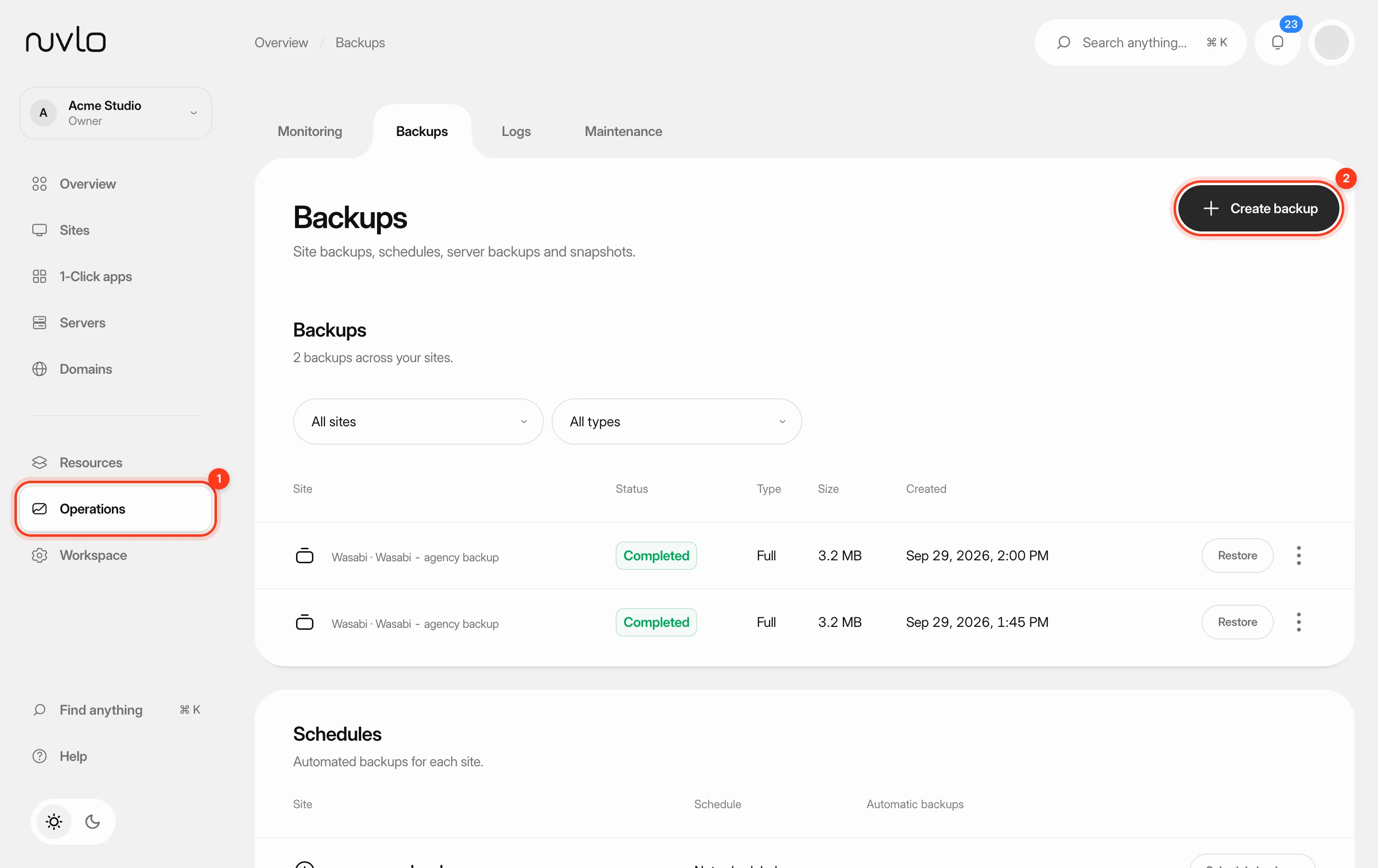 Back up a siteMake a backup of a site’s database, files or both whenever you need one, stored in your own backup storage.
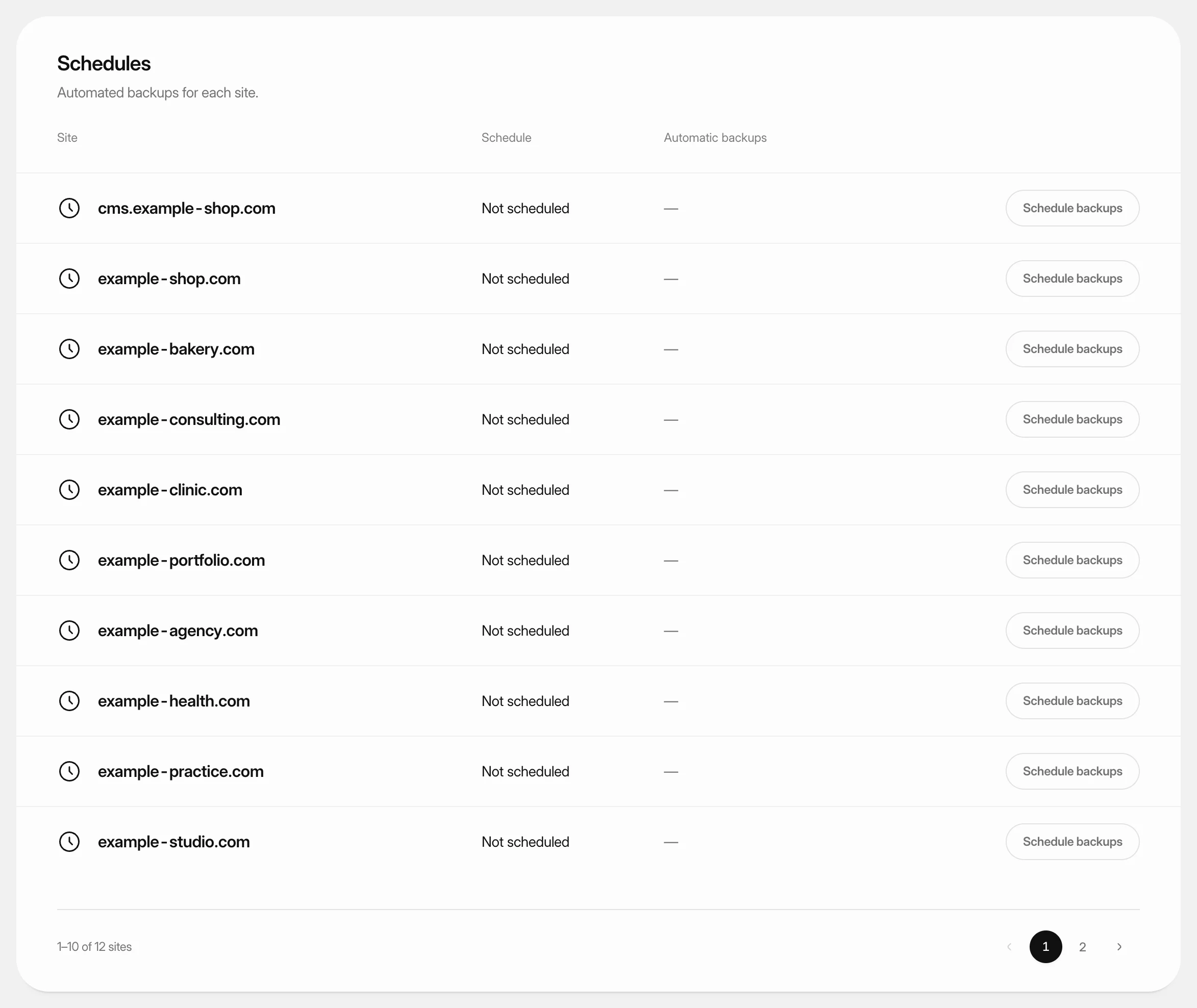 Schedule automatic backupsBack a site up automatically every hour, day, week or month, and keep only as many backups as you need.
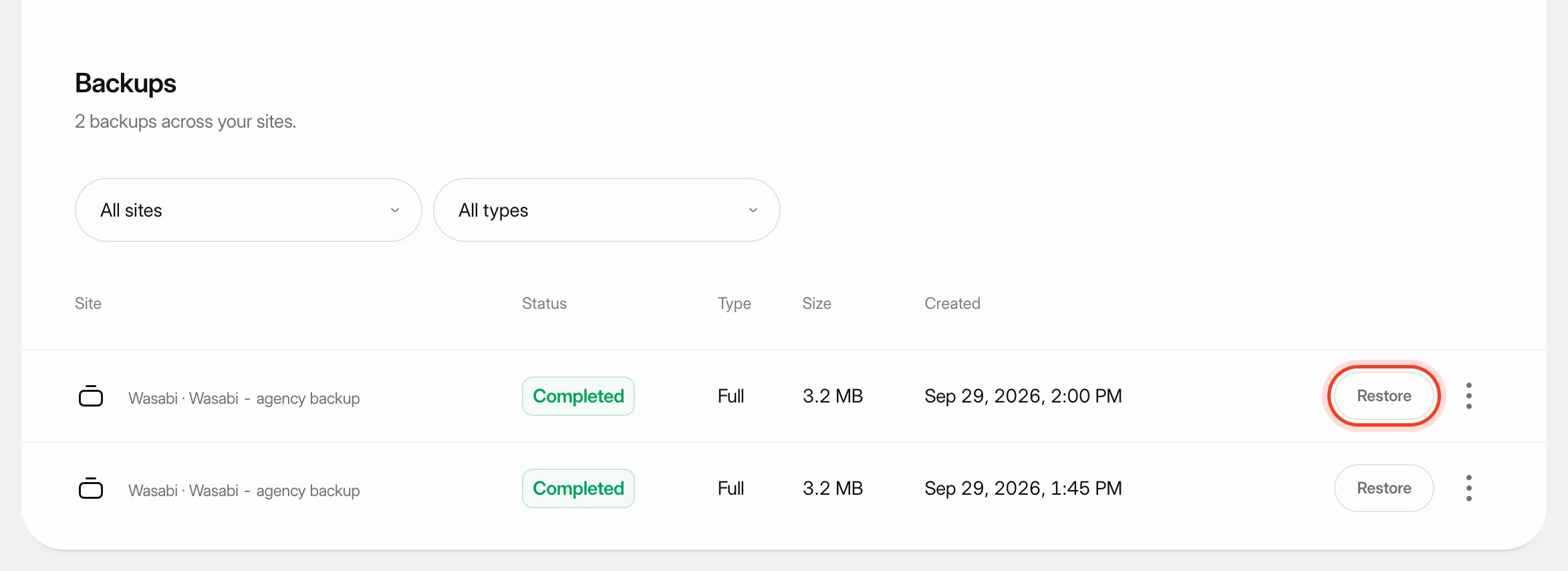 Restore a site backupRoll a site back to one of its backups: the database, the files, or both.
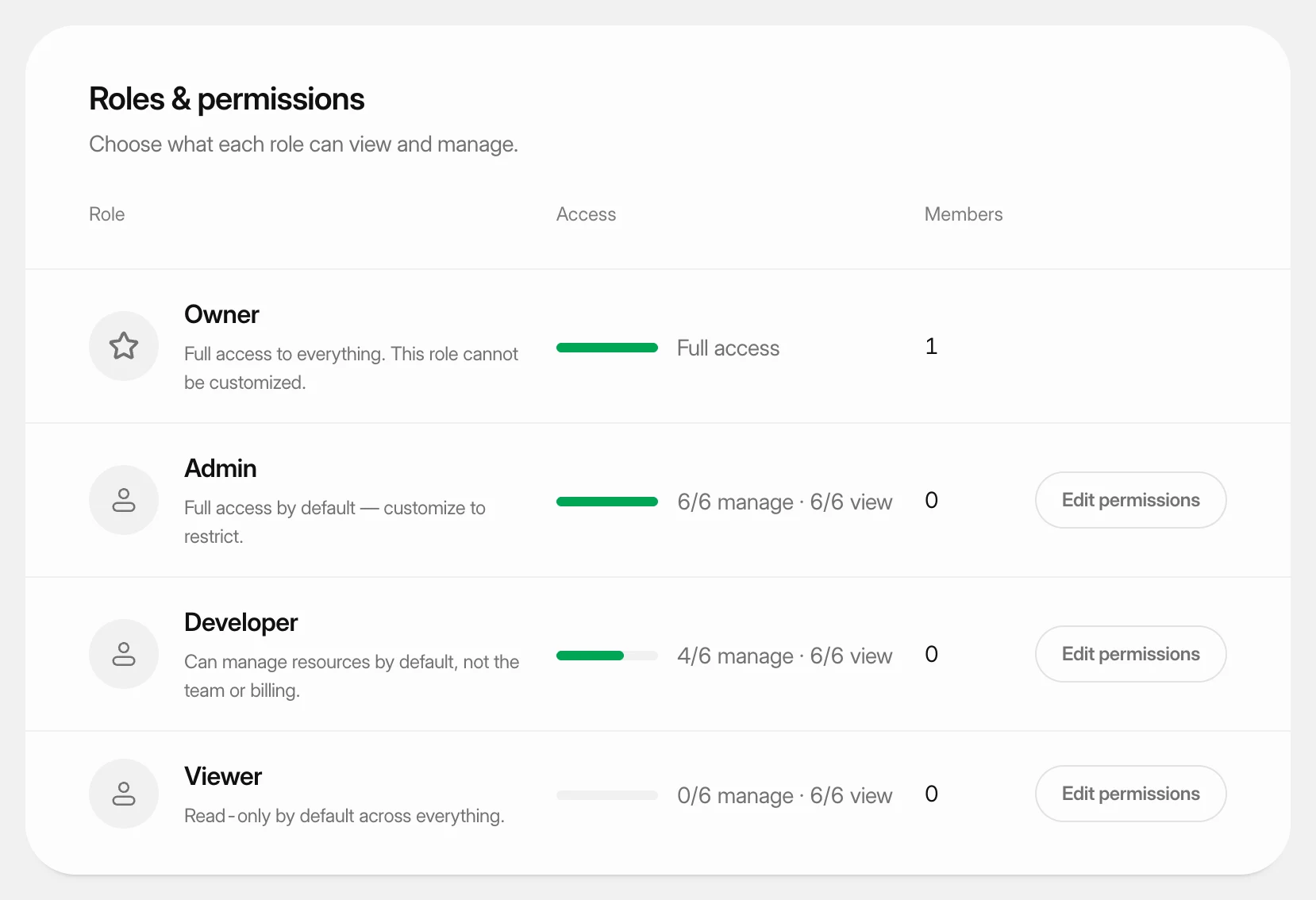 Set what each role can doUnderstand the four team roles and change what the Admin, Developer and Viewer roles may view and manage in your workspace.