



Create your account
Sign up with your email address or with GitHub or Google, confirm your email and sign in. This guide also covers resetting a forgotten password and joining a team you were invited to.
On this page
Before you start
- An email address you can open, or a GitHub or Google account.
Step 1 Fill in the sign-up form
Open the Nuvlo sign-up page. Enter your Full name, Email and a Password, then type the password again in Confirm password.
A bar under the password rates it from Weak to Strong. A strong password is at least 8 characters long and mixes upper-case letters, numbers and symbols.
Click Create account.
By creating an account you accept the terms and confirm you have read the privacy policy. Both are linked under the form.
Step 2 Confirm your email
Nuvlo sends a confirmation link to the address you entered and shows Check your inbox. Open the email and click the link.
If the email doesn’t arrive, check your spam folder, then click Resend email. You can resend once a minute. If you mistyped the address, click Use a different email.
The link signs you in and opens the dashboard. A new account starts on the Get started guide; see Put your first site online.
Step 3 Sign in
Next time, open the Sign in page, enter your Email and Password, and click Sign in.
If you turned on two-factor sign-in, Nuvlo then asks for the code from your authenticator app. See Two-factor authentication.
The button for the method you used last in this browser shows a Last used label.
Sign up or sign in with GitHub or Google
Under Or continue with, click Continue with GitHub or Continue with Google. The same buttons appear on the sign-up and sign-in pages.
A small window opens where you sign in at GitHub or Google and approve Nuvlo. When it closes, you land in the dashboard. If your browser blocks the window, the sign-in continues in the same tab instead.
Reset a forgotten password
On the Sign in page, click Forgot password?. Enter your Email and click Send reset link.
Open the link in the email. On Set new password, enter a New password, confirm it and click Update password.
ImportantA new password revokes all your API tokens and AI agent keys. Scripts and agents that use them stop working until you create new ones.
If two-factor sign-in is on, Nuvlo asks for your authenticator code before it saves the new password.
Join a team you were invited to
When someone invites you to their team, what you see depends on whether you already use Nuvlo.
- New to Nuvlo: you get an invite email. Click the link, then on Welcome to Nuvlo choose a password of at least 8 characters and click Set password & join team.
- Already a Nuvlo user: you get a notification titled You were invited to a team. Open it from the bell at the top of the dashboard, then click Join followed by the team’s name.
After you join, Nuvlo opens the team’s workspace. Your own workspace is still there; switch between them with the workspace switcher at the top of the sidebar. See Invite and manage team members.
An invite expires after 14 days. If the link no longer works, ask the person who invited you to resend it.
Troubleshooting
Link didn’t work. Confirmation and reset links work once and expire. Sign in with your email and password; if you still need a link, request a new one.
Couldn’t accept invite. You must confirm your email address before you can join a team. If the invite expired or was already used, ask for a new one.
Related guides
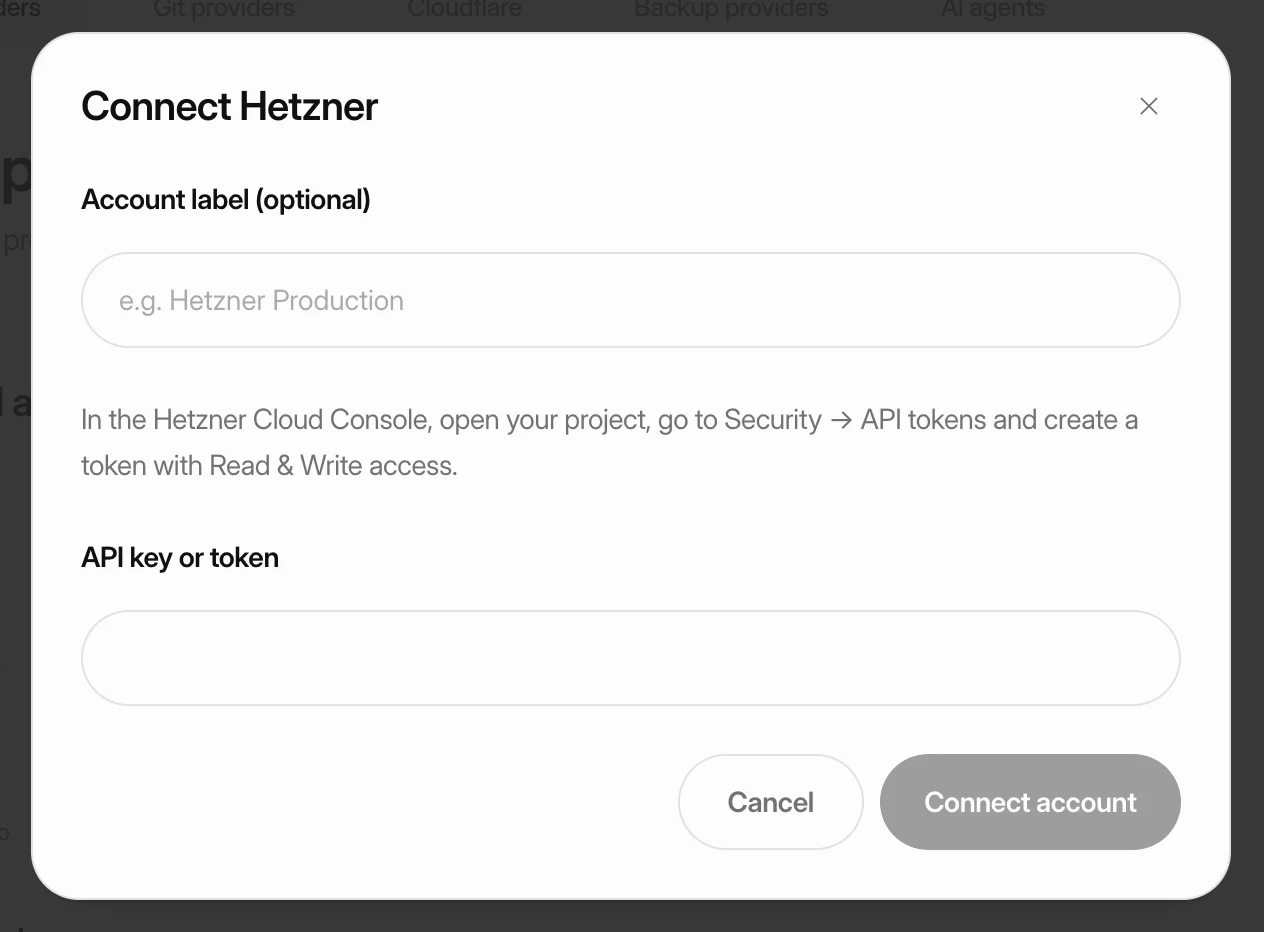 Put your first site onlineConnect a cloud provider, create a server and deploy a site on it. Each step links to a detailed guide if you need more help.
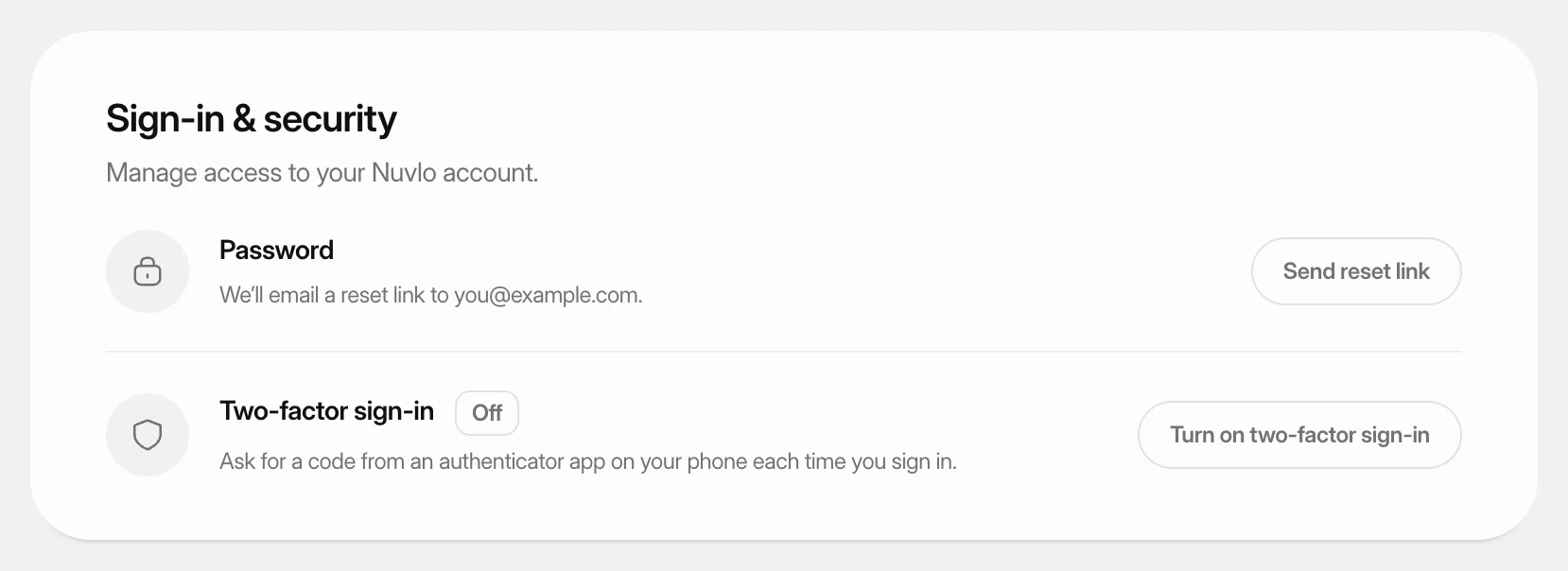 Turn on two-factor sign-inProtect your Nuvlo account with a code from an authenticator app. Nuvlo asks for the code when you sign in.
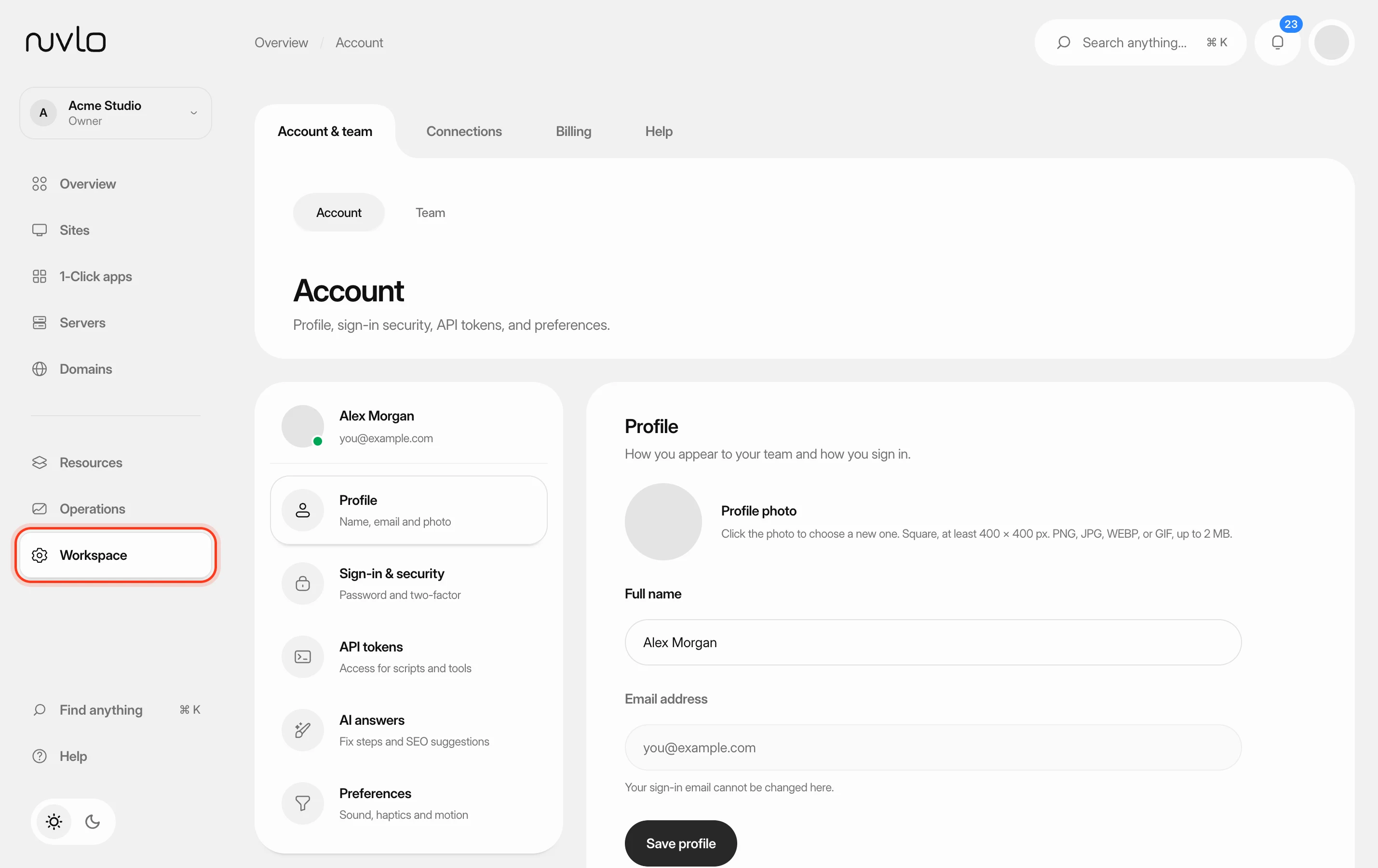 Update your profile and preferencesChange your name and profile photo, send yourself a password reset link, and choose how the dashboard sounds, moves and looks.
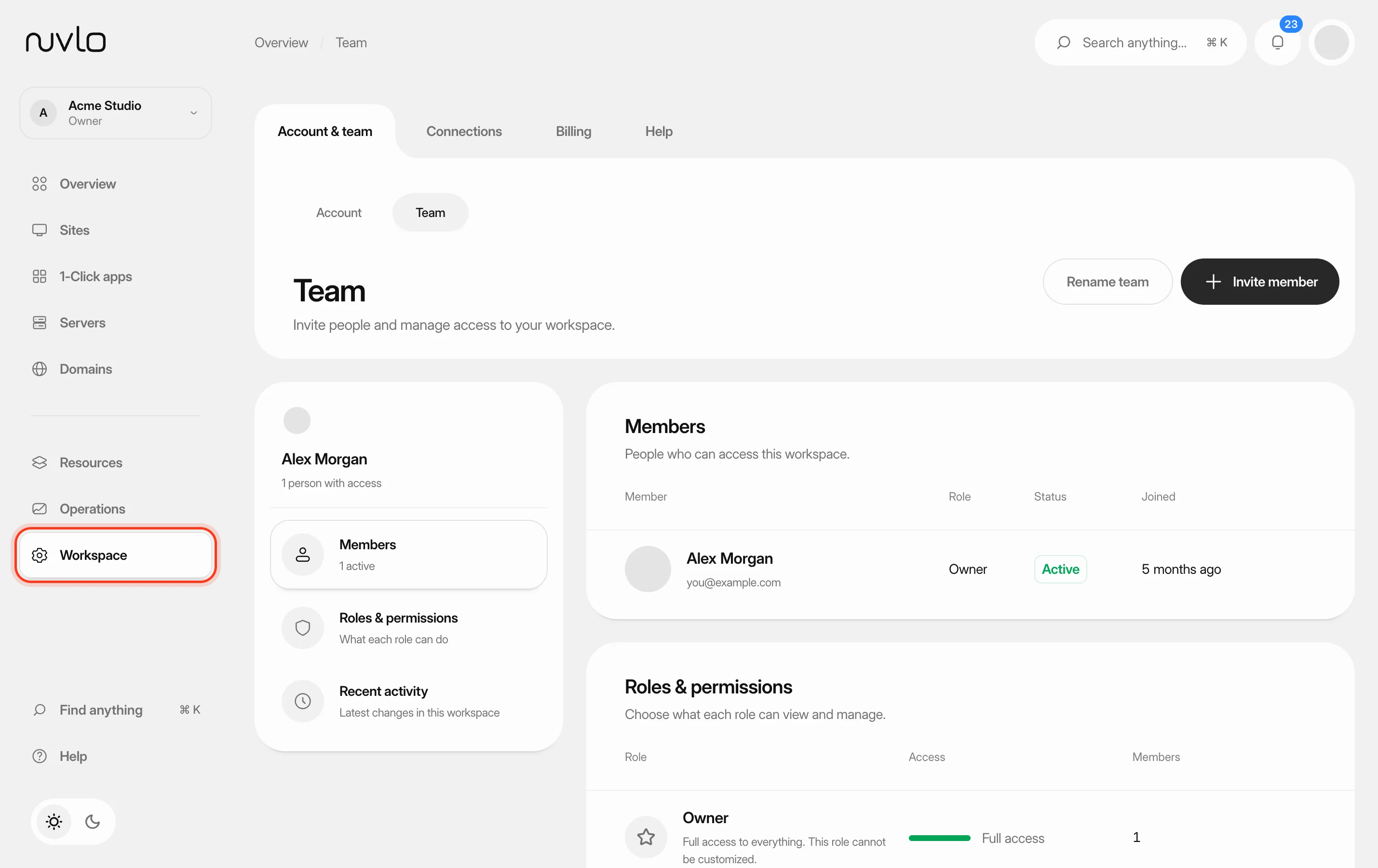 Invite and manage team membersInvite people to your workspace, choose their role, and change or remove their access later. You can also switch between your own workspace and the teams you belong to.