



Change PHP settings for WordPress
Switch a WordPress site to another PHP version, raise its memory, upload and time limits, and turn on the debug log.
On this page
Before you start
- A WordPress site in Nuvlo that isn’t deploying.
- Permission to manage sites.
Step 1 Open the PHP card
Open the site and click Settings. The PHP card is at the top.
Step 2 Change the settings
| Field | Accepted values |
|---|---|
| PHP version | 8.1 to 8.5. PHP 8.4 (recommended). 8.5 is Nginx only. 8.1 no longer gets updates. |
| Memory limit (MB) | 64 to 8192 |
| Largest upload (MB) | 1 to 2048 |
| Time limit per request (seconds) | 10 to 3600 |
Under Advanced, Worker mode (Dynamic, On demand or Static) and Requests handled at once (2 to 200) set how many requests PHP handles in parallel. Raise the second only if the server has memory to spare.
Step 3 Save and restart PHP
Before switching the PHP version, check that your plugins and theme support it, and take a backup.
Click Save and restart PHP. A new PHP version takes about a minute to switch. Other changes reload right away.
Step 4 Turn on the debug log
Turn on Debug log to write PHP errors to wp-content/debug.log. The file isn’t public and visitors never see the errors. Switching it restarts the site’s PHP.
Read the file in the file manager. Turn the debug log off when you’re done.
Related guides
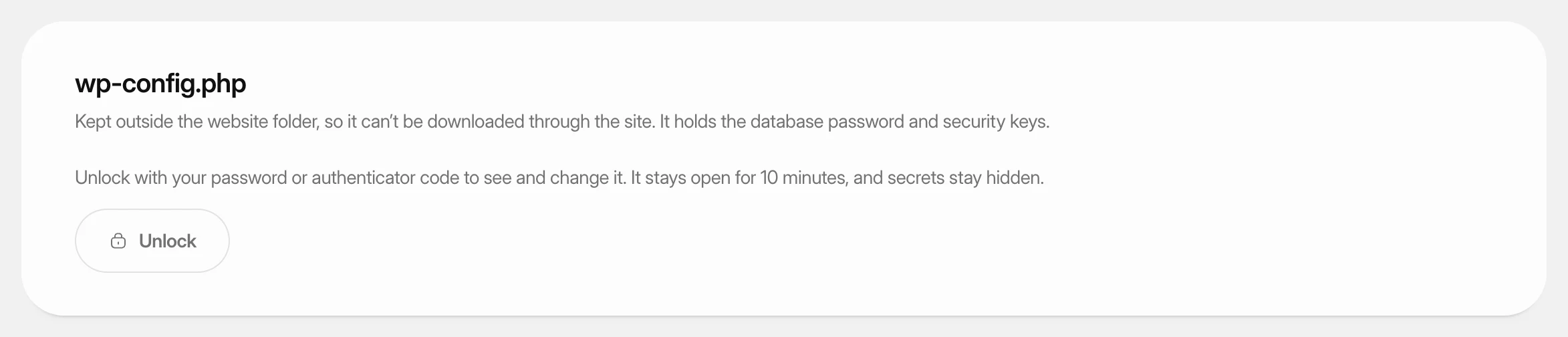 Change wp-config.php settingsView and change the settings in a WordPress site’s wp-config.php from the dashboard, and add your own constants, without touching the file by hand.
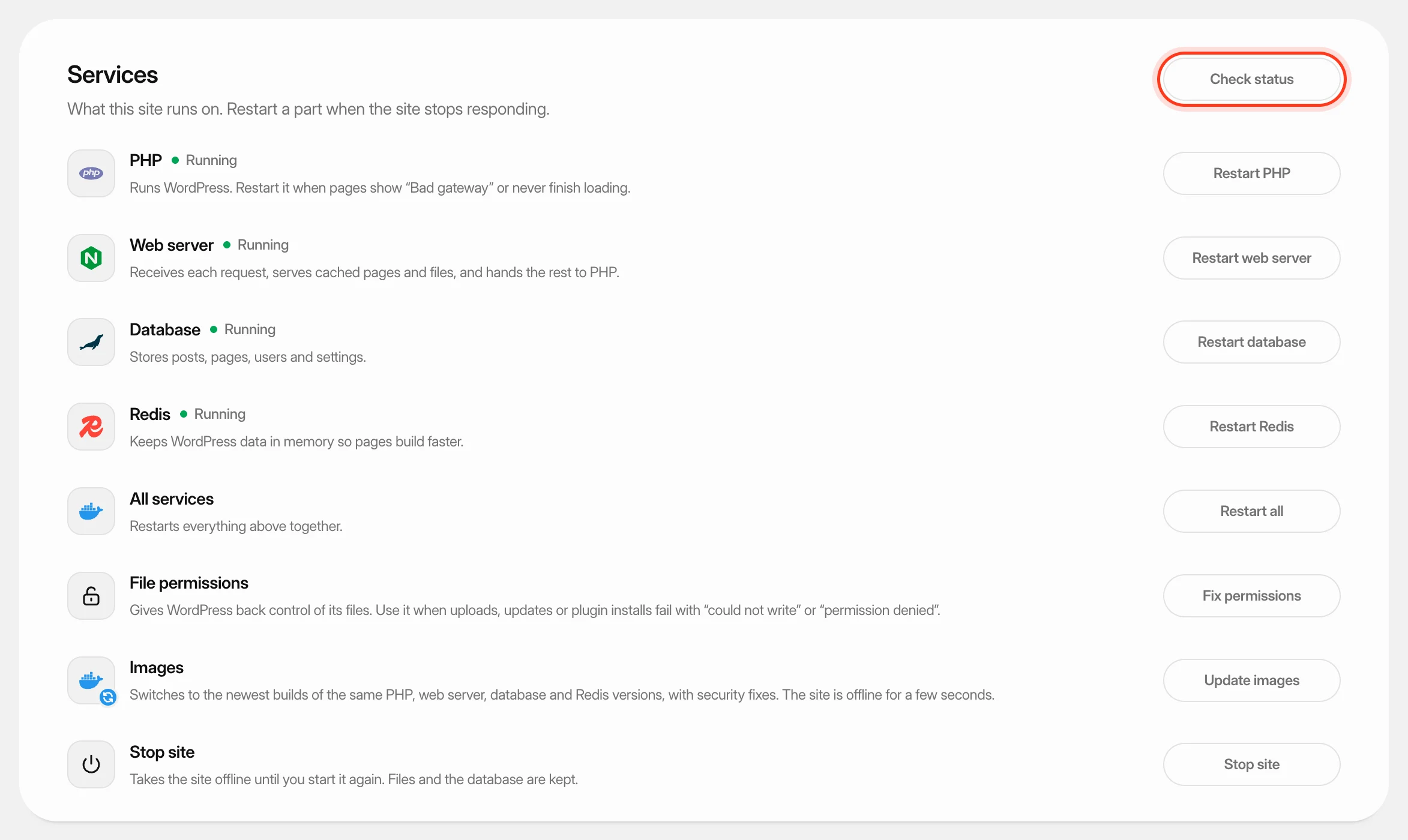 Restart a WordPress site’s servicesCheck the parts a WordPress site runs on, restart PHP, the web server, the database or Redis, fix file permissions, update their images, and stop or start the site.
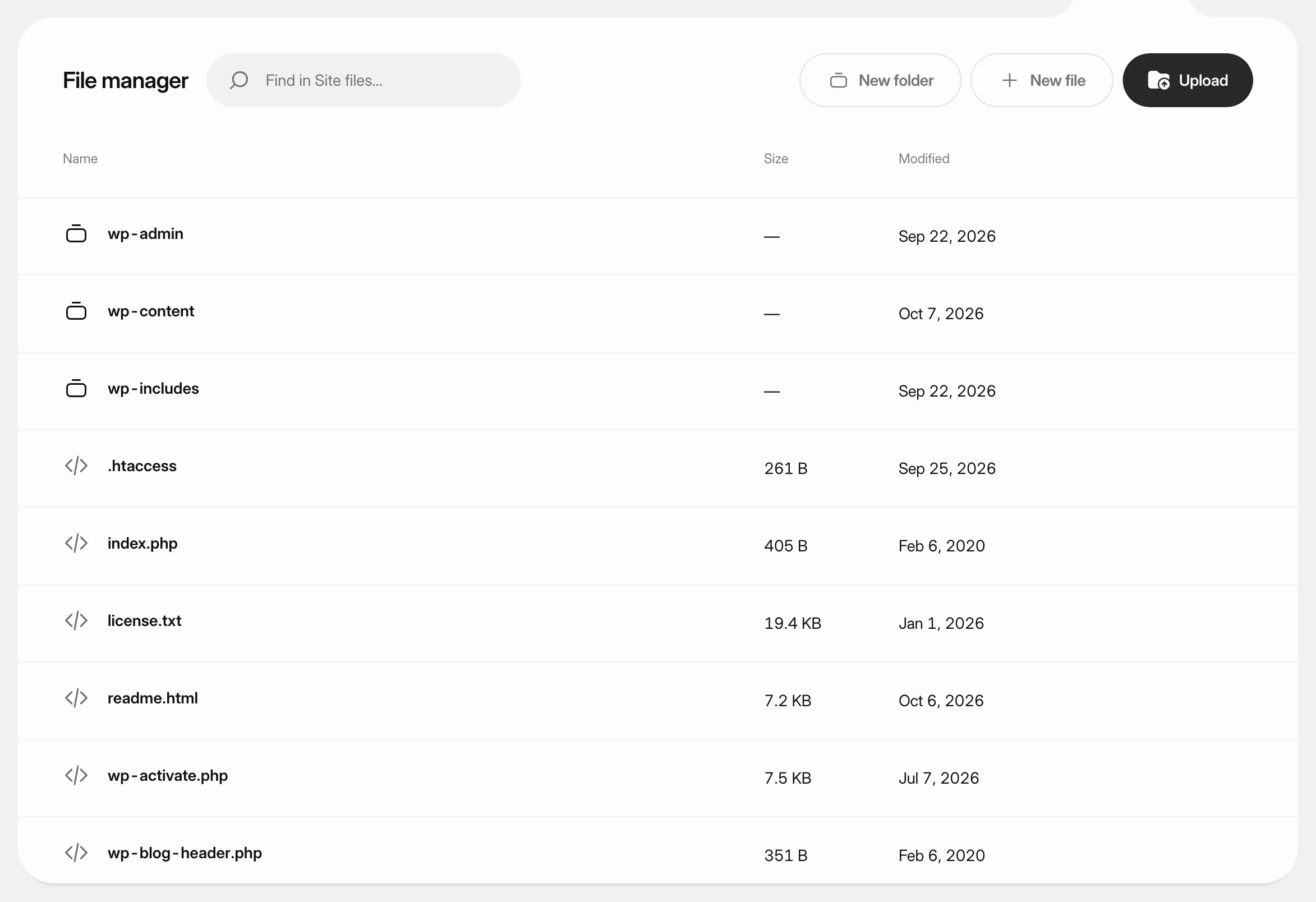 Manage a WordPress site's filesBrowse, upload, edit, rename, download and delete the files of a WordPress site from the dashboard, without an FTP client.