



Connect your Scaleway account
Find your Scaleway Project ID, generate an API key, connect both to Nuvlo, and create your first Scaleway instance.
On this page
Before you start
- A Scaleway account with a payment method and a Project for your servers
- The Owner, Admin or Developer role on your Nuvlo account
Step 1 Copy the Project ID
Scaleway keeps resources in Projects, and every server Nuvlo creates is created in, and billed to, the Project you name. Sign in to the Scaleway console, open the Project you want to use and copy its Project ID from the Project’s settings.
A Project ID looks like 6f1c2a90-3b7e-4d1f-9a2c-1e5b7d3c8f40.
Step 2 Generate an API key
In the console, open IAM → API keys and generate a new API key. Choose who the key belongs to:
- Yourself: the key can do whatever your Scaleway user can do.
- An application: create an IAM application for Nuvlo first, and give it a policy with the
InstancesFullAccessandBlockStorageFullAccesspermission sets for your Project.
You can set an expiration. When the key expires, Nuvlo can no longer manage your servers until you replace it.
Step 3 Copy the secret key
Scaleway shows an access key and a secret key. Nuvlo needs only the secret key. It is shown once, so copy it now.
Step 4 Add the Project ID and secret key in Nuvlo
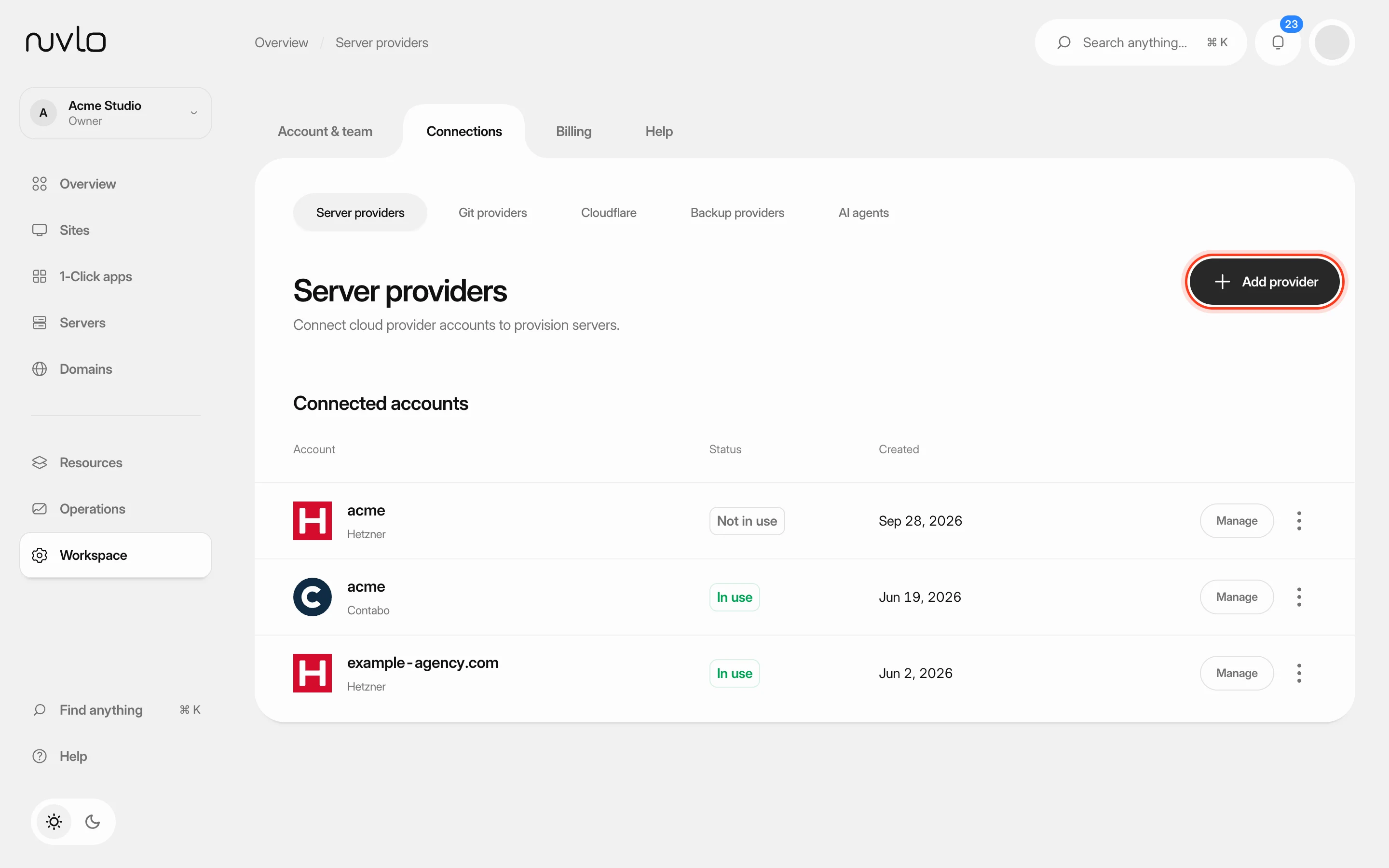
In Nuvlo, open Integrations → Server providers, click Add provider and choose Scaleway.
Enter an Account label (optional), then fill in Project ID and Secret key. Both are required.
Step 5 Connect and check
Click Connect account. Nuvlo checks the key and the Project with Scaleway and saves them. The account shows under Connected accounts.
Step 6 Create your first Scaleway instance
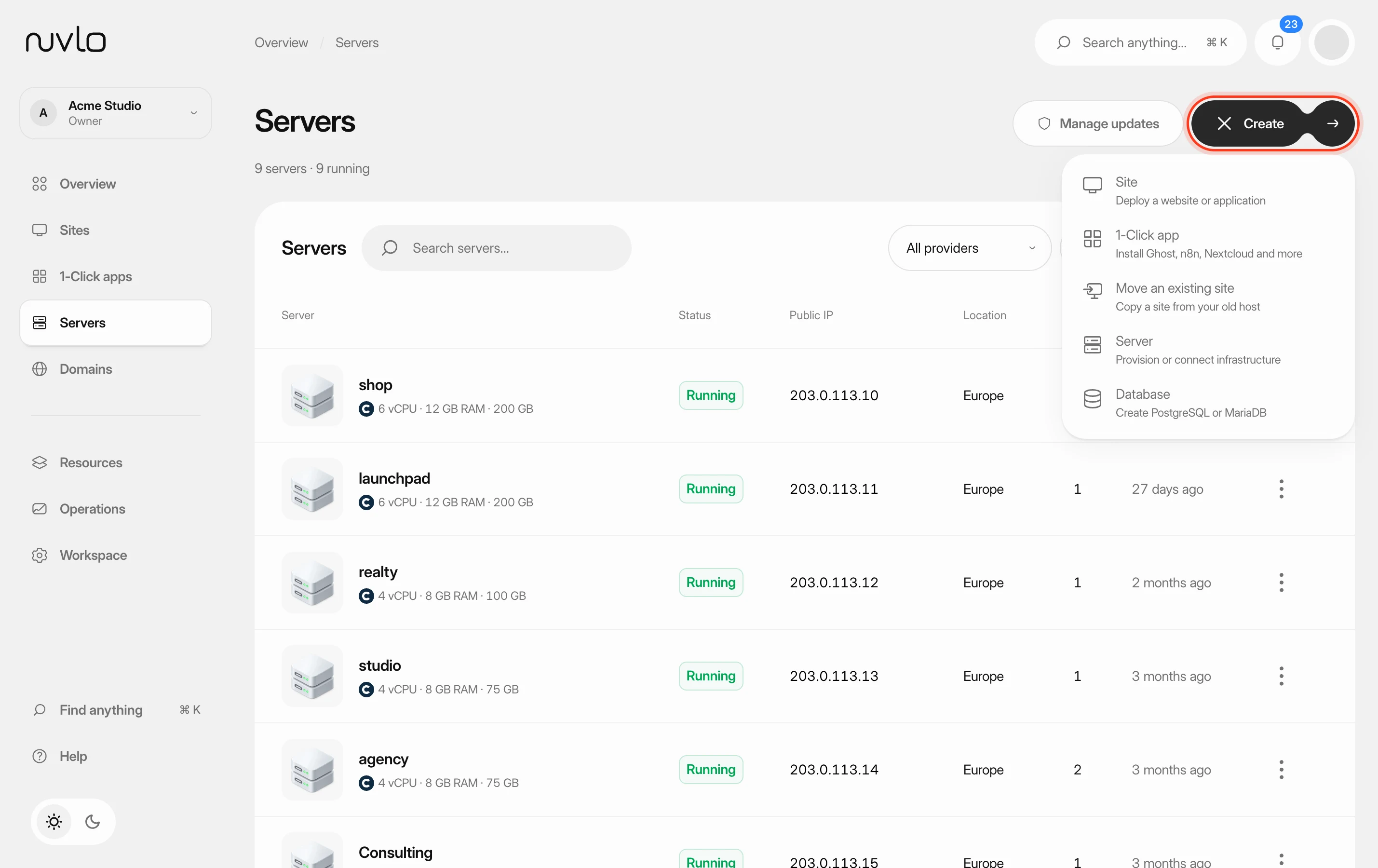
Open Create server, choose Scaleway and, if you have several Projects connected, the account under Account. Click Choose what to host and follow Create a server.
Good to know
| Topic | On Scaleway |
|---|---|
| Zones | Paris, Amsterdam and Warsaw. |
| Billing | Hourly, capped at the monthly price. Scaleway bills you directly. |
| Plans | Development and general-purpose instances. |
| Resizing | Only to instance types Scaleway lists as compatible with the server. The public IP can change if the server has a dynamic IP. |
| Provider backups | Not managed from Nuvlo. Use site backups and snapshots. |
| Snapshots | Restore into a new server in the same zone. |
Each server Nuvlo creates gets a 20 GB Block Storage boot volume. When you delete the server in Nuvlo, Nuvlo removes that volume too, so it doesn’t stay on your bill.
To use several Projects, connect each one as its own account with its own Project ID.
Troubleshooting
- The Scaleway Project ID must be a UUID: you pasted something other than the Project ID, such as the access key or the Organization ID. Copy the ID from the Project’s settings.
- The provider rejected this key: the secret key was mistyped, has expired, or cannot access Instances in that Project. Check the key’s permissions and try again.
Related guides
 Connect a server providerConnect your own cloud account so Nuvlo can create and manage servers in it. You add an API key on the Server providers page, and Nuvlo checks it with the provider before saving it.
 Create a serverOrder a new server at your cloud provider from Nuvlo and have it set up with everything your sites need: web server, firewall, security hardening and the software for the projects you plan to host.
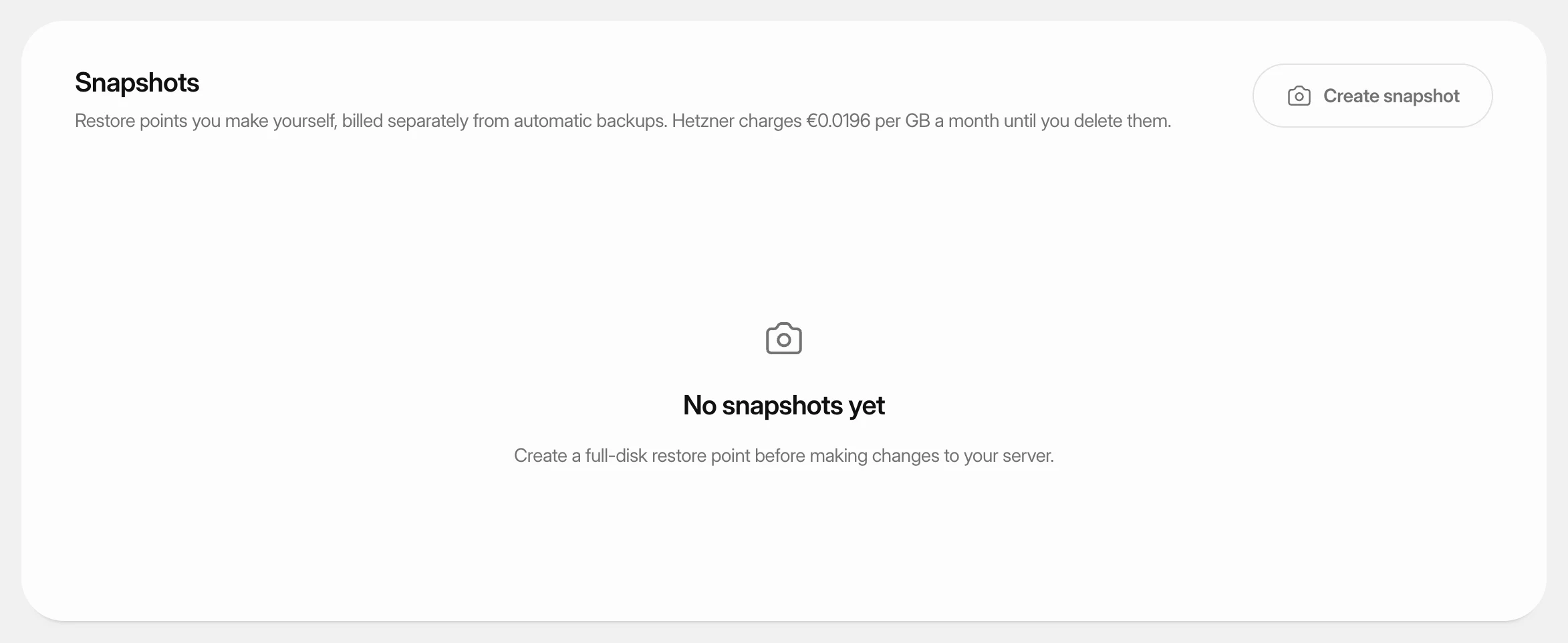 Create and restore server snapshotsSave a full-disk restore point of a server at its cloud provider, choose when it deletes itself, and restore it over the server or into a new one.
 Change a server's planMove a server to a bigger or smaller plan at your provider, with more or less CPU, memory and disk, without leaving Nuvlo.