



Find database credentials
Look up the host, port, database name, user and password of a standalone database or a WordPress site's database, and connect to a standalone database from your computer.
On this page
Before you start
- For a standalone database: the owner or admin role in the account. Other roles can't reveal its password.
- For a WordPress site's database: a role that can manage sites.
- To connect from your computer: your SSH key on the server. See Add an SSH key.
Step 1 Open the standalone databases list
Open Databases. It lists the databases on all your servers, standalone ones and those of your WordPress sites. Type in the search field to find one by name, site or server.
Step 2 Show the connection details
Click Connection details in the database's row.
Each time someone reveals the password, Nuvlo records it in the activity log.
Step 3 Copy the details
The Connection details dialog lists:
| Field | What it is |
|---|---|
| Host | Always 127.0.0.1: the database only listens on the server itself. |
| Port | The port the database uses on the server. It shows Waiting for assignment until the database has started. |
| Database | The database name you chose. |
| User | The dedicated user Nuvlo created for this database. |
| Password | Hidden at first. Click Show password to see it or Copy password to copy it. |
Programs running on the same server connect with these values directly.
Step 4 Connect from your computer through an SSH tunnel
The database isn't reachable from the internet. To use a database tool on your computer, open an SSH tunnel first. The dialog shows the exact command for this database under SSH tunnel. It looks like this:
ssh -N -L 25432:127.0.0.1:25432 root@203.0.113.10Run it in a terminal on your computer and leave it running. The command signs in with the SSH key you added to the server. While the tunnel is open, connect your database tool to host 127.0.0.1, the same port, and the database, user and password from the dialog.
WordPress site databases
Every WordPress site has its own MariaDB database. You can see its credentials in two places:
- On Databases, click Connection details in the site's row.
- On the site's page, open the Files tab and click Show credentials in the Database card.
Both show the Host, Database, User and Password, with a button to show or hide and copy the password.
The host is a name on the site's private network, so only the site itself reaches it. To browse the tables, use the phpMyAdmin console. See Browse WordPress databases with phpMyAdmin.
Related guides
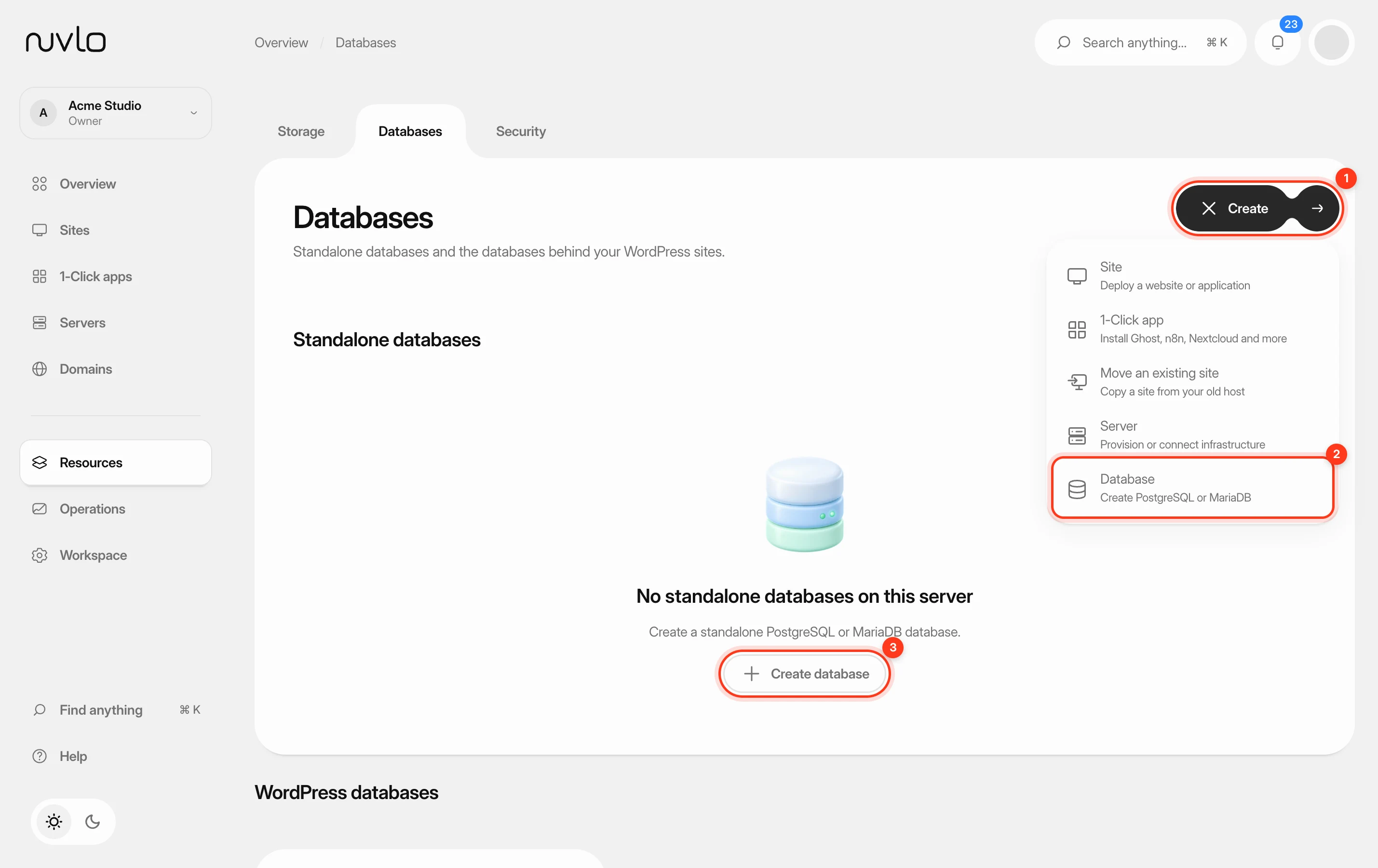 Create a databaseCreate a standalone PostgreSQL or MariaDB database on one of your servers. It gets its own user and password and runs independently of your sites.
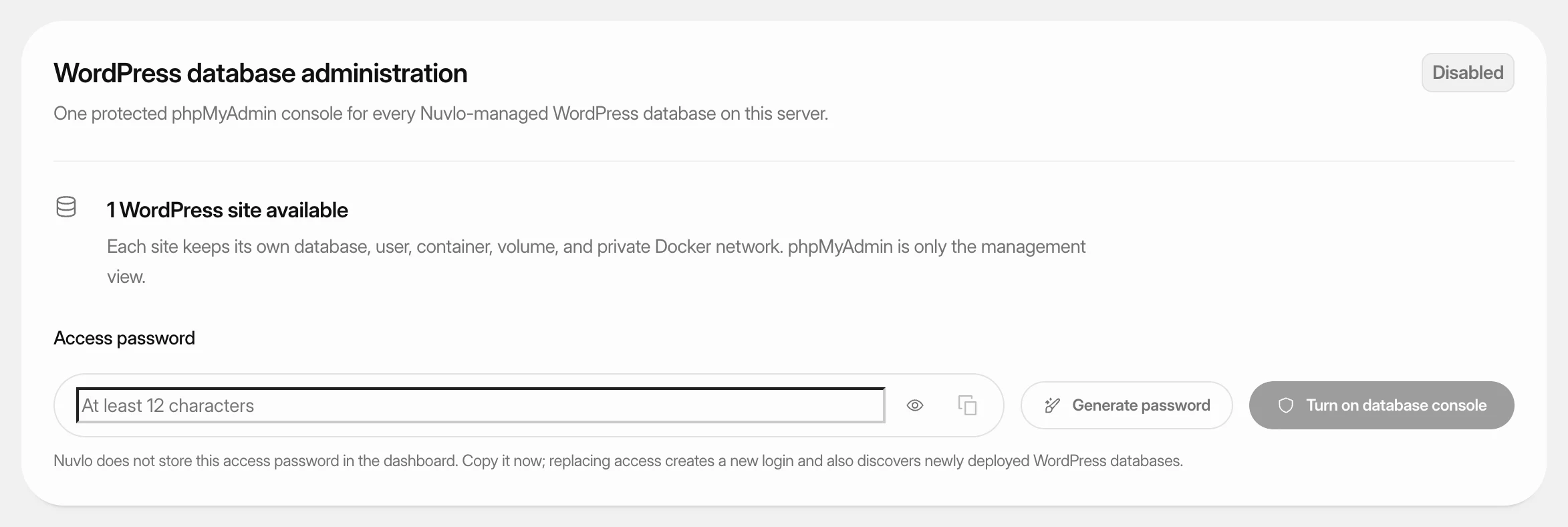 Browse WordPress databases with phpMyAdminTurn on a password-protected phpMyAdmin console for the WordPress databases on a server, sign in to it, and turn it off again when you're done.
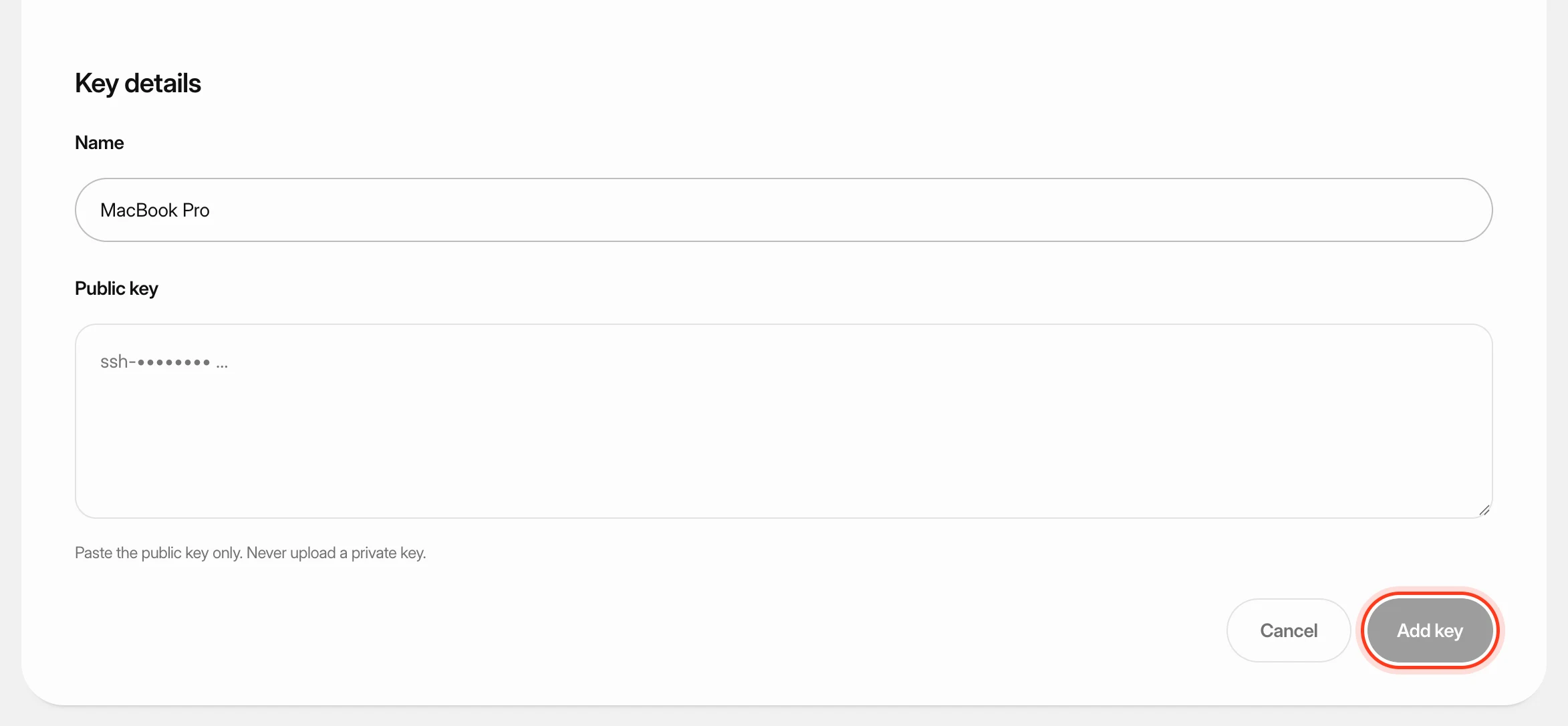 Add SSH keys to your serversSave your public SSH keys in Nuvlo and pick them when you create a server, so you can sign in to that server from your own computer. You'll also learn what happens when you delete a key.
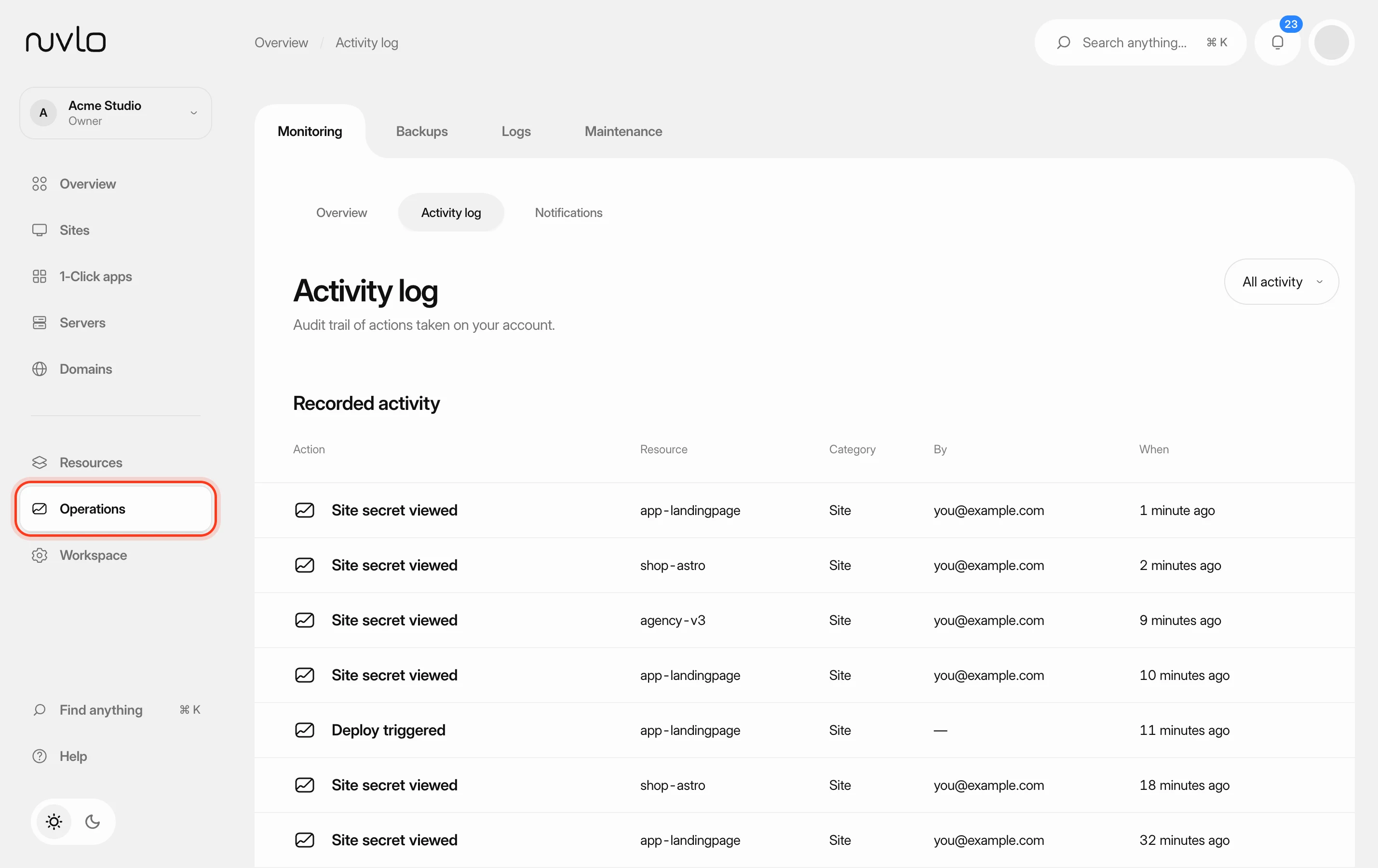 Review the activity logSee who did what in your workspace: deploys, deletions, security changes, server actions and billing events, including actions taken through API tokens and AI agents.