



Delete a site
Remove a site, its files, domains and deployment history from its server and from Nuvlo. This can't be undone.
On this page
Before you start
- Permission to manage sites. You confirm by typing the site name.
- A recent backup if you might need the content again. See Back up a site.
Step 1 Open the delete option
Open the site from Sites and click the Settings tab.
- For a static site, PHP site or Node.js app, stay on General and scroll to the card Delete site or Delete application.
- For a WordPress site or 1-Click app, scroll to the Delete site card at the bottom.
Click the red Delete site or Delete application button.
Step 2 Confirm the deletion
The dialog lists what is removed. Type the exact site name into the confirmation field; the copy button next to the name helps. Then tick the box confirming that you understand the site goes offline right away and can't be recovered.
Click Delete followed by the site name.
What is removed
- The running site, its processes and its files on the server. For WordPress, also its database.
- Its domains, certificates, deployment history and environment settings in Nuvlo.
- The webhook and deploy key Nuvlo added to the GitHub repository. The repository itself is not changed.
- DNS records Nuvlo created for the site in your Cloudflare account, and its temporary address if it had one.
Troubleshooting
- Cancel the running deployment before deleting this site.: wait until the current deployment has finished, then delete.
- Repair SSH access before deleting the site. or Site cleanup failed: Nuvlo couldn't reach the server, so it kept the site to try again later. Check the server under Servers and retry.
To remove a whole server with all its sites, see Delete a server.
Related guides
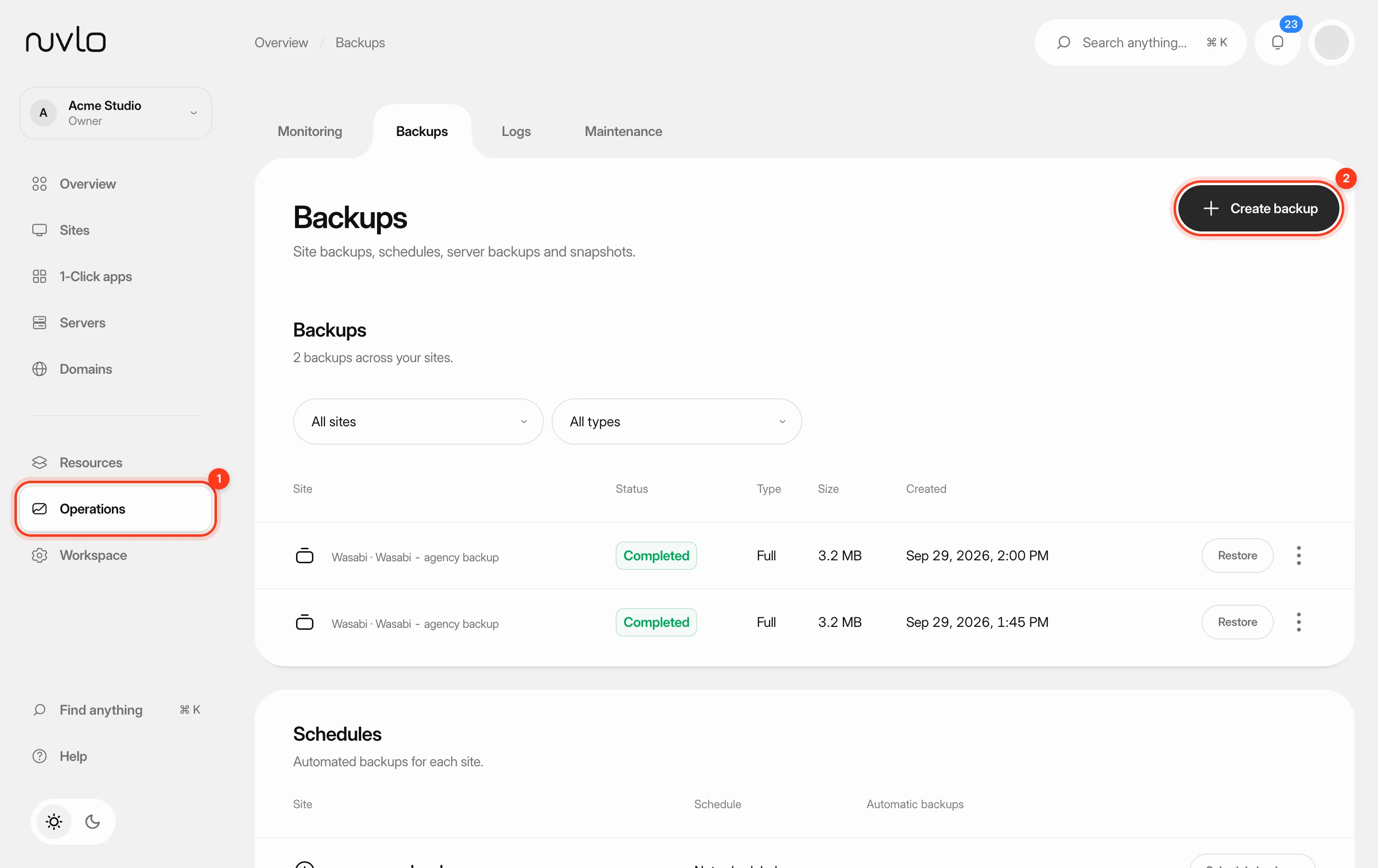 Back up a siteMake a backup of a site’s database, files or both whenever you need one, stored in your own backup storage.
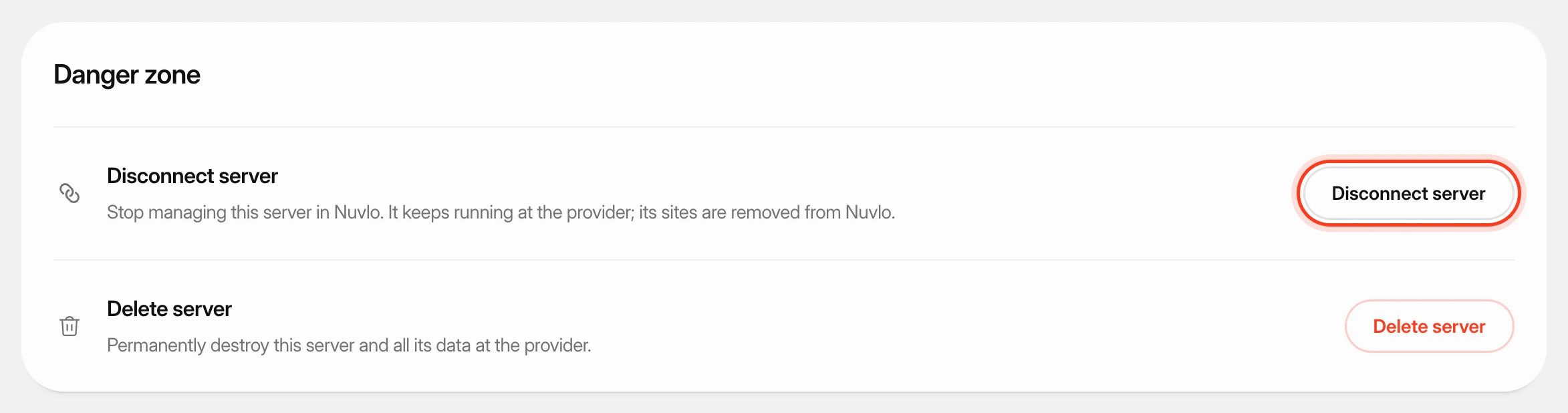 Delete a serverPermanently destroy a server at your provider and remove it and its sites from Nuvlo, with control over what happens to its snapshots and backups.
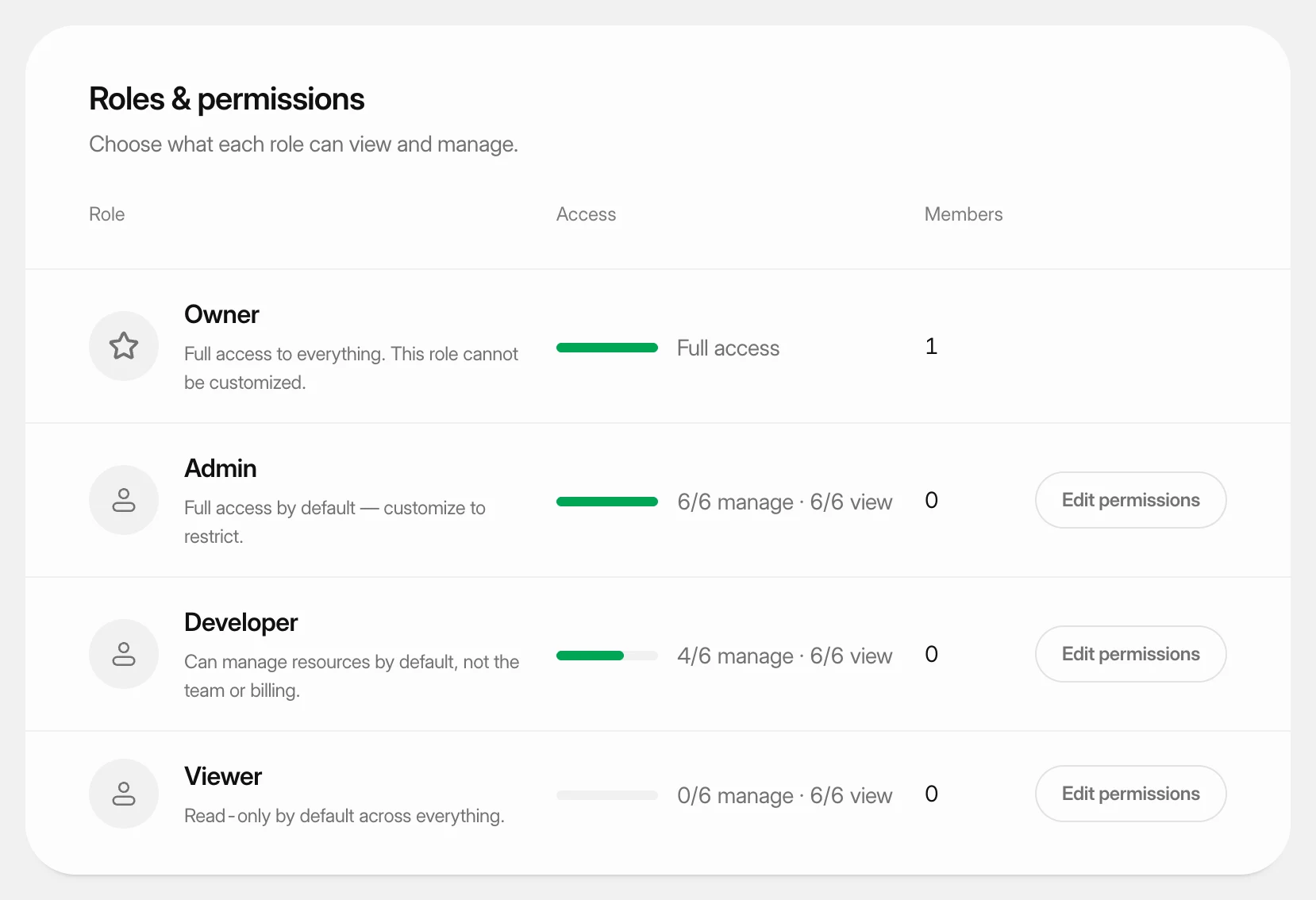 Set what each role can doUnderstand the four team roles and change what the Admin, Developer and Viewer roles may view and manage in your workspace.