



Roll back to an earlier release
Put a previous version of a Node.js app, static site or PHP site back online in seconds, without rebuilding it, and choose how many releases Nuvlo keeps.
On this page
Before you start
- A Node.js app, static site or PHP site with at least two successful deployments.
- Permission to manage sites in your Nuvlo account.
How releases work
Each successful deployment becomes a release: a complete, built copy of the site on the server. The live site points at one release. A new deploy builds a new release next to it and switches over once it's ready.
Because the old releases stay on the server, rolling back only switches which release is live. Nothing is downloaded or built again. Uploads and other persistent data are shared by all releases, so a rollback doesn't change them.
Step 1 Open the deployment history
Open the site from Sites and click the Deployments tab. Find the version you want under Deployment history. Filter by Ready to see only successful deployments.
Step 2 Make the version live again
Open the menu at the end of the row and choose Make this version live again.
If the item is greyed out, its hint tells you why:
| Hint | What it means |
|---|---|
| This release is already live | This is the version visitors see now. |
| Only successful deployments can be rolled back to | The deployment failed or was cancelled, so it has no release. |
| This release has been pruned from the server | It is older than the number of releases Nuvlo keeps. Deploy that commit again instead. |
| This deployment predates atomic releases | It was made before the site used releases. |
| Enable atomic releases in build settings to roll back without rebuilding | The app still deploys in place. See Change build settings. |
Step 3 Confirm the rollback
In Roll back this site?, click Roll back. The version goes live within a few seconds and a message confirms it. The history gets a new entry named Rollback to followed by the commit message, and the Overview shows its trigger as Rollback.
Nuvlo checks that the old release answers. If it doesn't, for example because a database it relies on has changed since, the current release stays live and the rollback is reported as failed.
Choose how many releases to keep
In Settings, General, the Build and deployment card has Releases to keep, from 2 to 20. Older releases are removed after each deploy to save disk space. Keep more if you want to be able to go further back.
Click Save build settings to apply it from the next deploy. See Change build settings.
Good to know
A rollback doesn't change your repository or switch off automatic deployments. The next push to the production branch deploys as usual.
If Nuvlo can't reach the server to list its releases, the page shows Could not list this application’s releases. Rollback is unavailable. Click Retry once the server is reachable.
Related guides
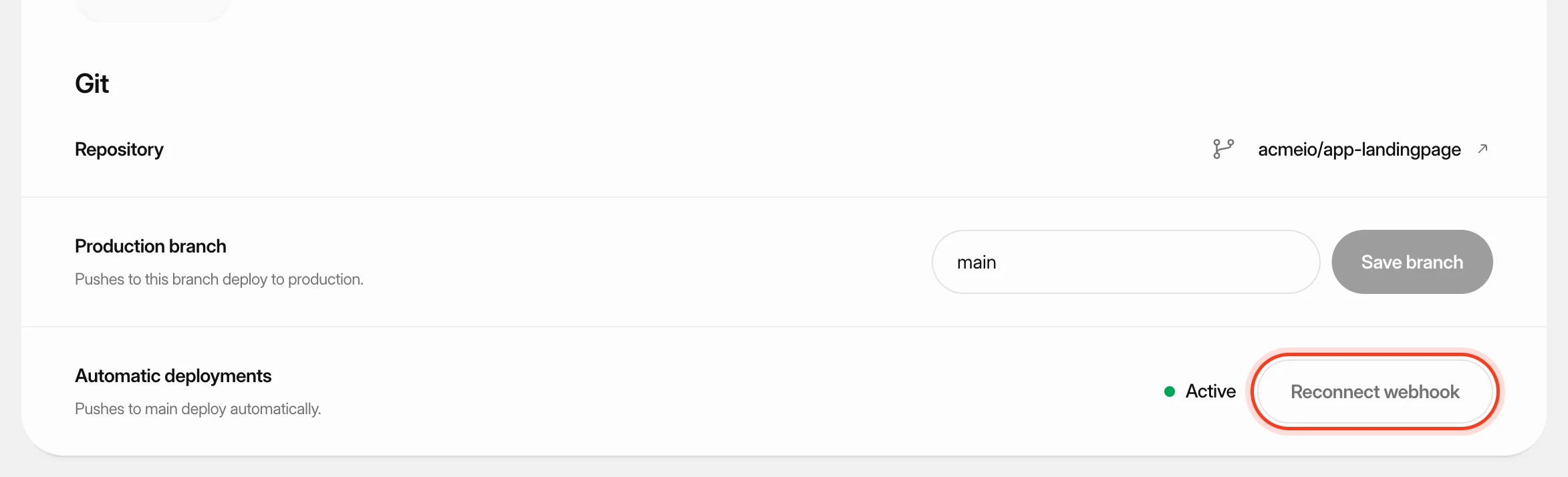 Deploy from GitKeep a site up to date with its GitHub repository: deploy automatically on every push, start a deploy yourself or from another tool, and read the build log when something goes wrong.
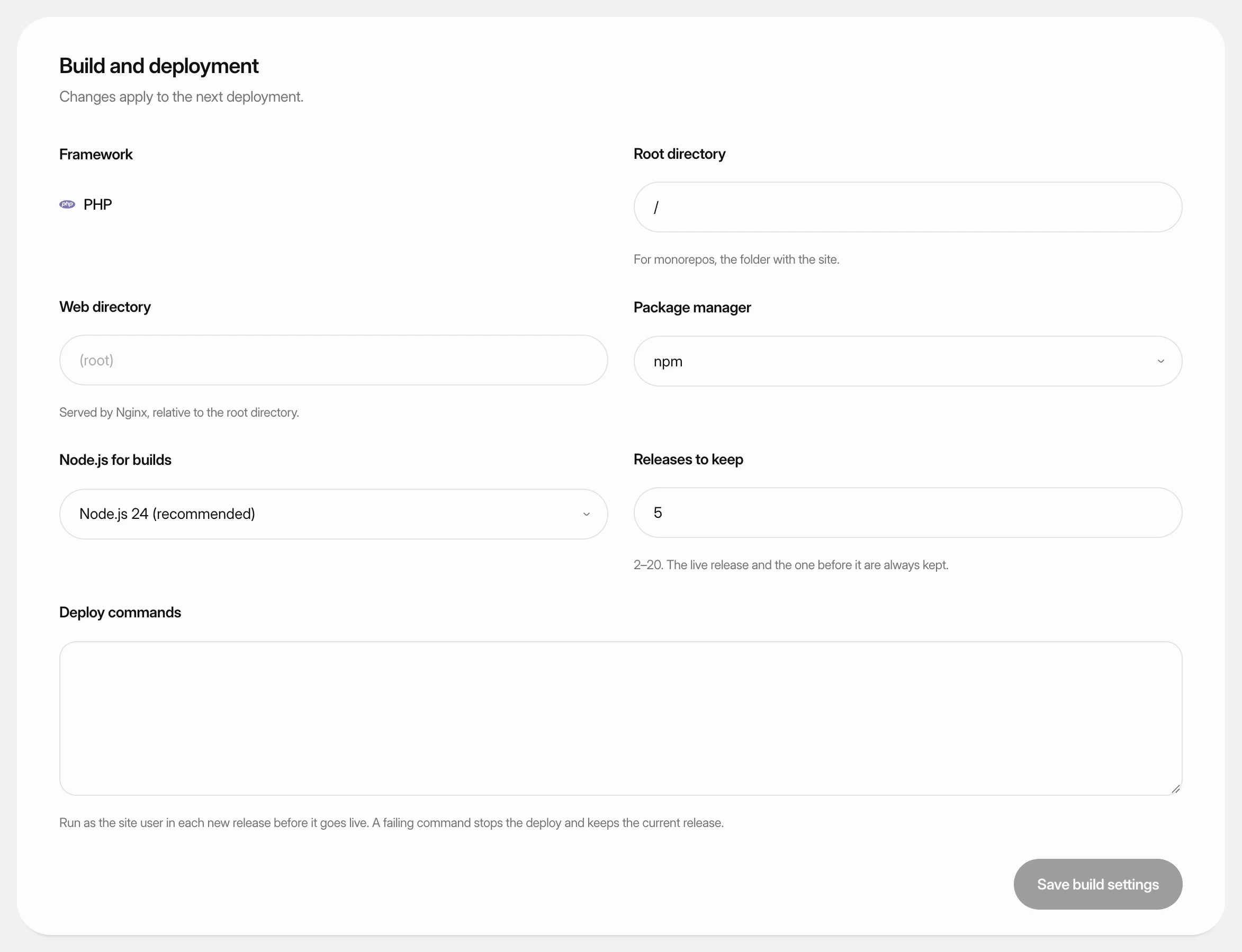 Change build settingsAdjust how Nuvlo builds and releases a static site, PHP site or Node.js app: folders, build command, package manager, Node.js version and how many releases to keep.
 Keep data between releasesMake sure uploads, SQLite databases and other files your Node.js app writes survive every deploy and rollback, by keeping their folders in shared storage.