



Manage a WordPress site's files
Browse, upload, edit, rename, download and delete the files of a WordPress site from the dashboard, without an FTP client.
On this page
Before you start
- A running WordPress site in Nuvlo. The file manager isn't available for other site types.
- Permission to manage sites to make changes. Members who can only view sites can see the file list but can't open, download or change files.
Step 1 Open the Files tab
Open the site from Sites and click the Files tab. The File manager card lists the site's main folder with each item's size and the time it was last changed.
Click a folder to open it. The path above the list shows where you are; click a part of it, such as Site files, to go back. Type in Find in … to filter the current folder.
Step 2 Upload files
Open the target folder, then drag files onto the list or click Upload. Each file can be up to 20 MB. If a file with the same name exists, Nuvlo asks before replacing it: Upload and replace.
File names may contain letters, numbers, dots, dashes, underscores and spaces.
Step 3 Edit a text file
Click a text file, or the pencil next to it, to open it in the editor beside the list. Text files up to 2 MB can be edited.
Make your change and click Save, or press ⌘S or Ctrl+S. Click Close to close the editor; if you have unsaved changes, Nuvlo asks whether to discard them.
Step 4 Create, rename, download or delete
Use New folder or New file in the toolbar, type a name and click Create folder or Create file.
Next to each item: Rename (or double-click the name), Download for files up to 20 MB, and Delete. Take a backup before larger changes.
ImportantDeleted files and folders can't be restored. A folder is deleted with everything in it.
In the main folder, wp-config.php, wp-content, wp-admin and wp-includes can't be deleted from here.
Good to know
Below the file manager, the Database card shows the connection details for a database tool. Click Show credentials to load them.
Related guides
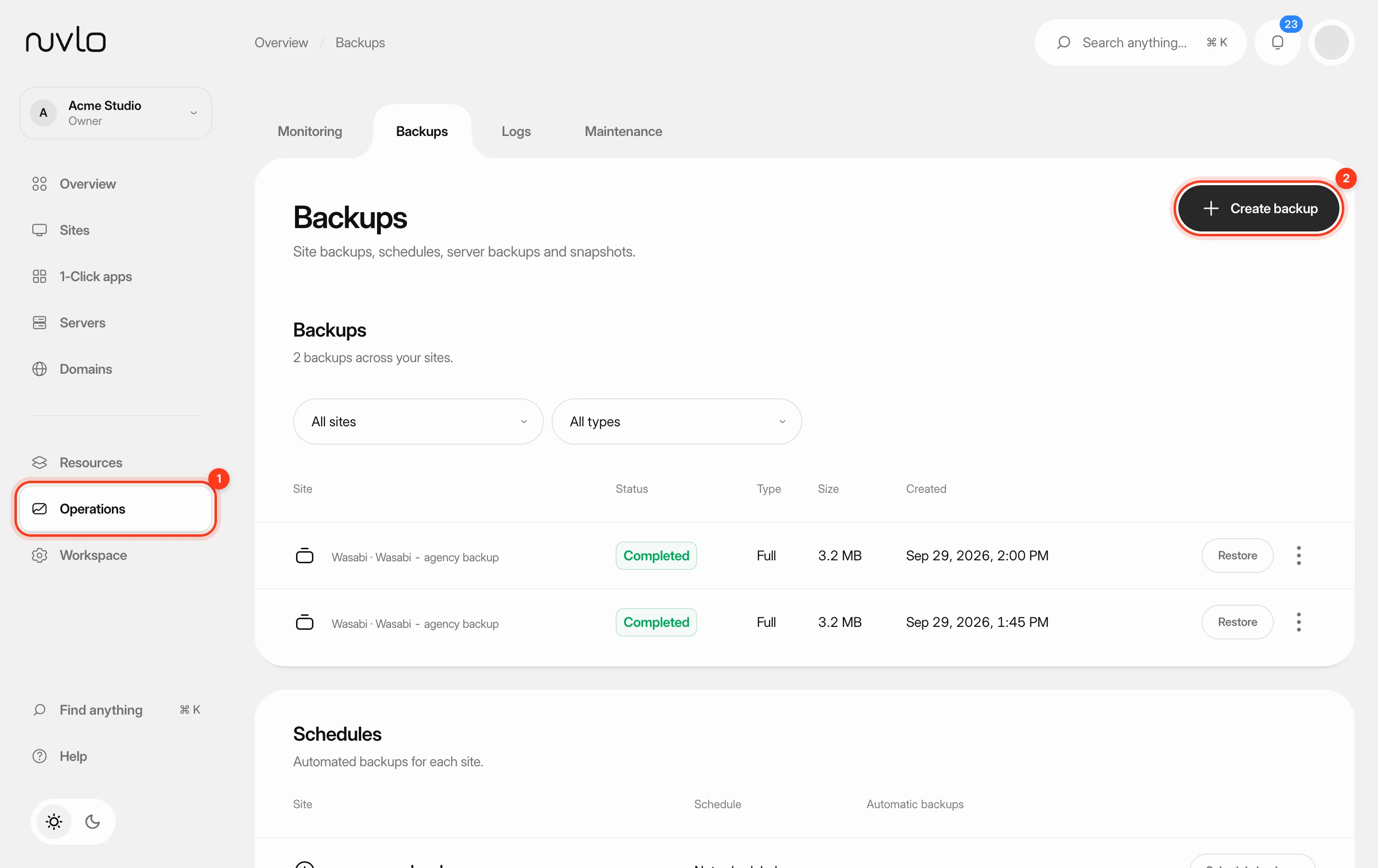 Back up a siteMake a backup of a site’s database, files or both whenever you need one, stored in your own backup storage.
 Change wp-config.php settingsView and change the settings in a WordPress site’s wp-config.php from the dashboard, and add your own constants, without touching the file by hand.
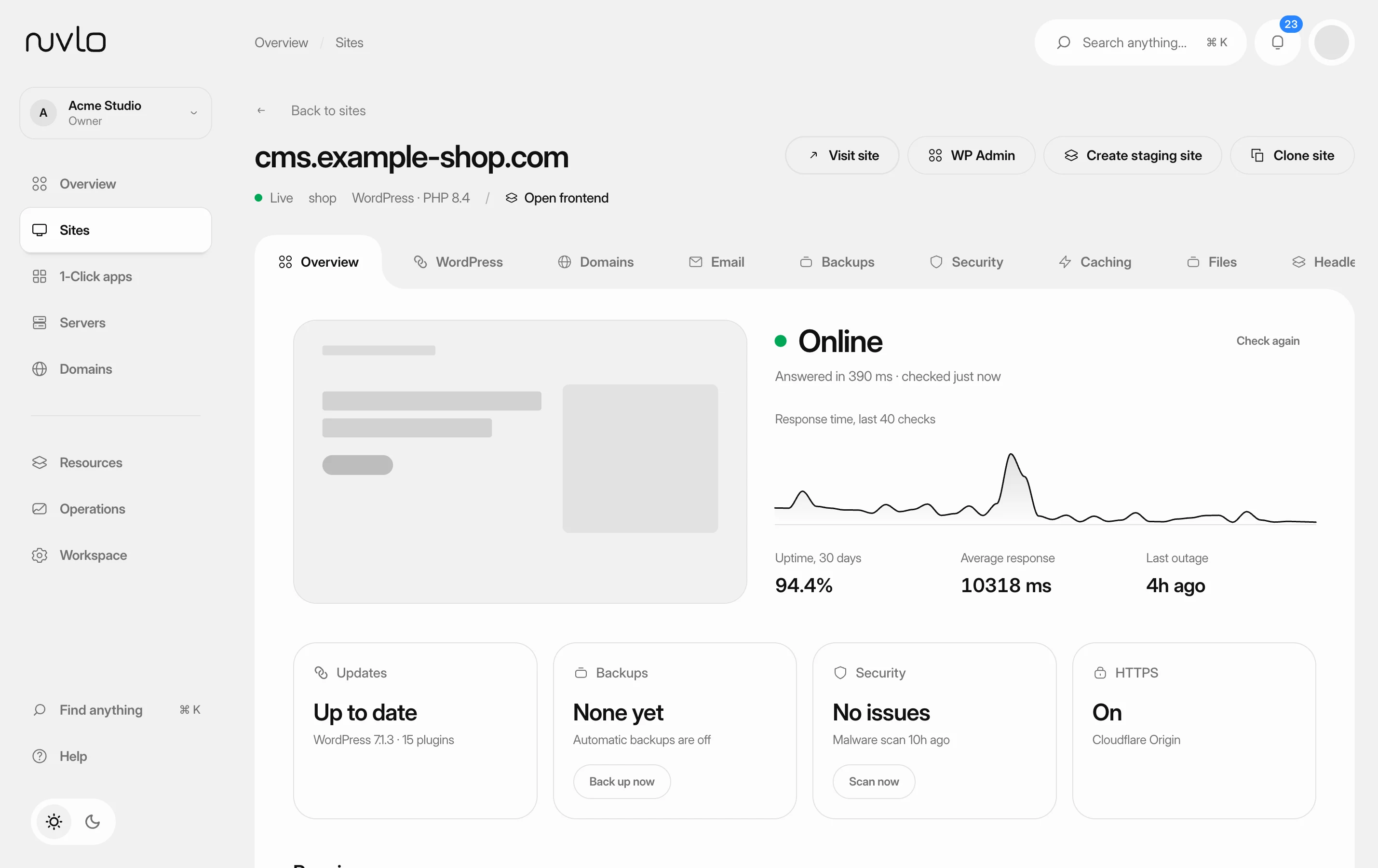 Create a staging site or clone a siteMake a private staging copy of a WordPress site to try changes on, or clone it into a new, separate site, without touching the live site.