



Update your profile and preferences
Change your name and profile photo, send yourself a password reset link, and choose how the dashboard sounds, moves and looks.
On this page
Step 1 Open your account settings
Click your photo or initial at the top right of the dashboard and choose My profile. You can also click Workspace in the sidebar, which opens the Account page.
The menu on the left jumps to Profile, Sign-in & security, API tokens and Preferences.
Step 2 Change your name
In Profile, edit Full name and click Save profile. Your team sees this name in the members list. Your sign-in email can’t be changed on this page.
Step 3 Change your profile photo
Click the round photo next to Profile photo and choose an image. Use a square image of at least 400 × 400 px. PNG, JPG, WEBP and GIF files up to 2 MB work.
The Update profile photo window shows a preview with the image’s size and format. A warning appears if the image is small or not square; a non-square image is cropped from the center.
Click Save photo, or Choose another to pick a different file. The new photo replaces the old one everywhere in Nuvlo and is visible to your team.
Step 4 Change your password
In Sign-in & security, click Send reset link next to Password. Nuvlo emails a link to your sign-in address. Open it and choose a new password.
ImportantA new password revokes all your API tokens and AI agent keys. Scripts and agents that use them stop working until you create new ones.
In the same card you can turn on two-factor sign-in. See Two-factor authentication.
Step 5 Choose your preferences
In Preferences, switch these on or off:
- Interface sounds: soft sounds for everyday actions, and distinct ones for success, warnings and errors.
- Haptic feedback: vibration on supported mobile devices.
- Reduce motion: keeps interactions immediate. Nuvlo also follows your system’s reduced motion setting.
To switch between the light and dark theme, use the sun and moon buttons at the bottom of the sidebar.
Preferences and the theme are saved in this browser only, so set them again on each device you use.
Related guides
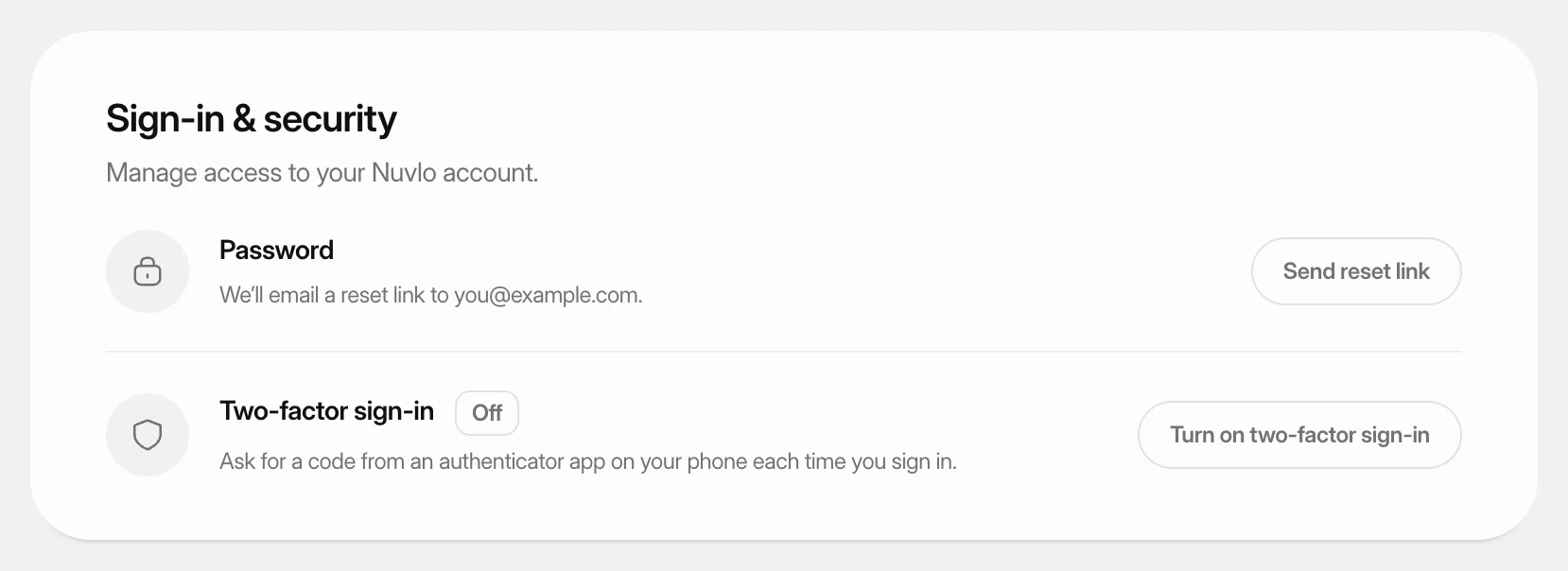 Turn on two-factor sign-inProtect your Nuvlo account with a code from an authenticator app. Nuvlo asks for the code when you sign in.
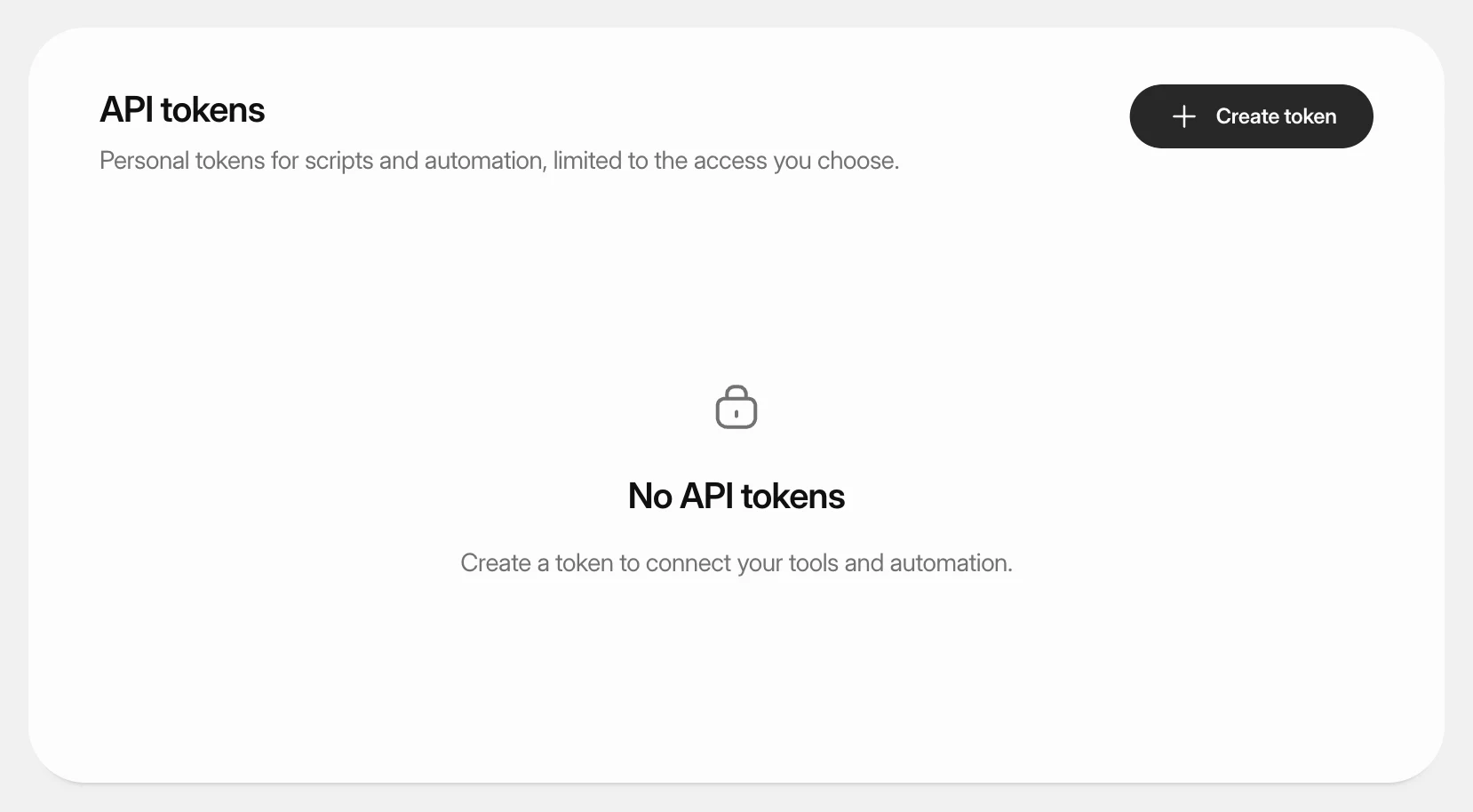 Create an API tokenCreate a personal token so scripts and automation tools can work with Nuvlo, limited to the areas and the time you choose.
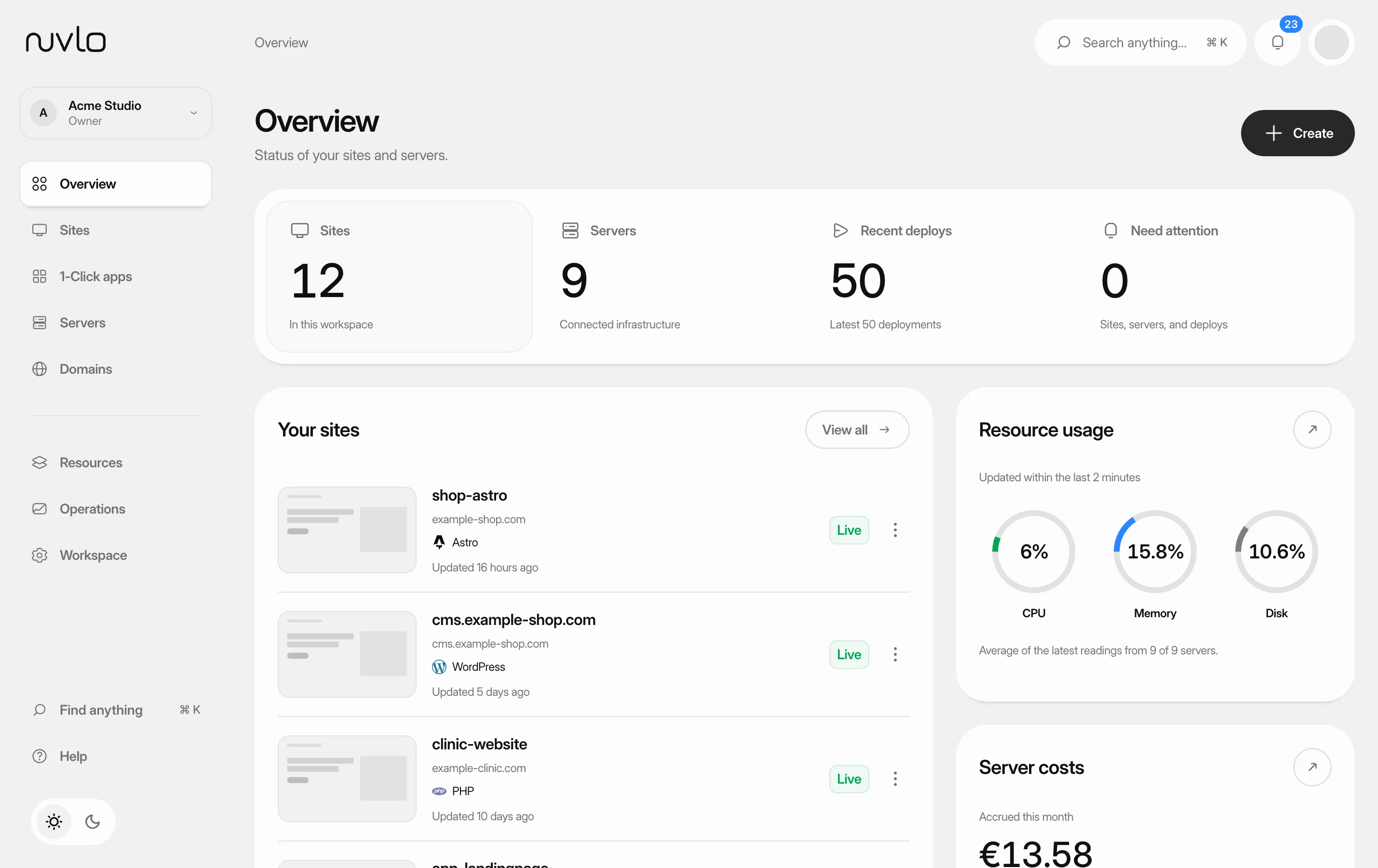 Find your way around the dashboardLearn what the Overview page shows and where to find everything else: the sidebar, the Create menu, search, notifications and the workspace switcher.