



Change a site's domain
Move a WordPress site or an application to a different domain, or from its temporary address to your own domain, without creating a new site.
On this page
Before you start
- A WordPress site or an application that is running, with no deployment in progress. PHP and static sites can't change their main domain; add the new domain to them instead. See Add a domain to a site.
- A new domain that no other site uses. If it's already an extra domain of this site, remove it there first.
- A role that can manage sites.
- Optional: Cloudflare connected, with the new domain in that Cloudflare account. See Connect Cloudflare.
What changes
- WordPress: links in the site's content switch to the new domain. If a step fails, nothing changes.
- Application: the web server answers on the new domain. With Cloudflare, DNS switches to the server once the site answers there; email records stay. If the application is the front end of a headless WordPress site, WordPress sends visitors and product updates to the new domain.
- The old domain stops working. A temporary address is removed.
If you want to keep the site on the old domain and run a copy on the new one, use Clone instead on a WordPress site. See Copy a site.
Step 1 Open Change domain
- WordPress site: open the site and go to the Domains tab. Next to the main address, click Change domain. On a site that still uses a temporary address, the button reads Use your own domain.
- Application: open the application, go to Settings and then Domains. Open the menu next to the production domain and choose Change domain.
Step 2 Enter the new domain
Now shows the current domain. Enter the new one under Your domain, for example example.com. If you paste a full address, Nuvlo drops the https:// and anything after the domain.
Step 3 Choose the main address
Under Main address, choose how the plain and www names behave:
- Both: the site opens on
example.comandwww.example.com. example.com:www.example.comredirects toexample.com.www.example.com:example.comredirects towww.example.com.
The line under the choice confirms what will happen.
Step 4 Decide how DNS is set up
If Cloudflare is connected, DNS and HTTPS through Cloudflare is on. Nuvlo then points the new domain at the server and sets up HTTPS through Cloudflare. The domain must be in your connected Cloudflare account.
Turn it off to point the domain at the server yourself after the move.
Step 5 Move the site
The site stops answering on the old domain as soon as the move finishes, so have your DNS ready if you set it up yourself.
Click Move site. The button shows Moving… while Nuvlo works. Keep the dialog open.
If the move takes longer than usual, the dialog shows Still moving to the new domain. The move continues in the background and you get a notification when the site runs on the new domain.
Step 6 Point DNS at the server
With Cloudflare, the dialog confirms that the domain is live and you're done.
Otherwise it shows Moved to the new domain and lists two A records, one for the plain name and one for www, both pointing to your server's IP. Add them at your DNS provider. Use the copy button next to the IP.
Nuvlo issues a Let’s Encrypt certificate once the domain reaches the server. To choose another certificate type, see Manage SSL certificates.
If Cloudflare was on but couldn't finish, the dialog says Cloudflare setup did not finish with the reason. The site already runs on the new domain; add the records yourself or fix the reason and connect the domain from its page with Move DNS to Cloudflare.
If Nuvlo refuses the change
| Message | What to do |
|---|---|
| Wait until the site is running and no deployment is in progress. | Let the deployment finish, or start the site, then try again. |
| Another site on this server already uses that domain. | Remove the domain from the other site first. |
| … is already an extra domain of this site. | Remove it in the site's domain list, then change the domain. |
| A copy of this site is running. | Wait until the copy has finished. |
| The domain of this site is already being changed. | Wait for the notification that the earlier change finished. |
Related guides
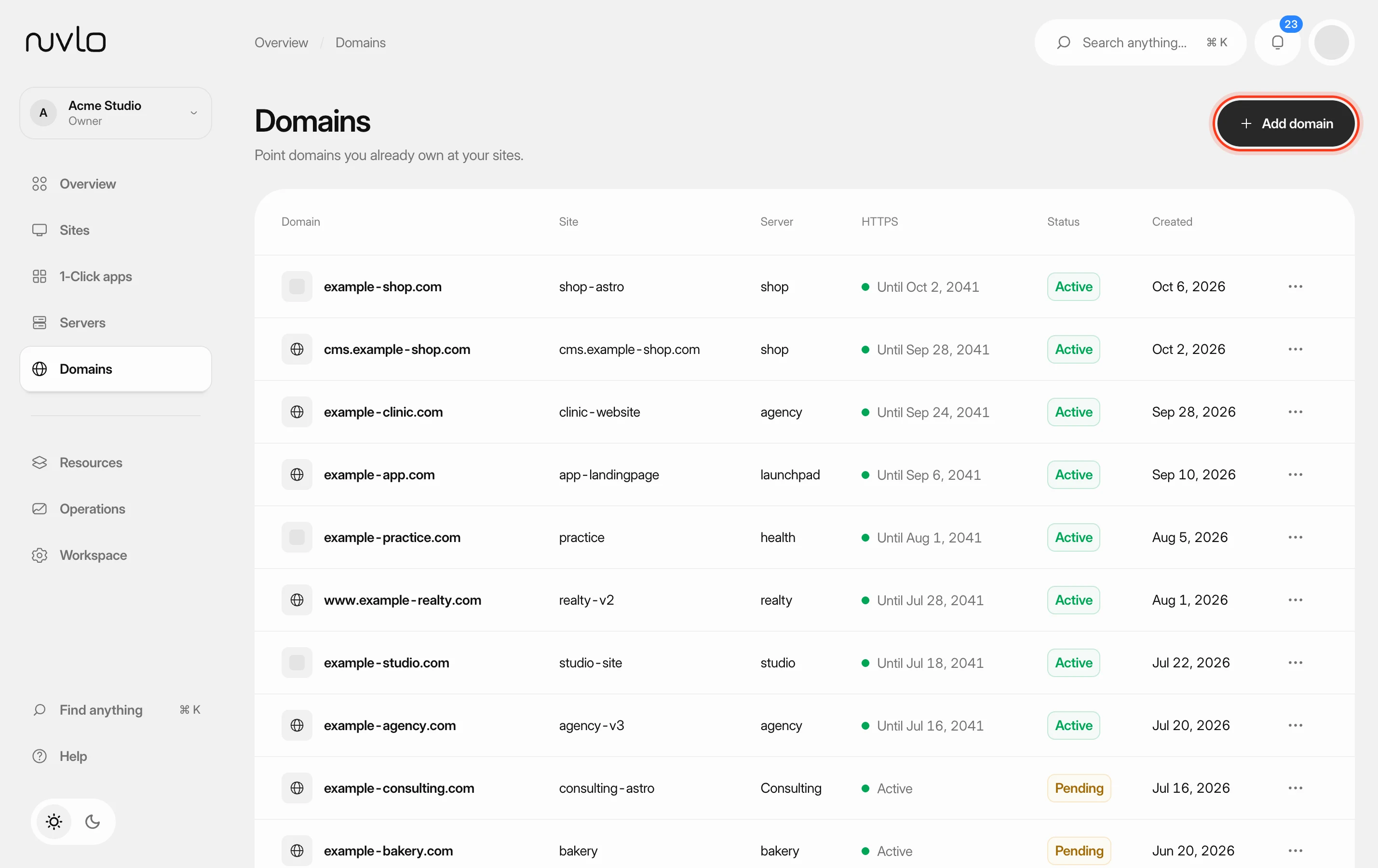 Add a domain to a sitePoint a domain you own at one of your sites. Nuvlo sets up the web server for it and issues a free HTTPS certificate as soon as the domain reaches your server.
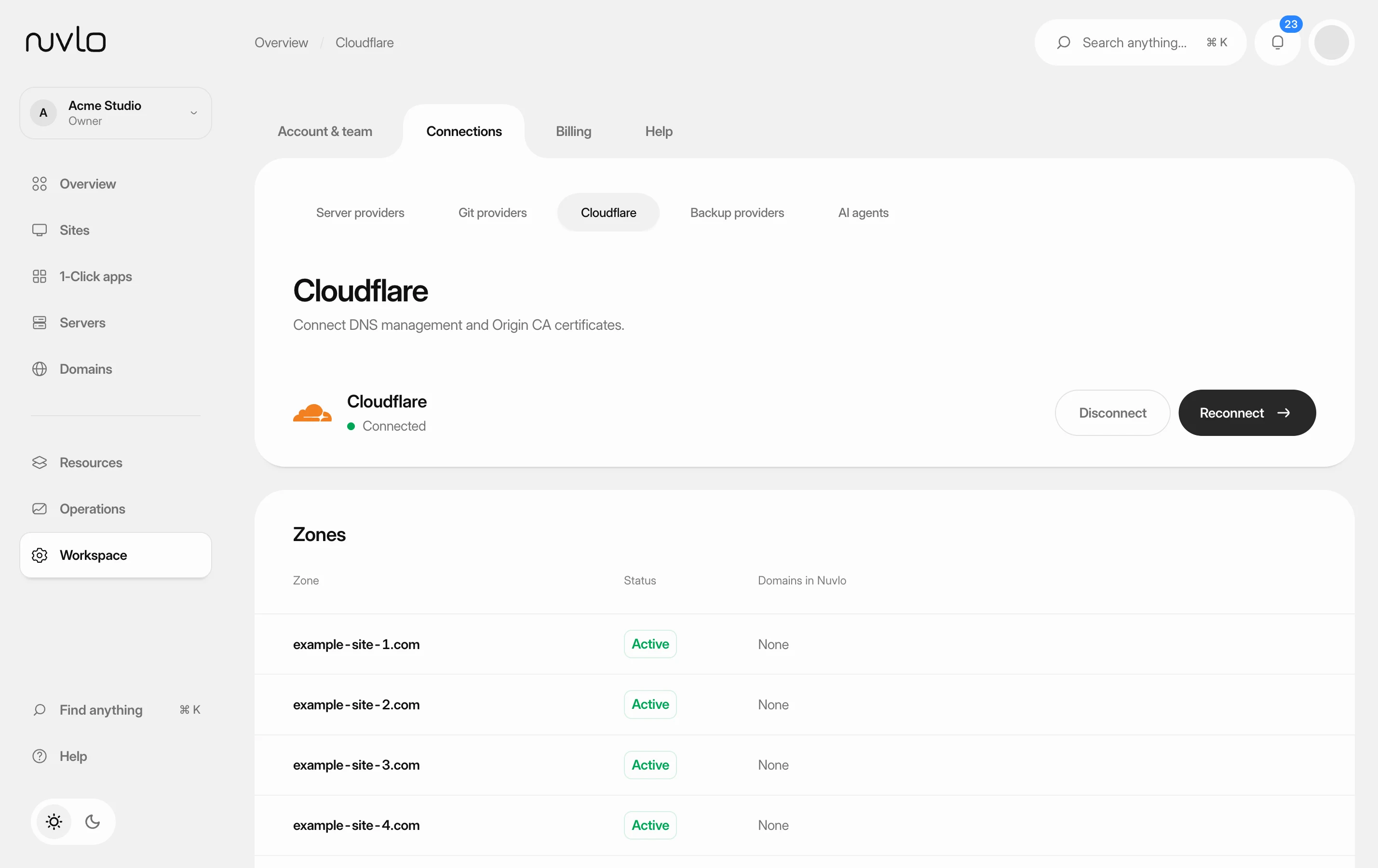 Connect CloudflareConnect your Cloudflare account so Nuvlo can create DNS records for your sites, install Cloudflare Origin certificates and keep your zones on secure settings.
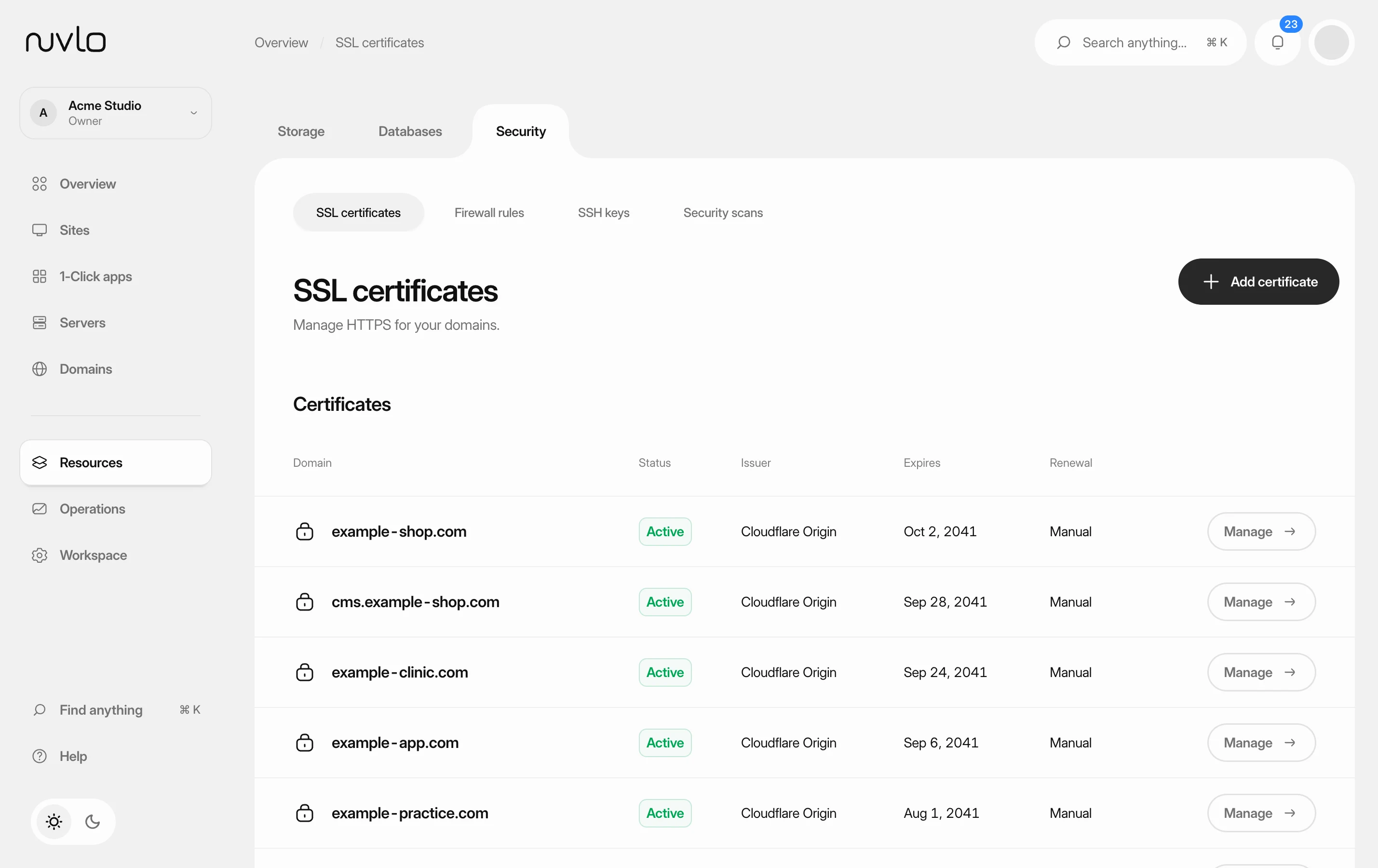 Manage SSL certificatesSee which certificate each domain uses, turn on HTTPS for a site, and know which certificates renew by themselves and which you have to replace.
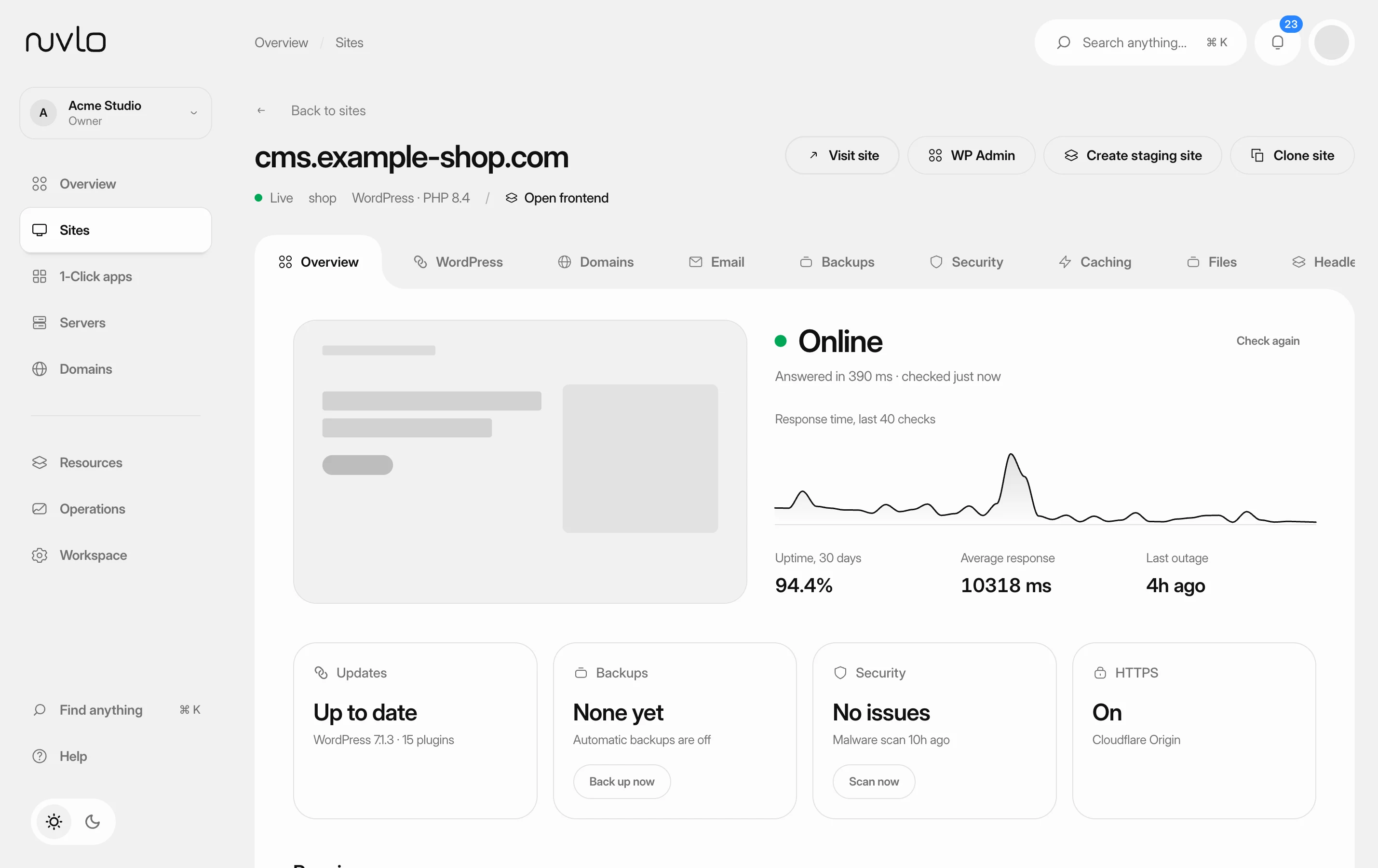 Create a staging site or clone a siteMake a private staging copy of a WordPress site to try changes on, or clone it into a new, separate site, without touching the live site.