



Manage notifications
Keep track of finished deploys, new servers, scan results and failures with the notification bell and the Notifications page, and send alerts to Slack, Discord, Microsoft Teams, Telegram, a webhook or email.
On this page
What you're notified about
Nuvlo notifies you about work that runs in the background, where you might not be watching:
- A new server is ready, or its setup failed.
- A deploy, auto-deploy, redeploy or rollback finished or failed.
- A WordPress install, 1-Click app install, site copy, staging site or site move finished or failed.
- A security scan or launch check found problems, finished or failed.
- HTTPS couldn't be set up for a domain, or a domain change failed.
- A server plan change finished or failed.
- You were invited to a team, and billing events such as a plan that couldn't start.
- A site went down or is back up. See Monitor your sites and servers.
Failures stay unread until you look at them. Routine successes, such as an auto-deploy after every push, still pop up briefly but arrive already marked as read, so they don't fill up your unread count.
Each person has their own notifications. Marking or deleting one doesn't affect your teammates.
Step 1 Check the bell
The bell at the top right shows how many notifications are unread. Click it to see the latest unread ones.
- Click a notification to open the page it's about. It's marked as read.
- Click the cross next to one to remove it.
- Click Mark all as read to clear the count.
New notifications also pop up while you work. Click View in the pop-up to open the page they're about.
Step 2 Open the Notifications page
Click See all notifications at the bottom of the bell menu, or select Operations and then Notifications in the sidebar. The page lists your latest notifications with their message and time. Unread ones have a dot next to the title.
Step 3 Clean up the list
Click Mark all as read to mark everything as read, or remove single notifications with the cross at the end of each row.
To empty the list, click Delete all notifications and confirm with Delete all notifications. Deleted notifications can't be brought back.
Notifications outside the dashboard
Some events also reach you outside the dashboard: by email, and in the chat tools or webhook you connect as alert channels. Every alert links back to the page in Nuvlo it's about.
The owner of the account gets these emails:
- A site went down, and when it's back up. To turn these off, turn off Email me when a site goes down in the Email card on the Notifications page.
- A backup failed.
- A server needs a restart after a security update, or a security update was installed.
- The account went over its plan.
Send alerts to Slack, Discord, Teams or Telegram
On the Notifications page, click Add channel in the Chat and webhook alerts card and choose where the alerts go:
| Channel | What to paste |
|---|---|
| Slack | The webhook URL of the Incoming Webhooks app added to a channel (https://hooks.slack.com/services/…). |
| Discord | The channel's webhook URL: channel settings → Integrations → Webhooks → New Webhook → Copy Webhook URL. |
| Microsoft Teams | The URL of a Workflows webhook: the channel's ⋯ menu → Workflows → Post to a channel when a webhook request is received. |
| Telegram | The token of a bot you made with @BotFather, and the chat ID of the group or channel you added the bot to. |
| Webhook | Any https:// address of your own. See Check webhook signatures. |
Pick the alerts the channel gets, click Add channel, then Send test to check that it arrives. You can change the alerts later with the button that shows how many are on.
Channels can send these alerts: a site down or back up, a failed deploy, a failed backup, a server that needs a restart, an installed security update, HTTPS that couldn't be set up, an AI agent waiting for approval, and the account going over its plan.
TipAdding or changing channels needs a role that can manage integrations. See Roles and permissions.
When a channel stops working
If a channel doesn't answer, Nuvlo tries again up to three times over about a minute. After five alerts in a row that couldn't be delivered, Nuvlo switches the channel off and tells the owner by email and in the notification list. The channel shows the last answer it got. Fix the address, or add the channel again, and switch it back on.
Alerts only go to https:// addresses on the public internet, and a channel that takes longer than five seconds to answer counts as failed.
Check webhook signatures
A webhook channel gets a JSON POST for every alert. When you add it, Nuvlo shows a signing secret once. Copy it to the service that receives the alerts.
{
  "id": "6d1f…",
  "event": "site_down",
  "title": "example.com is down",
  "message": "No answer. It failed two checks in a row.",
  "severity": "error",
  "url": "https://nuvlo.dev/dashboard/sites/…",
  "test": false,
  "created_at": "2026-11-07T09:12:00.000Z"
}
Every request has an X-Nuvlo-Timestamp header with the time in seconds and an X-Nuvlo-Signature header. The signature is sha256= followed by the HMAC-SHA256, in hex, of the timestamp, a dot and the raw body, keyed with the signing secret. Compute the same value and compare. Reject requests whose timestamp is more than five minutes old.
const expected = 'sha256=' + crypto
  .createHmac('sha256', secret)
  .update(`${req.headers['x-nuvlo-timestamp']}.${rawBody}`)
  .digest('hex')
const valid = crypto.timingSafeEqual(Buffer.from(expected), Buffer.from(req.headers['x-nuvlo-signature']))
The event field is one of site_down, site_up, deploy_failed, backup_failed, server_restart_needed, security_update_installed, https_failed, agent_approval, plan_limit or test. X-Nuvlo-Delivery stays the same when an alert is retried, so you can ignore repeats.
Email alerts for team members
Team members can get the team's alerts by email too. In a team you were invited to, open the Notifications page, turn on Email me this team's alerts in the Email card and choose which alerts. They go to your own address and stop when you leave the team.
Related guides
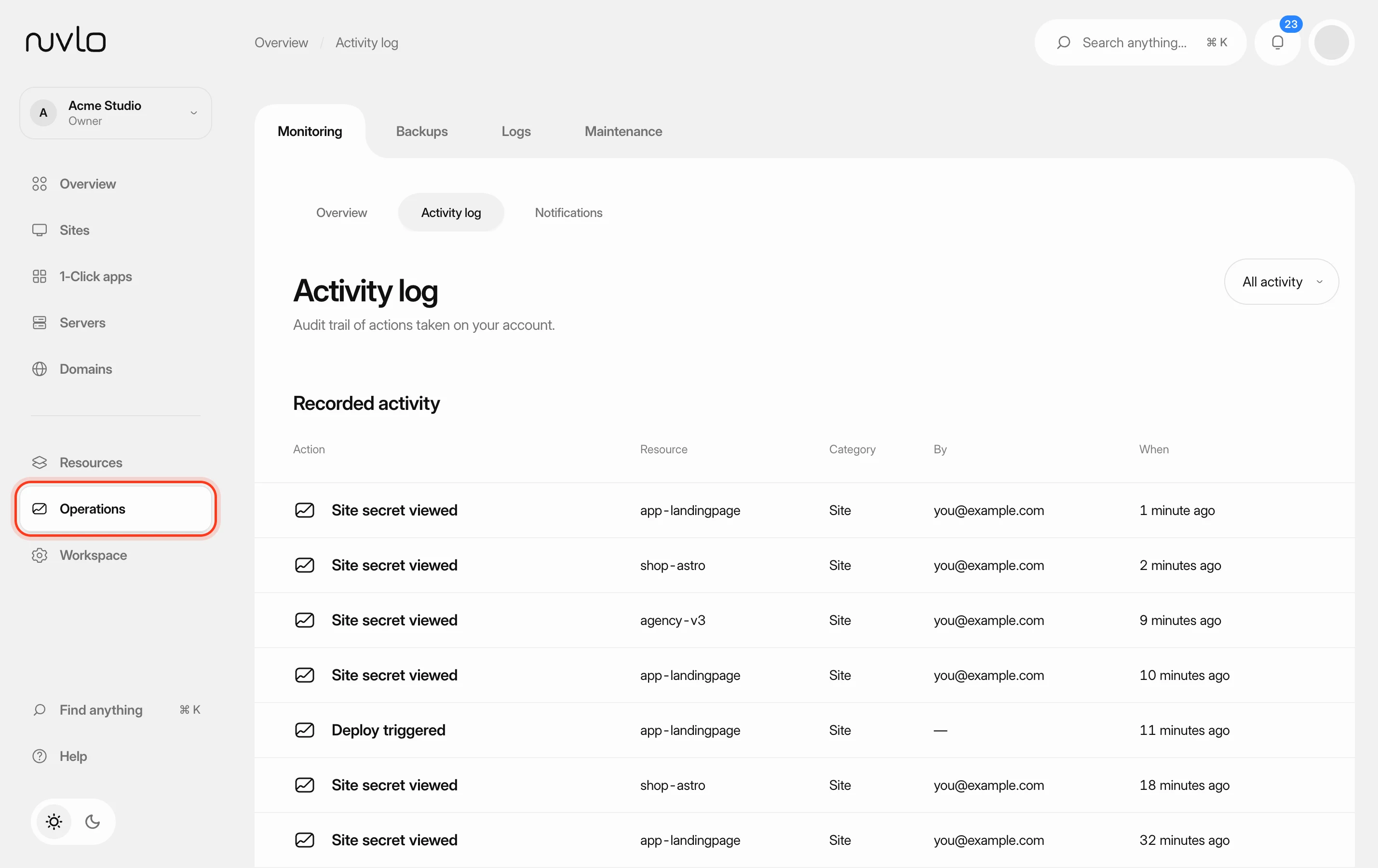 Review the activity logSee who did what in your workspace: deploys, deletions, security changes, server actions and billing events, including actions taken through API tokens and AI agents.
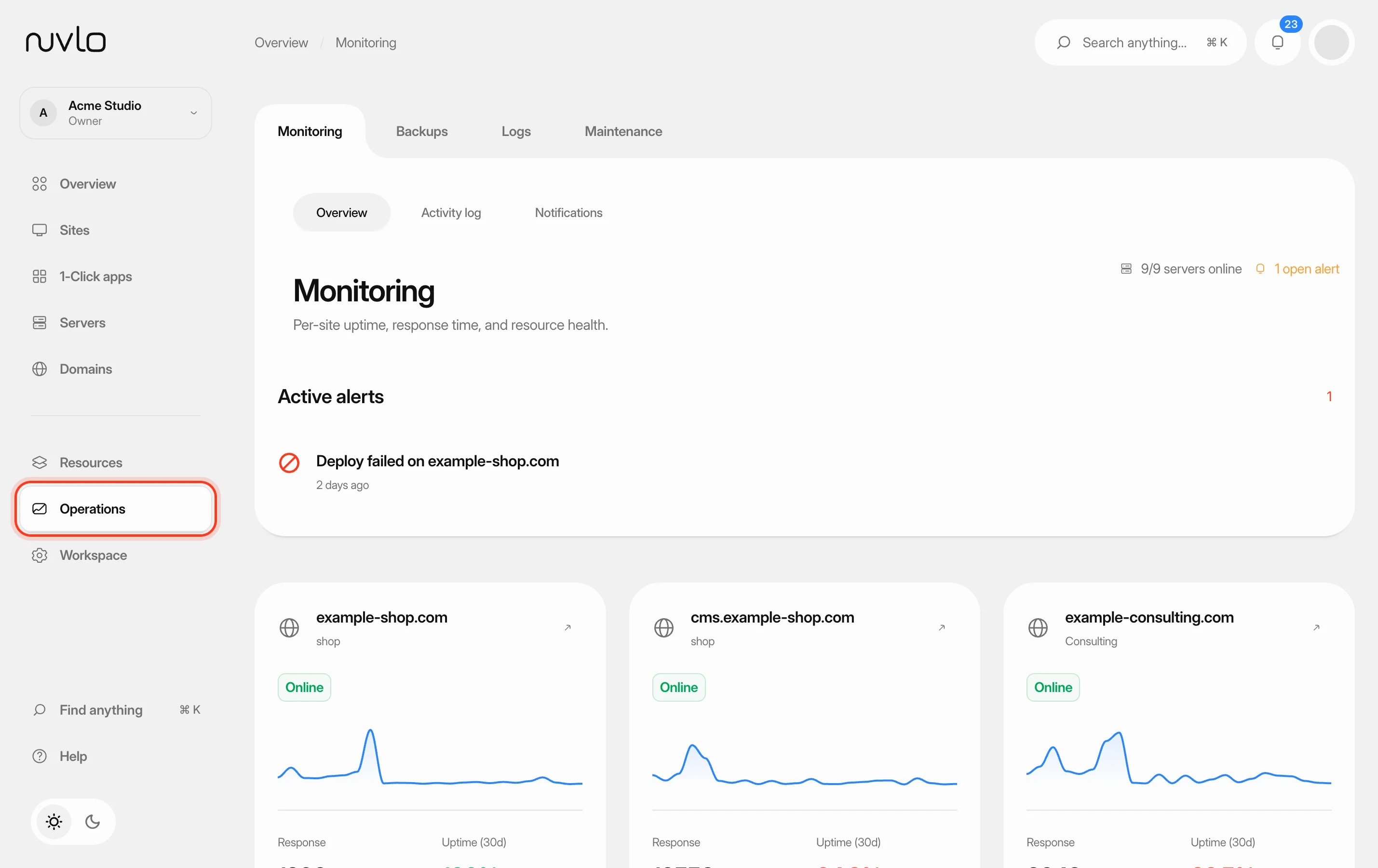 Monitor your sites and serversUse the Monitoring page to see which sites are up, how fast they answer and which problems need your attention, then drill into a single site or server.
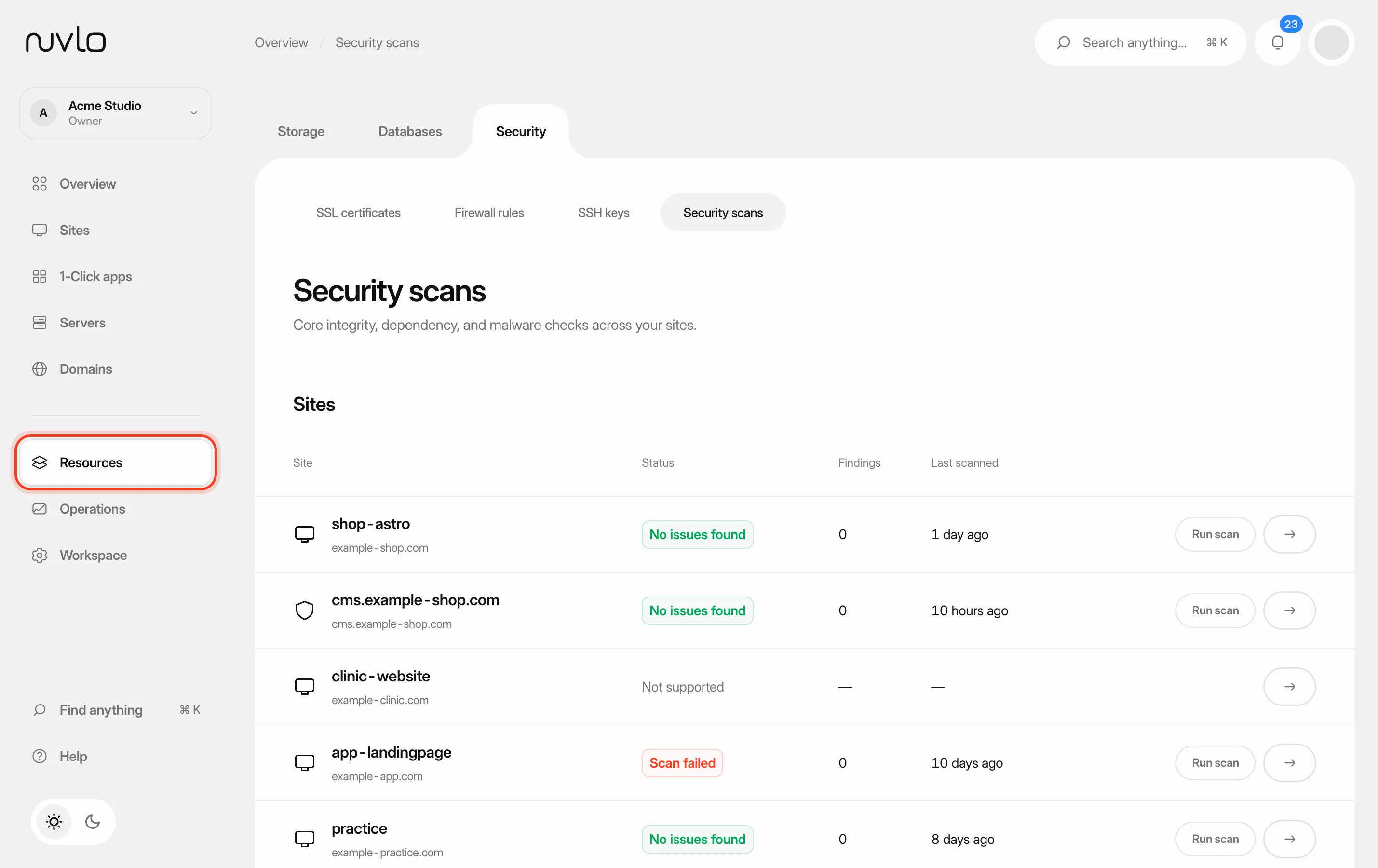 Scan your sites for security issuesCheck WordPress sites and Node applications for malware and known vulnerabilities, deal with what the scan finds and let scans run on a schedule.
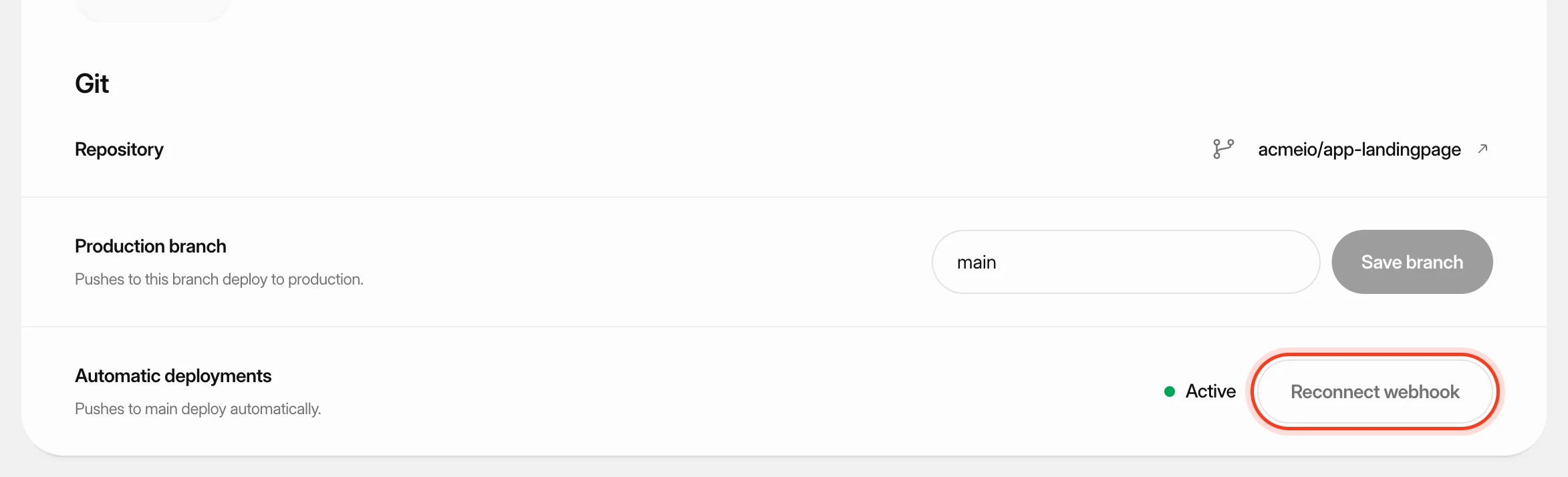 Deploy from GitKeep a site up to date with its GitHub repository: deploy automatically on every push, start a deploy yourself or from another tool, and read the build log when something goes wrong.