



Create and restore server snapshots
Save a full-disk restore point of a server at its cloud provider, choose when it deletes itself, and restore it over the server or into a new one.
On this page
Before you start
- A server Nuvlo created at Hetzner, DigitalOcean, Vultr, Linode, UpCloud, Scaleway, Exoscale, Contabo, AWS or Google Cloud.
- A role that can manage servers. By default that is Owner, Admin and Developer.
- To restore a snapshot over an existing server: the Owner or Admin role.
Snapshots and site backups
A snapshot copies the server’s whole disk: every site, database and setting on it. Your cloud provider stores it and bills you for it. Take one before risky changes, such as a big update.
A site backup copies one site to your own storage, and restores only that site. Use both: snapshots to undo server-wide changes, site backups to bring back a single site.
What snapshots cost
Your provider bills snapshots by size for as long as you keep them. Nuvlo shows the expected monthly cost of each snapshot in the Cost column.
| Provider | Price to keep a snapshot | How it can be restored |
|---|---|---|
| Hetzner | €0.0143 per GB a month | Over the server, or into a new server |
| DigitalOcean | $0.06 per GB a month | Over the server, or into a new server |
| Vultr | $0.05 per GB a month | Over the server, or into a new server |
| Linode | $0.10 per GB a month. Linode images hold up to 6 GB of data. | Over the server, or into a new server |
| UpCloud | €0.056 per GB a month | Into a new server |
| Scaleway | €0.0358 per GB a month | Into a new server |
| Exoscale | €0.1008 per GB a month | Over the server |
| Contabo | Included. Contabo deletes snapshots after 30 days. | Over the server |
| AWS | $0.05 per GB a month, only for the data each snapshot adds | Into a new server |
| Google Cloud | $0.083 per GB a month, only for the data each snapshot adds | Into a new server |
Prices exclude VAT and come from each provider’s public price list (AWS: us-east-1; Google Cloud: its default multi-region location). Your provider’s bill is what counts.
Step 1 Open the server’s Backups tab
Open the server from Servers and go to the Backups tab. The Snapshots card lists the server’s snapshots, and its subtitle shows how your provider bills them.
You can also work from Backups: the Server snapshots card there lists snapshots of all your servers.
Step 2 Name the snapshot
Click Create snapshot. On the Backups page, first pick the Server.
Name (optional) takes up to 100 characters, for example Before the update. Without a name, the snapshot is named after the server and the current date and time.
Step 3 Choose when it deletes itself
Under Delete automatically, choose Tomorrow, In 7 days, In 30 days, In 90 days, On a date, or Never, keep it until I delete it. A date can be up to 365 days ahead.
Nuvlo remembers the choice per server and suggests it for the next snapshot. The first time, it suggests In 30 days.
For Contabo, the latest choice is When Contabo deletes it, after 30 days, since Contabo removes snapshots itself.
Step 4 Create the snapshot
Click Create snapshot. The snapshot shows Being made now until your provider has finished it, then the date, size, cost and delete date.
You can create up to 3 snapshots of the same server within 15 minutes.
Step 5 Restore a snapshot
Click Restore on an available snapshot. The Restore snapshot dialog offers what your provider supports:
- Replace followed by the server name: the server’s disk is replaced with the snapshot. Everything changed since then is lost, and sites are offline for a few minutes. Only an Owner or Admin can do this.
- Create a new server: a separate server is made from the snapshot, with the same plan and region, and billed like any other. The original server isn’t changed. Enter the Name of the new server; it can’t be the same as the original’s.
Click Replace or Create followed by the server name. A replace shows its progress in the snapshot’s row; a new server appears under Servers and is ready once setup finishes.
A new server counts toward your plan’s server limit. See Usage and limits.
Change when a snapshot is deleted
Open the snapshot’s … menu and choose Change when it’s deleted. Pick a new choice; the button says what will happen, for example Delete it in 7 days or Keep it.
When the time comes, Nuvlo deletes the snapshot at your provider. If the provider refuses, you get a notification and Nuvlo tries again the next day.
Delete a snapshot
Open the snapshot’s … menu, choose Delete snapshot and confirm. Your provider deletes it right away, and it can’t be brought back.
Keep snapshots when you delete a server
When you delete a server, the dialog offers Also delete its … snapshots.
ImportantDeleting the server also deletes its snapshots unless you untick this box. It is ticked by default.
Kept snapshots stay in the Server snapshots card on Backups, marked with the old server’s name and deleted. Your provider keeps billing for them. You can restore them into a new server, which may take the old server’s name, or delete them.
Deleting a kept snapshot, or giving it a delete date, needs the Owner or Admin role.
Exoscale and Contabo delete a server’s snapshots together with the server, so there is nothing to keep there.
Related guides
 Turn on automatic server backupsHave Hetzner, DigitalOcean, Vultr or Linode copy your whole server on a schedule, see what it costs, and restore a backup when you need it.
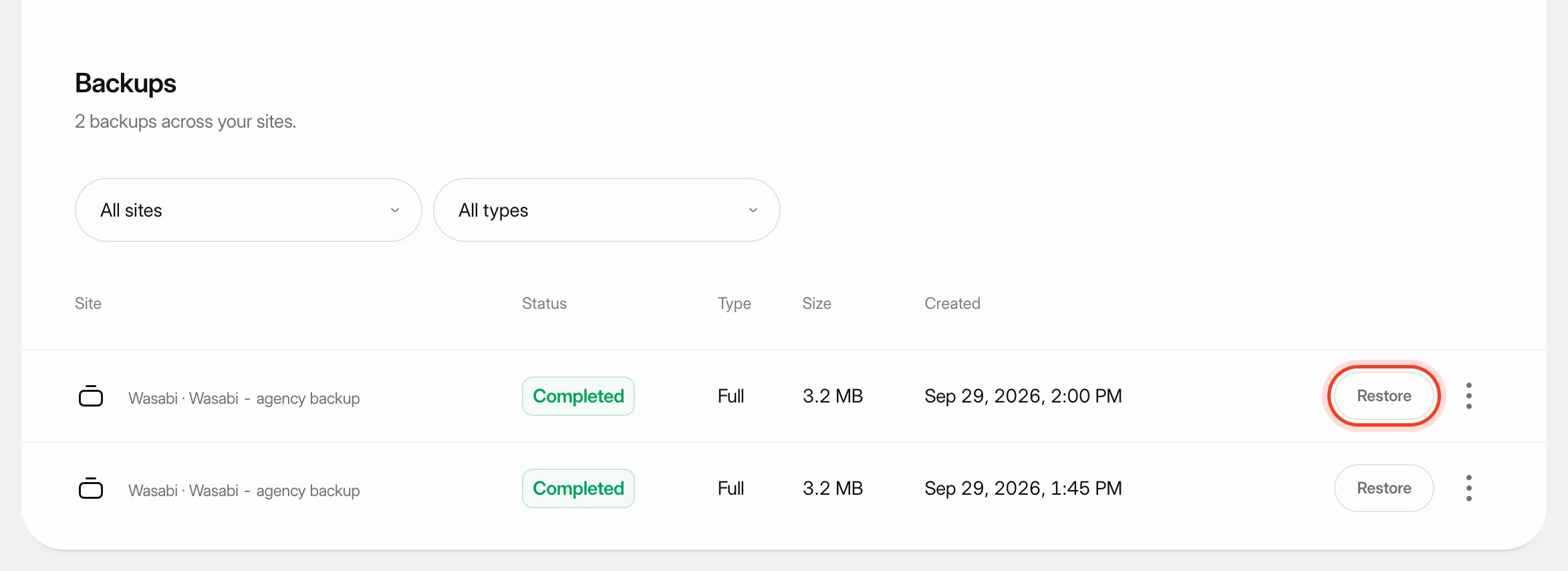 Restore a site backupRoll a site back to one of its backups: the database, the files, or both.
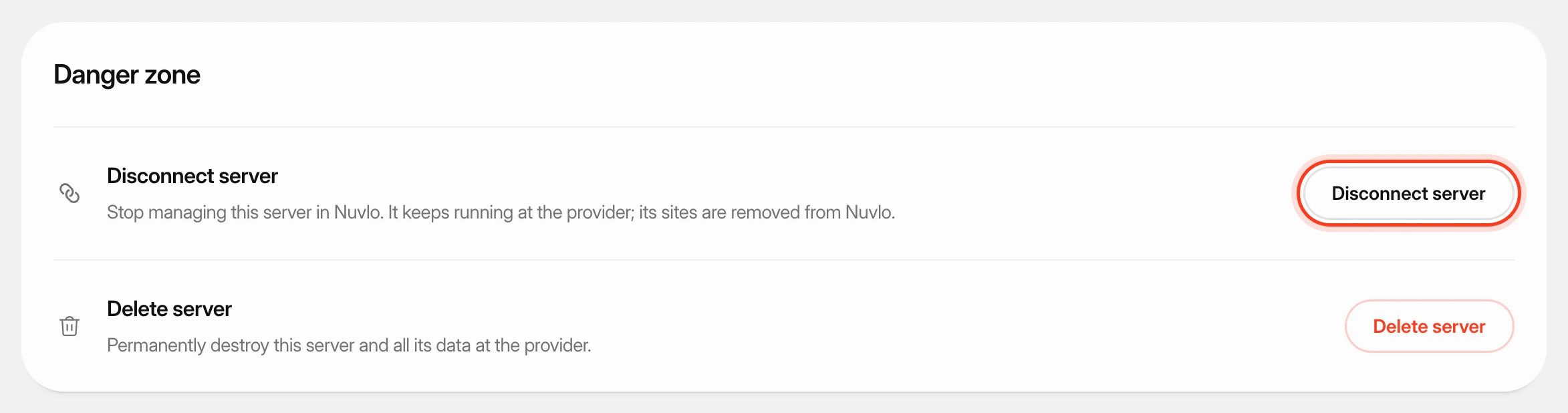 Delete a serverPermanently destroy a server at your provider and remove it and its sites from Nuvlo, with control over what happens to its snapshots and backups.
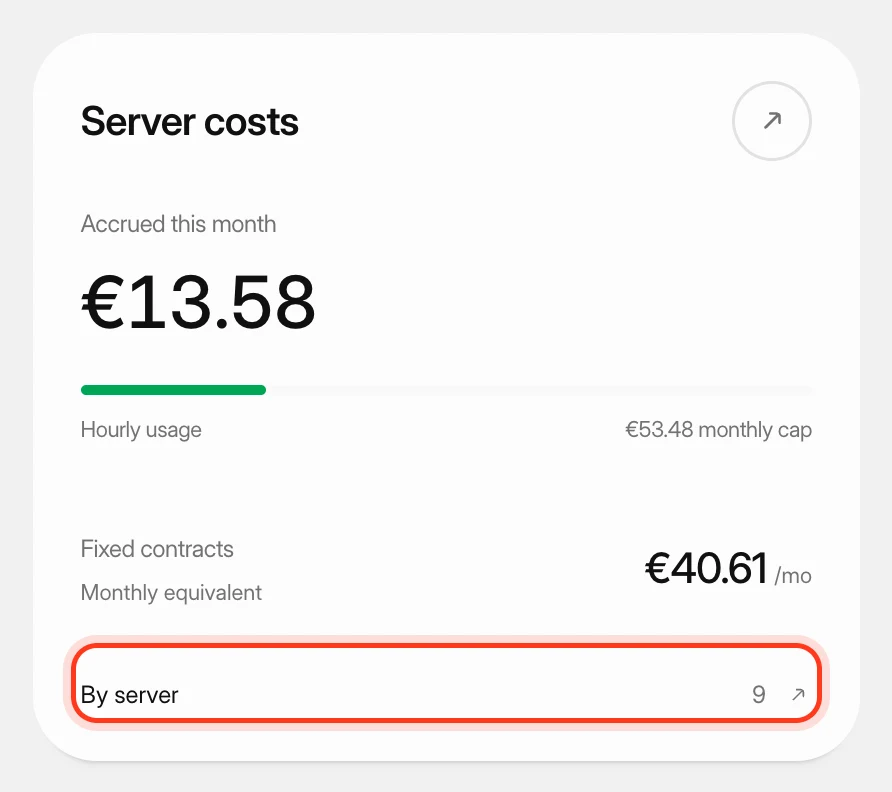 Track what your servers costSee what your servers cost at your cloud providers this month and in past months, apart from what you pay Nuvlo.