



Use the Nuvlo plugins for WordPress
Learn what the Nuvlo plugin and Nuvlo SEO do on your WordPress sites, how to install or update them from the dashboard, and where their settings are.
On this page
Before you start
- A running WordPress site in Nuvlo.
- Permission to manage sites.
What the plugins do
| Plugin | What it does |
|---|---|
| Nuvlo | Clears only the cached pages a change affects and loads them back in the background. Makes pages load faster (scripts, images, fonts and CSS). Shows the email account, cleans the database, and adds a Nuvlo menu to the admin bar. |
| Nuvlo SEO | Titles, descriptions, schema, sitemaps, AI search files and redirects, for WordPress pages and for headless frontends. |
| Nuvlo Migrator | Only for moving a site from another host. See Move a WordPress site to Nuvlo. |
Step 1 Install or update the Nuvlo plugin
New WordPress sites get the Nuvlo plugin during setup. To check it, open the site and click the Caching tab. The Nuvlo plugin card shows its state.
| The card says | Click |
|---|---|
| Not installed | Install plugin |
| Installed, switched off | Switch on |
| Version … with a newer version available | Update to … |
| A security update is ready | Apply security update. PHP restarts for a few seconds. |
On Nginx sites, the card also shows Pages in the cache and Waiting to be cached.
Step 2 Open its settings
Click Open settings. Nuvlo signs you in to WordPress admin and opens the Nuvlo page. It has these tabs:
| Tab | What you set there |
|---|---|
| Cache | Page cache on or off, how long pages are kept (10 hours (recommended)), caching pages before visitors ask for them, and pages never to cache. Also shows the object cache and PHP OPcache. |
| Speed | Scripts that wait for the visitor, CSS minifying and Remove unused CSS (beta), lazy images and embeds, YouTube previews, WebP uploads, fonts and preloading the next page. |
| WordPress | Tweaks such as removing the emoji script, turning off comments, RSS or XML-RPC, and less frequent background check-ins. |
| Database | Removes leftovers that only make the database bigger, now or every week or month. |
| The connected email account, the From name and From email, and a test email. |
ImportantDatabase cleanup deletes items for good. Take a backup first.
Step 3 Clear the cache from WordPress
While signed in to WordPress, the Nuvlo menu in the admin bar has Clear page cache, Clear this page from the cache (on the site’s pages), Clear all caches and Settings.
Step 4 Install Nuvlo SEO
Nuvlo SEO isn’t installed by default. Open the site’s WordPress tab. The SEO card shows its state. Click Install Nuvlo SEO, Switch on Nuvlo SEO or Update to ….
If another SEO plugin is active, the card names it. Nuvlo SEO can import its settings, and waits until you turn the other plugin off.
Click Open SEO settings to sign in to WordPress and open them. In WordPress, its settings are under SEO.
For Improve SEO, where AI writes titles and descriptions for weak pages, see Improve a site’s SEO.
Good to know
- Without the Nuvlo plugin, pages are still cached, but edits can take up to an hour to show.
- The Nuvlo plugin takes over cache clearing from the Nginx Helper plugin, and hands it back when you deactivate it.
- Deactivating the Nuvlo plugin clears the cached pages it optimized.
- For a headless site, the Speed tab is hidden: WordPress shows no pages to visitors.
- If a page looks wrong after changing a Speed setting, add
?nuvlo=offto its address to see it without these optimizations.
Related guides
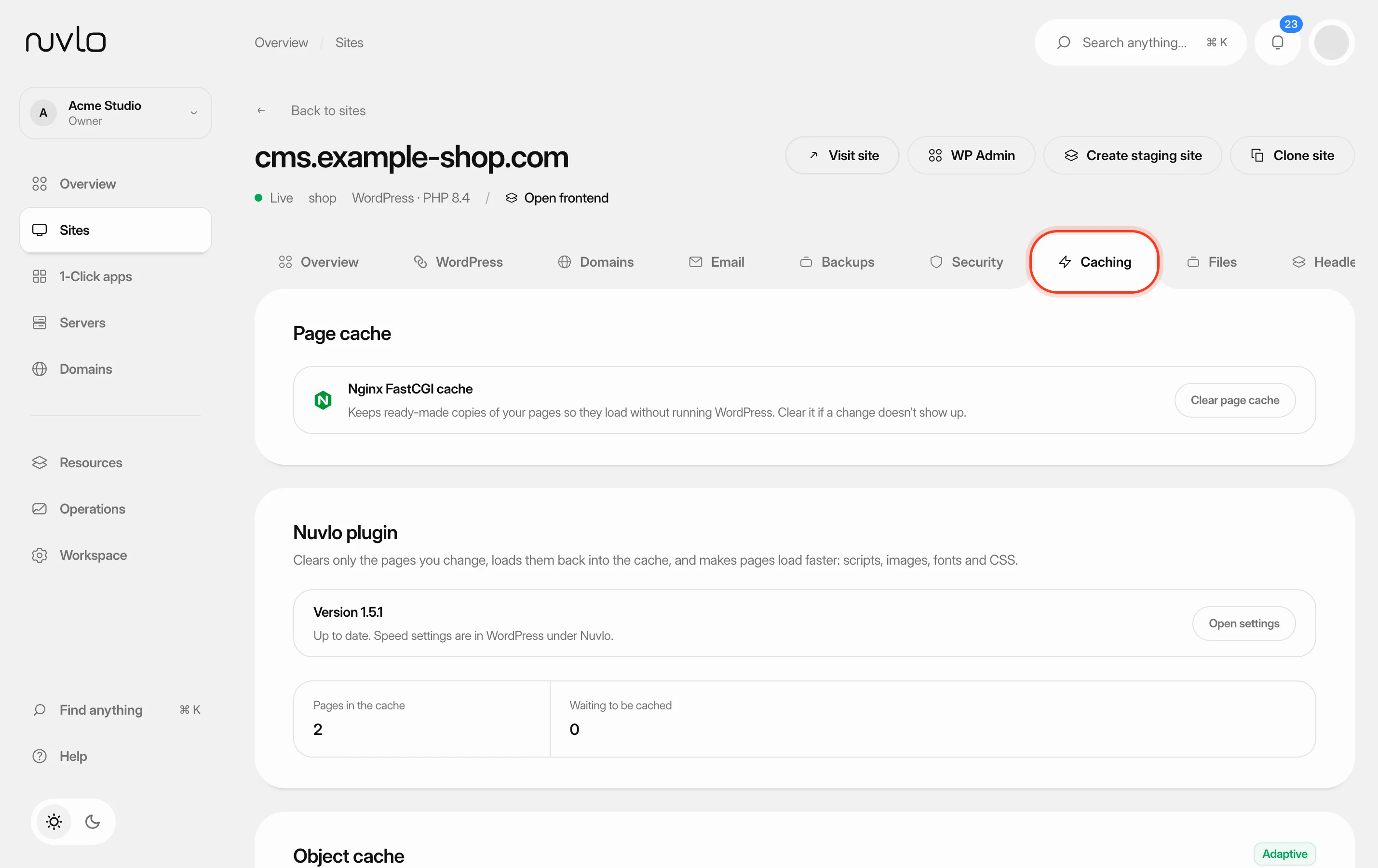 Speed up WordPress with cachingClear the page cache, size the Redis object cache and give the database more memory, all from a WordPress site’s Caching tab.
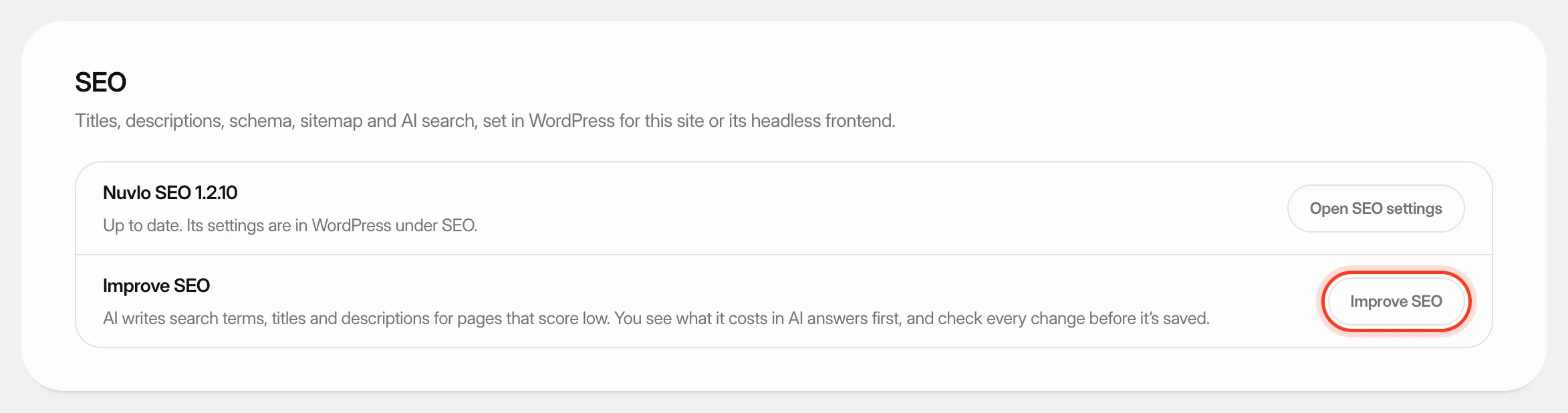 Improve SEO and control AI botsLet AI write better search titles and descriptions for a WordPress site's weakest pages, and decide which AI crawlers may read any of your sites.
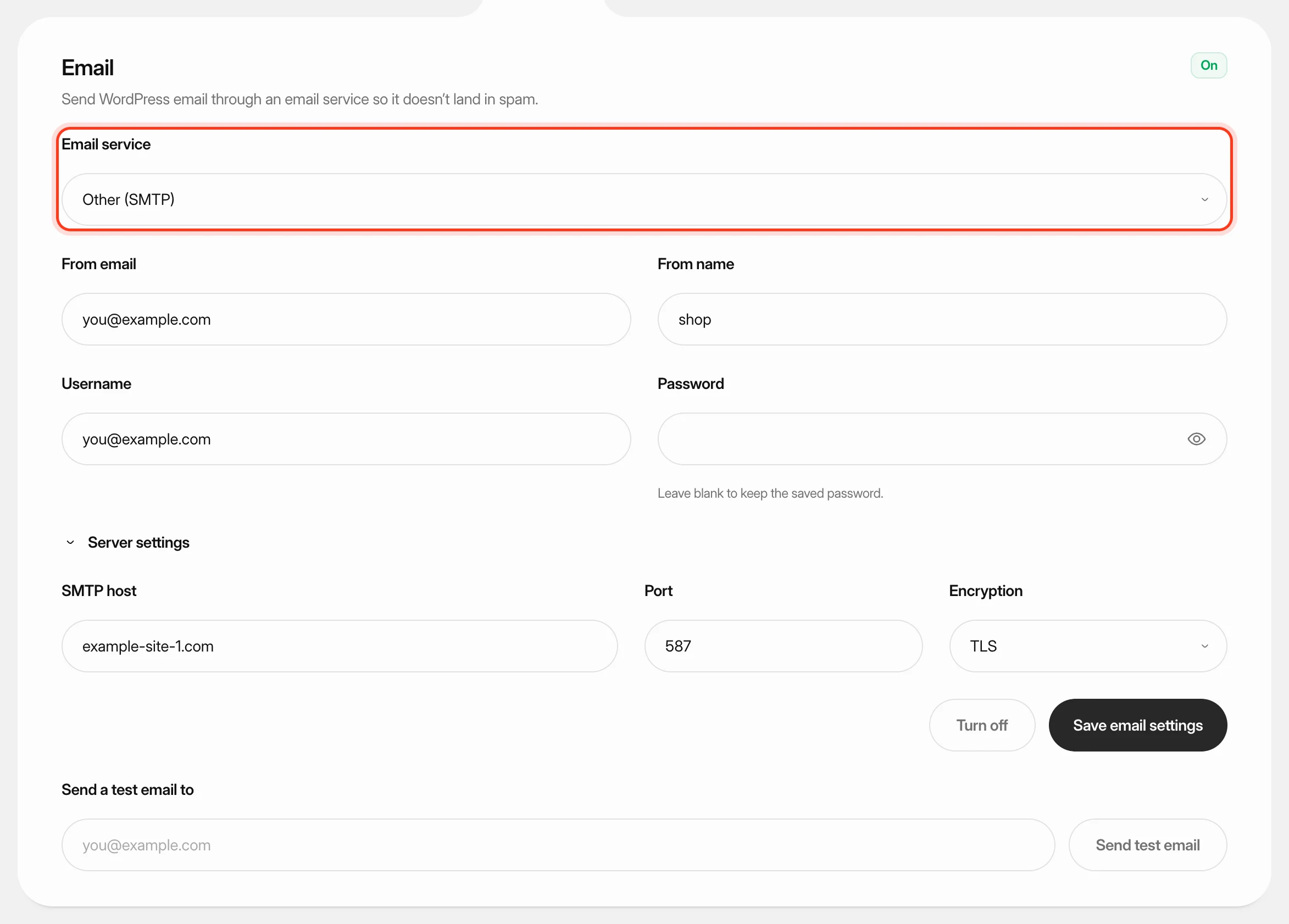 Send WordPress email through an email serviceConnect a WordPress site to Postmark, SendGrid, Mailgun or any SMTP account, so password resets, orders and form messages arrive instead of landing in spam.
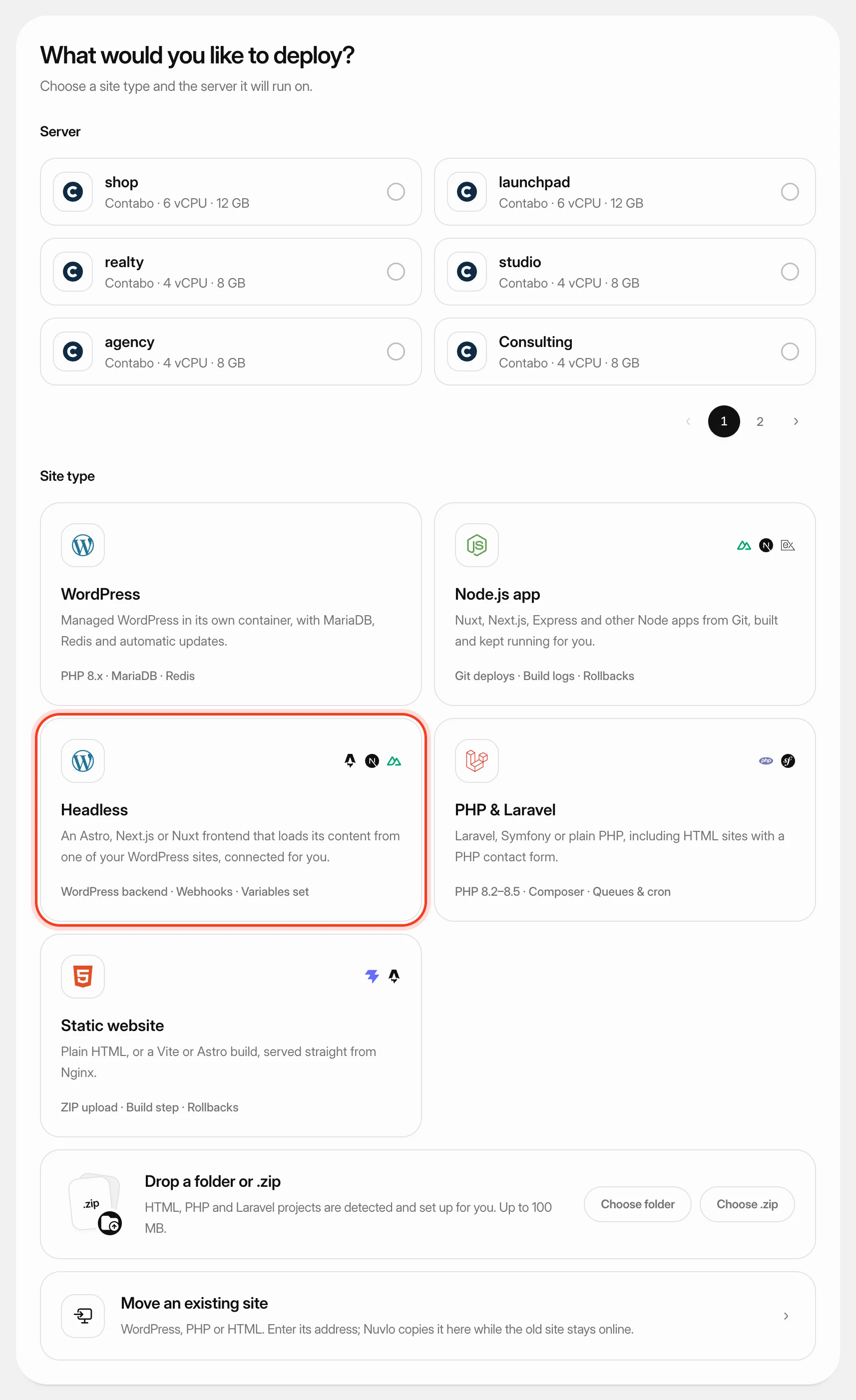 Run WordPress headlessShow a WordPress site’s content on an Astro, Next.js or Nuxt frontend. Nuvlo deploys the frontend, sets the variables that connect the two, and keeps WordPress visitors and product updates pointed at the frontend.