



Connect your Vultr account
Enable the Vultr API, copy your API key, connect it to Nuvlo, and create your first Vultr server.
On this page
Before you start
- A Vultr account with a payment method or credit
- The Owner, Admin or Developer role on your Nuvlo account
Step 1 Open the API settings in Vultr
Sign in to the Vultr customer portal and open Account → API.
Step 2 Enable the API and copy the key
If the API is not enabled yet, enable it. Vultr then shows your API key. Copy it.
A Vultr API key has access to the whole Vultr account. Vultr does not offer keys limited to certain products.
Step 3 Check Access Control
On the same page, Access Control decides which IP addresses may use the key. By default it allows any IPv4 and any IPv6 address. Keep those entries: without them Vultr refuses Nuvlo’s requests, and connecting fails with a message about an IP address.
Step 4 Add the key in Nuvlo
In Nuvlo, open Integrations → Server providers, click Add provider and choose Vultr.
Enter an Account label (optional) and paste the key into API key or token.
Step 5 Connect and check
Click Connect account. Nuvlo checks the key with Vultr and saves it. The account shows under Connected accounts.
Step 6 Create your first Vultr server
Open Create server, choose Vultr and, if you have several, the account under Account. Click Choose what to host and follow Create a server.
Good to know
| Topic | On Vultr |
|---|---|
| Billing | Hourly, capped at the monthly price. Vultr bills you directly. |
| Plans | Regular, high-frequency and high-performance. |
| Resizing | Upgrades to a bigger plan only. Vultr restarts the server itself. The IP address stays the same. |
| Provider backups | Automatic backups, 20% of the server price, restored over the server. |
| Snapshots | Restore over the server or into a new one. |
If you regenerate the API key in Vultr, the old key stops working. Paste the new one under Manage on the Server providers page.
The key is for servers only. To keep site backups in Vultr Object Storage, connect it separately as described in Connect backup storage.
Troubleshooting
- The provider rejected this key: the key was mistyped or regenerated since you copied it. Copy it again from Account → API.
- The message mentions an IP address: Access Control blocks Nuvlo. Restore the entries that allow any IPv4 and IPv6 address, then connect again.
Related guides
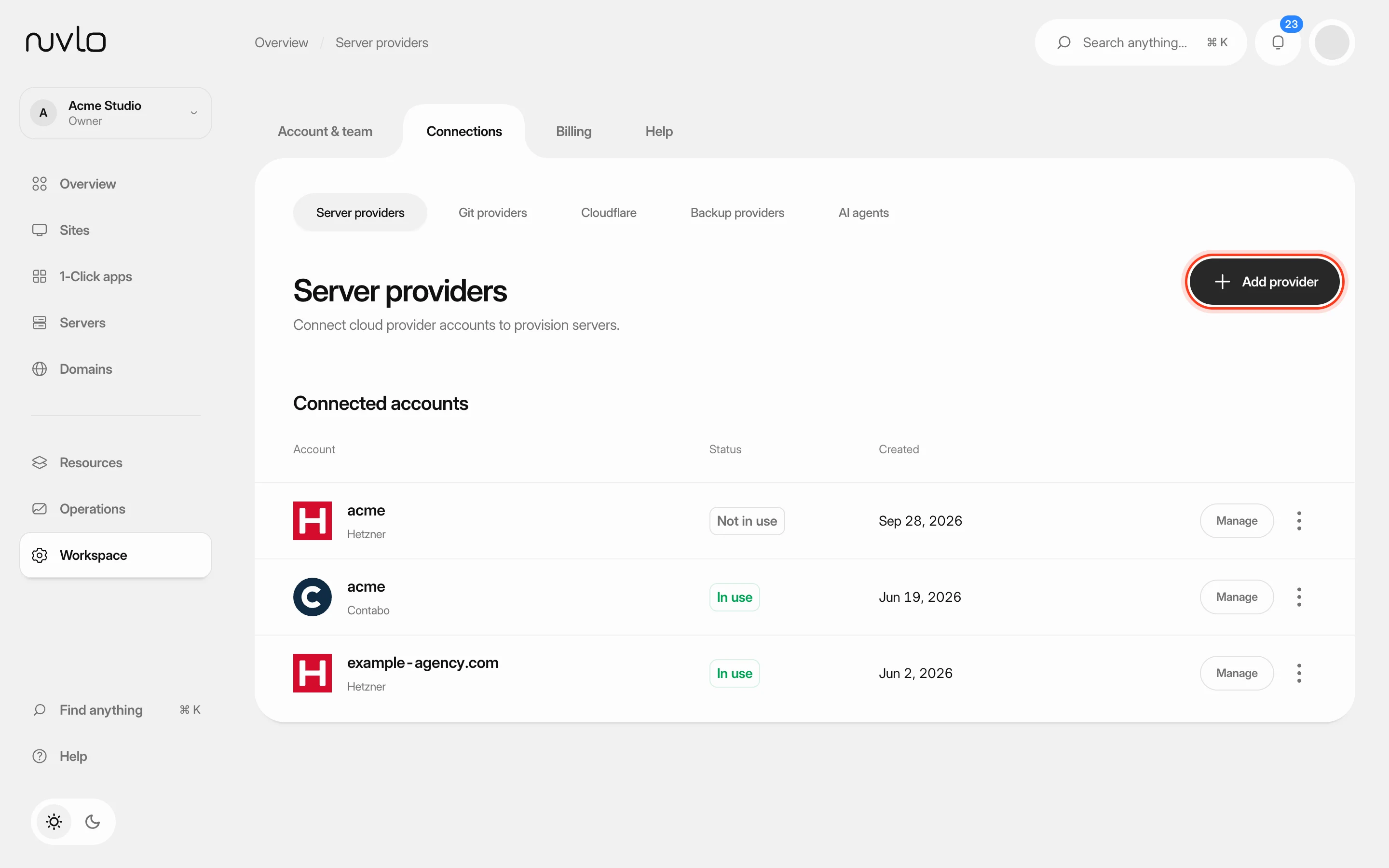 Connect a server providerConnect your own cloud account so Nuvlo can create and manage servers in it. You add an API key on the Server providers page, and Nuvlo checks it with the provider before saving it.
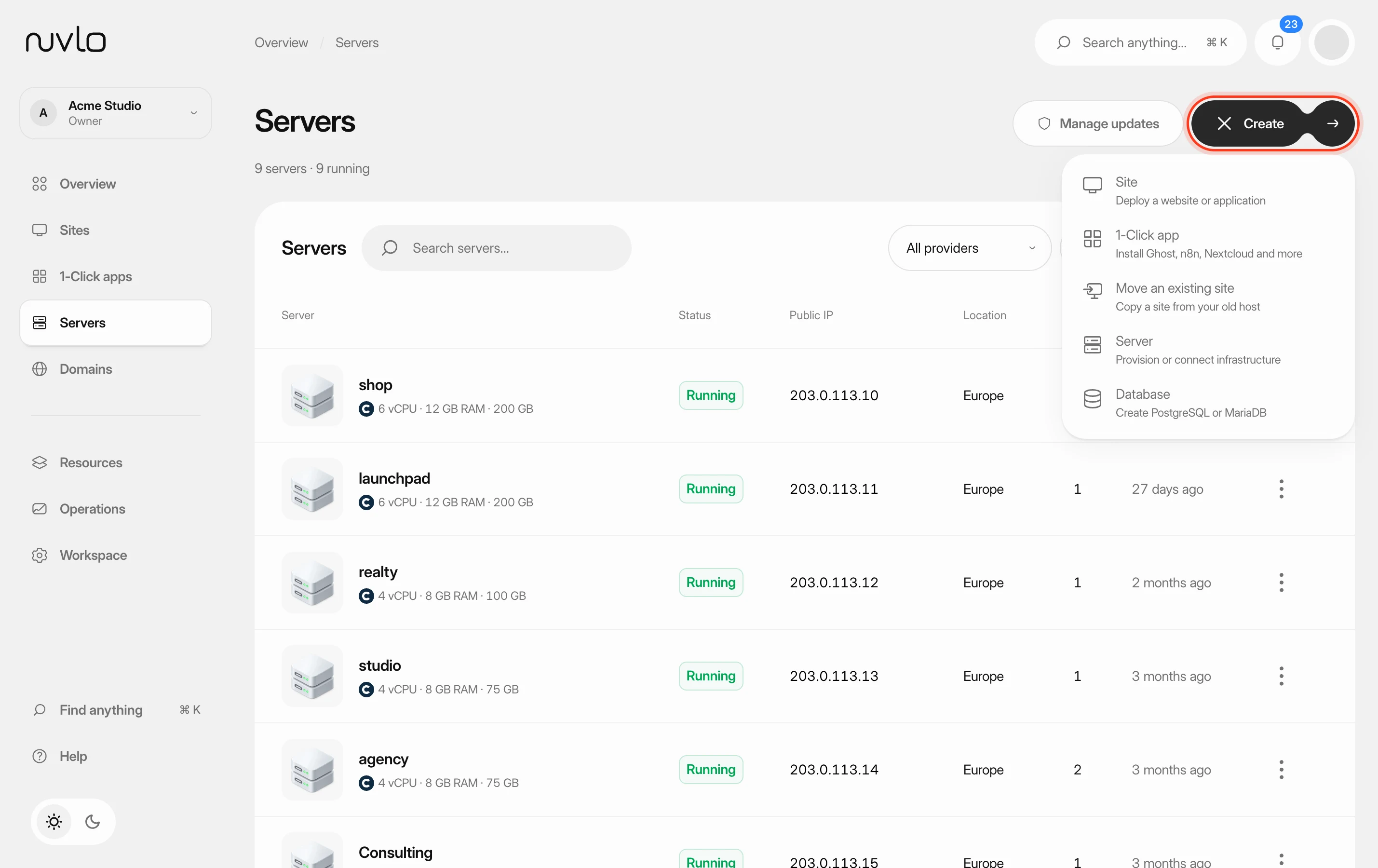 Create a serverOrder a new server at your cloud provider from Nuvlo and have it set up with everything your sites need: web server, firewall, security hardening and the software for the projects you plan to host.
 Turn on automatic server backupsHave Hetzner, DigitalOcean, Vultr or Linode copy your whole server on a schedule, see what it costs, and restore a backup when you need it.
 Change a server's planMove a server to a bigger or smaller plan at your provider, with more or less CPU, memory and disk, without leaving Nuvlo.