



Update Nuvlo's server software
Bring Nuvlo's management software on your servers up to the latest version, one server at a time, with health checks between servers.
On this page
Before you start
- Servers with the status Running.
- Permission to manage servers in your Nuvlo account.
Step 1 Open Server updates
On Servers, click Manage updates. To update a single server, open it, click the Settings tab and click Check for updates in the Server software row.
Step 2 Check which servers need the update
Click Check for updates. Nuvlo connects to each running server and reads its installed version. The page sorts servers into three groups:
- Updates available: servers behind the latest version shown at the top.
- Already up to date: servers on the latest version.
- Needs attention: servers that are offline or whose version couldn't be read. Click Check version to try a single server again.
Legacy in the Installed column means the server was set up before Nuvlo tracked versions. It can be updated like any other.
Step 3 Select servers
Tick the servers to update, or click Select all. Tick Reboot after updating if you want each server restarted once its update passes the health checks.
Step 4 Start the update
Click the update button in the header, which names the count and version, for example Update 2 servers to Nuvlo followed by the latest version number. The confirmation explains that servers update one at a time and must pass health checks before the next begins. Sites, databases, uploads and volumes are not touched. Click the button in the dialog to start.
Step 5 Follow the progress
Update progress shows each server as Queued, Checking, Updating, Rebooting, Verifying, then Updated. Click Logs next to a server to see its update output.
If a server fails, the rollout stops: it shows Failed and the servers after it show Skipped. Open Logs to see why, fix the cause, and start the update again for the remaining servers.
Good to know
- Only one rollout runs at a time per account.
- Servers that are paused because your account is over its plan can't be updated. See Usage and limits.
- Updating Nuvlo's software doesn't change your sites' PHP or Node.js versions. Those are in Runtimes.
Related guides
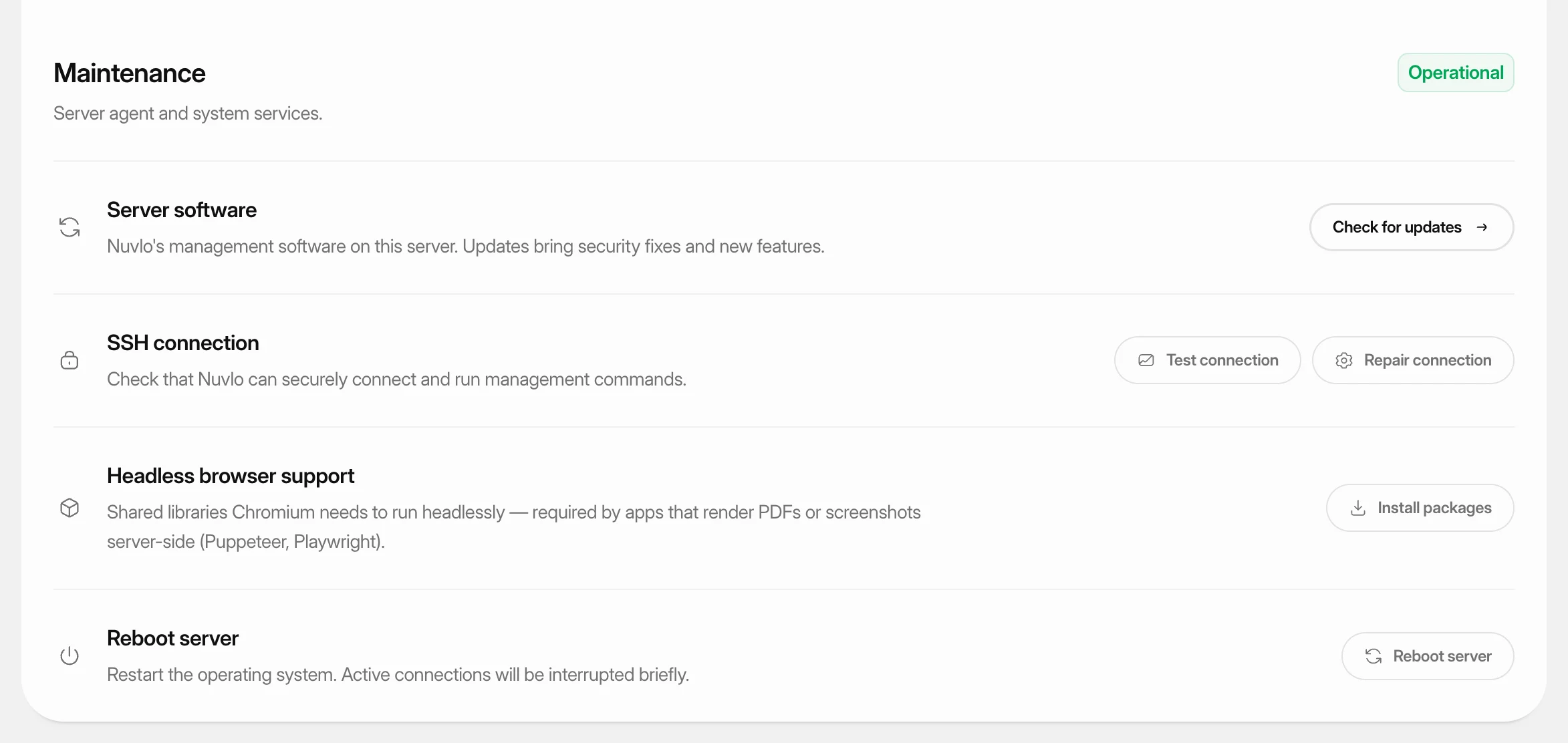 Test, repair and reboot a serverCheck that Nuvlo can still connect to a server, repair the connection, install extra system packages, and reboot the server safely.
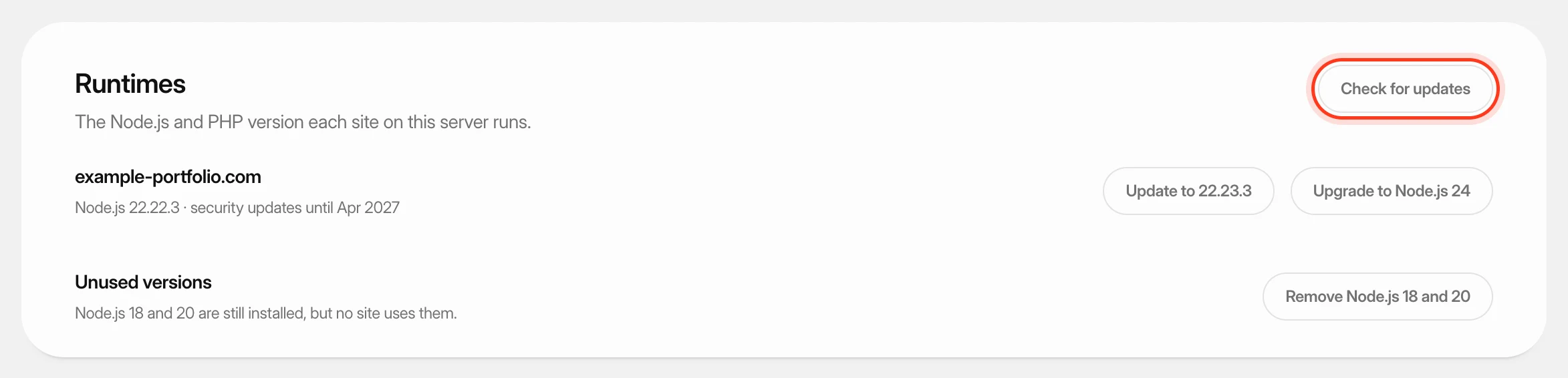 Update PHP and Node.js versionsSee which PHP or Node.js version each site on a server runs, apply security updates, and upgrade sites to a newer version after a compatibility check.
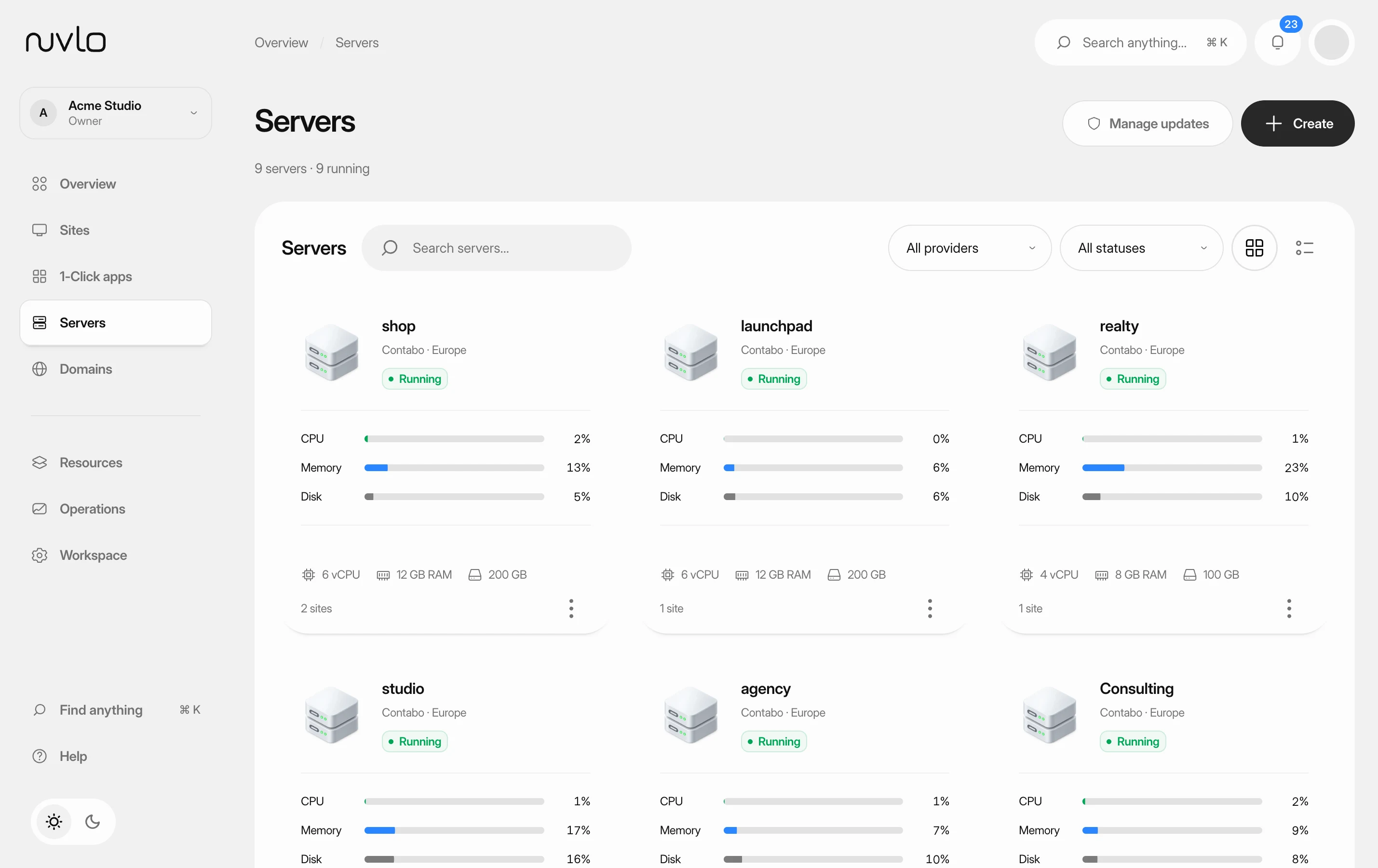 Read your server pageFind a server, check whether it's healthy, and know where each setting lives on its page.