



Speed up WordPress with caching
Clear the page cache, size the Redis object cache and give the database more memory, all from a WordPress site’s Caching tab.
On this page
Before you start
- A running WordPress site in Nuvlo.
- Permission to manage sites.
Step 1 Open the Caching tab
Open the site and click Caching. It has four cards: Page cache, Nuvlo plugin, Object cache and Database memory.
Step 2 Clear the page cache
The page cache keeps ready-made copies of pages, so visitors who aren’t logged in get them without WordPress running. Nginx sites use Nginx FastCGI cache, OpenLiteSpeed sites LiteSpeed Cache.
If a change doesn’t show up, click Clear page cache. With the Nuvlo plugin active, changed pages clear by themselves. See Use the Nuvlo plugins for WordPress.
Step 3 Size the object cache
The object cache is a private Redis cache that stores database results, so pages are built faster. It shows Allocated, In use, Hit rate and Evictions.
- Automatic grows under load and shrinks after 24 quiet hours. Set Smallest size (32 to 256 MB) and Largest size (64 MB to 1 GB).
- Fixed always uses the Size you pick, 32 MB to 1 GB.
Many Evictions mean the cache runs out of memory. Raise the largest size, or choose a bigger fixed size. Click Save object cache.
Step 4 Give the database more memory
Database memory is what MariaDB keeps for this site’s data, so pages read less from disk. The card shows Set to, Running with and Available here: what the server has set aside for databases, minus what its other sites use.
Pick a Size and click Save database memory. If the running database can’t grow that far, the button says Save and restart the database. The site shows a database error while it restarts.
Good to know
- The Redis object cache can’t be turned off on WordPress sites. Choose Fixed to keep it small.
- Full-page caching is chosen when you create the site. See Create a WordPress site.
Related guides
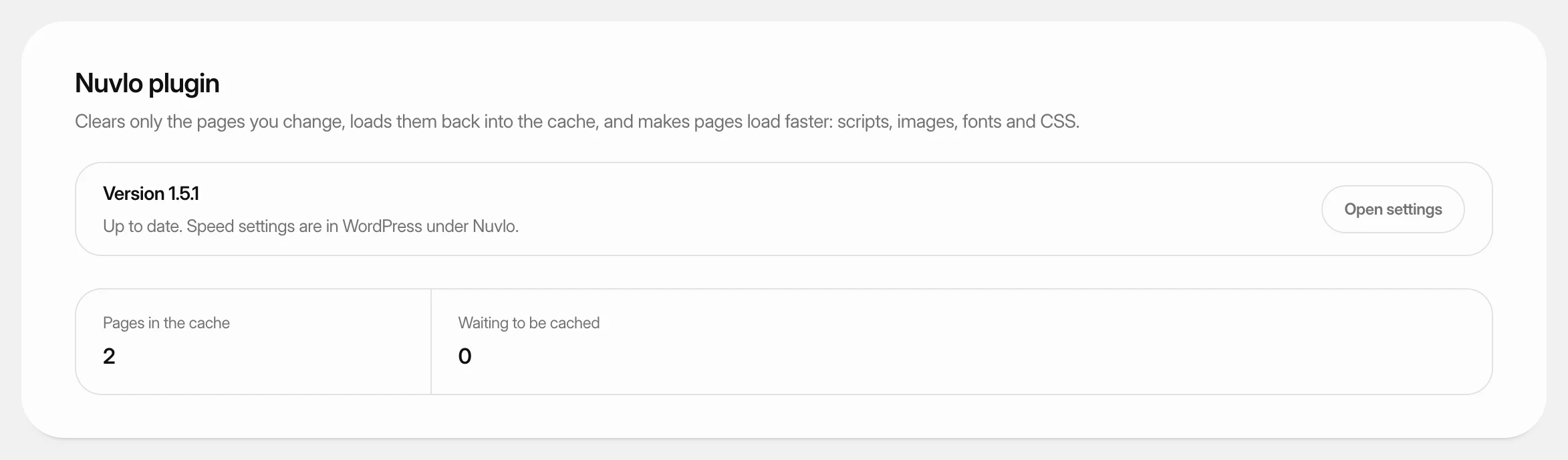 Use the Nuvlo plugins for WordPressLearn what the Nuvlo plugin and Nuvlo SEO do on your WordPress sites, how to install or update them from the dashboard, and where their settings are.
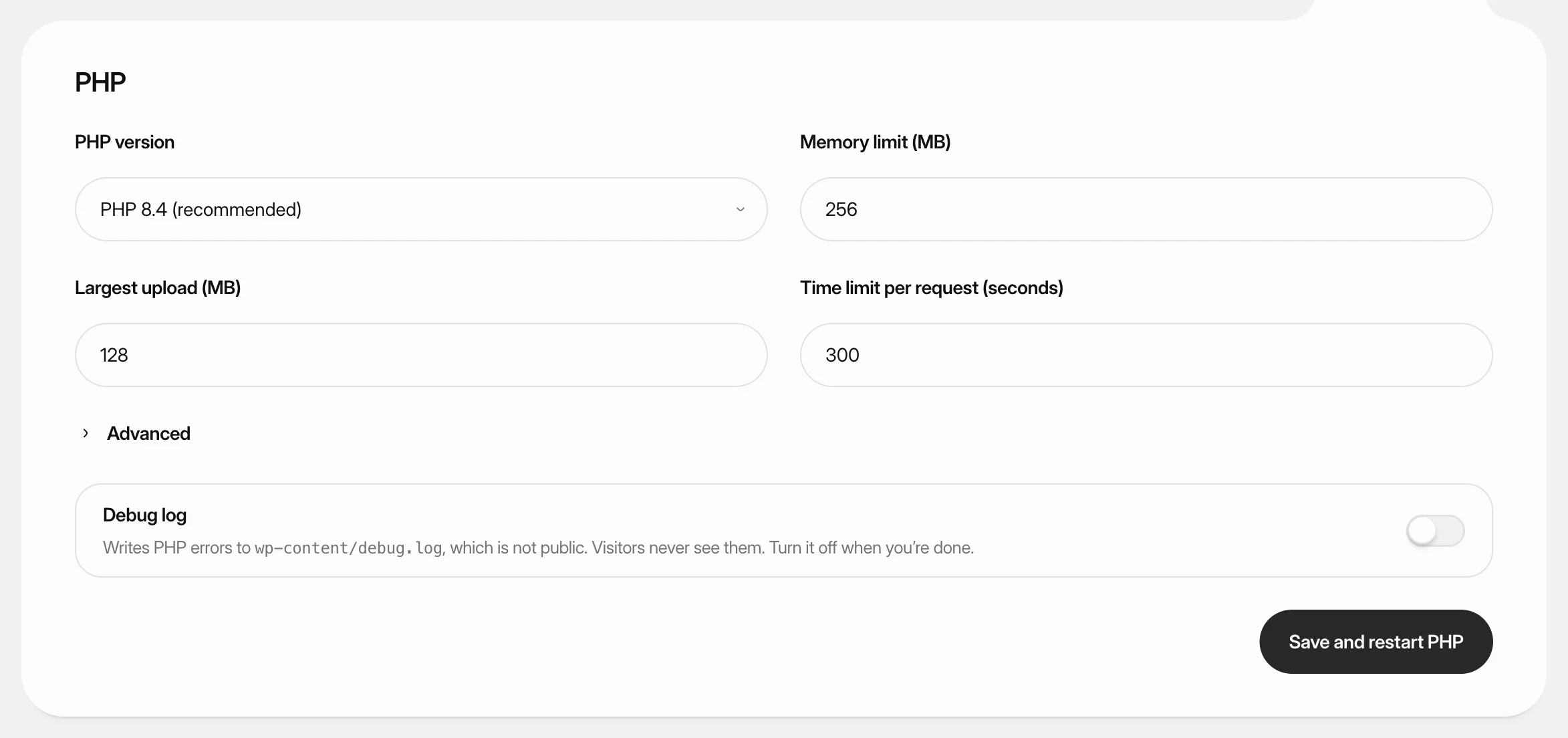 Change PHP settings for WordPressSwitch a WordPress site to another PHP version, raise its memory, upload and time limits, and turn on the debug log.
 Create a WordPress siteInstall a new WordPress site on one of your servers, with its own database, Redis cache and HTTPS. It takes four short screens and a few minutes of setup.