



Connect GitHub
Give Nuvlo access to your GitHub repositories, so you can deploy sites and apps from them and update them automatically on every push.
On this page
Before you start
- A GitHub account with access to the repositories you want to deploy.
- Permission to manage integrations in your Nuvlo account. See Roles and permissions.
- Pop-ups allowed for the Nuvlo dashboard in your browser.
Step 1 Open Git providers
Open Git providers from the Integrations section of the dashboard. The card Repository access shows GitHub, GitLab and Bitbucket, each marked Connected or Not connected.
GitLab and Bitbucket can be connected, but deploying from them isn't available yet.
Step 2 Start the connection
Click the GitHub tile, then click Connect GitHub. A small window opens at GitHub.
If nothing opens, your browser blocked the window. Nuvlo shows The sign-in window was blocked. Allow pop-ups for this site and try again. Allow pop-ups and click the button again.
Step 4 Check the connection
The GitHub tile now shows Connected and the button reads Reconnect GitHub. Your repositories appear when you create a site.
The connection belongs to the Nuvlo account you are working in, so everyone on the team with access to sites can deploy from it.
Use a personal access token instead
If you prefer not to use the sign-in window, click Use a token instead next to the button. Create a token in your GitHub developer settings, paste it into GitHub personal access token and click Save token. Nuvlo checks the token with GitHub before saving it.
The token needs the same access as the sign-in: it must be able to read the repositories you deploy and manage their webhooks and deploy keys.
Good to know
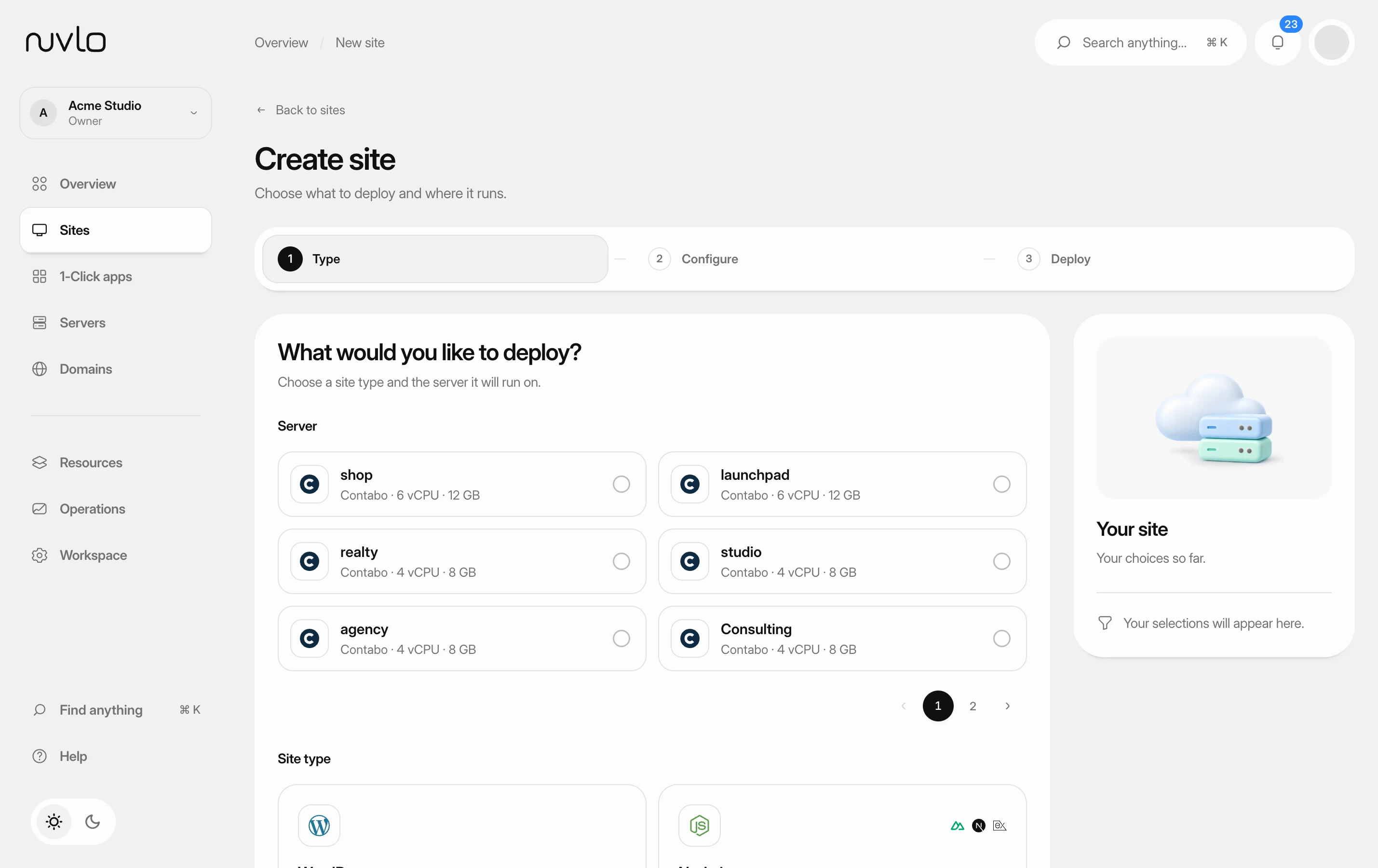
You can also connect GitHub while creating a site: the setup shows Connect GitHub (static and PHP sites) or Connect account (Node.js apps) when no account is connected.
Click Reconnect GitHub if repositories are missing, for example after you gave GitHub access to a new organization.
Related guides
 Create a siteChoose the right site type for your project and put a static website or a PHP or Laravel site online from a GitHub repository or a ZIP file, with its own domain and HTTPS.
 Deploy from GitKeep a site up to date with its GitHub repository: deploy automatically on every push, start a deploy yourself or from another tool, and read the build log when something goes wrong.
 Deploy a Node.js appPut a Nuxt, Next.js, SvelteKit, Astro, Express or other Node.js app from GitHub online. Nuvlo detects how to build it, keeps it running and deploys every push.