



Turn on two-factor sign-in
Protect your Nuvlo account with a code from an authenticator app. Nuvlo asks for the code when you sign in.
On this page
Before you start
- An authenticator app on your phone, such as 1Password, Google Authenticator or Authy.
Step 1 Open Sign-in & security
Open the account menu at the top right and choose My profile, or select Workspace and then Account in the sidebar. Go to the Sign-in & security section.
The Two-factor sign-in row shows Off or On.
Step 2 Scan the QR code
Click Turn on two-factor sign-in. A dialog shows a QR code. Scan it with your authenticator app.
If your phone can't scan it, click Can’t scan it? Type a key instead and enter the setup key in the app by hand.
Step 3 Enter the code from the app
Type the 6-digit code that the app shows into Enter the 6-digit code from the app, then click Turn on two-factor sign-in.
If the code doesn't match, enter the newest code. Codes change every 30 seconds.
Turning on two-factor sign-in revokes the API tokens and AI agent keys you created before. Create new ones for your scripts and tools afterwards. See API tokens.
Step 4 Add a second device
ImportantNuvlo has no backup codes. If you lose your only authenticator, you have to contact support to get back in.
Add a second device, such as a tablet or a password manager. Click Add another device, scan the new QR code and click Add device. Codes from any of your devices work.
Adding another device also revokes the API tokens and AI agent keys created before it.
Sign in with a code
From now on, after your password Nuvlo shows Two-factor sign-in. Enter the 6-digit code from your app and click Verify and sign in.
Don’t ask again on this browser for 30 days is ticked unless you untick it. Signing in again on that browser, with your password or Google or GitHub, then skips the code. Untick it on a computer other people use. Changing your password or adding an authenticator app makes every browser ask again.
After several wrong codes, Nuvlo shows Too many attempts. Wait a few minutes before you try again.
Sensitive actions
Once you're signed in, with your code if two-factor sign-in is on, Nuvlo doesn't ask for your code again. Opening a server terminal, showing a password or creating an API token works right away.
Actions that delete or replace something, such as deleting a site or server or restoring a backup, ask you to confirm in a dialog first. These actions only work from the dashboard, never with an API token or an AI agent key.
Turn off two-factor sign-in
Click Turn off two-factor sign-in, enter a current code from your authenticator app and confirm with Turn off two-factor sign-in. Codes from every device you added stop working, and signing in only needs your password.
Related guides
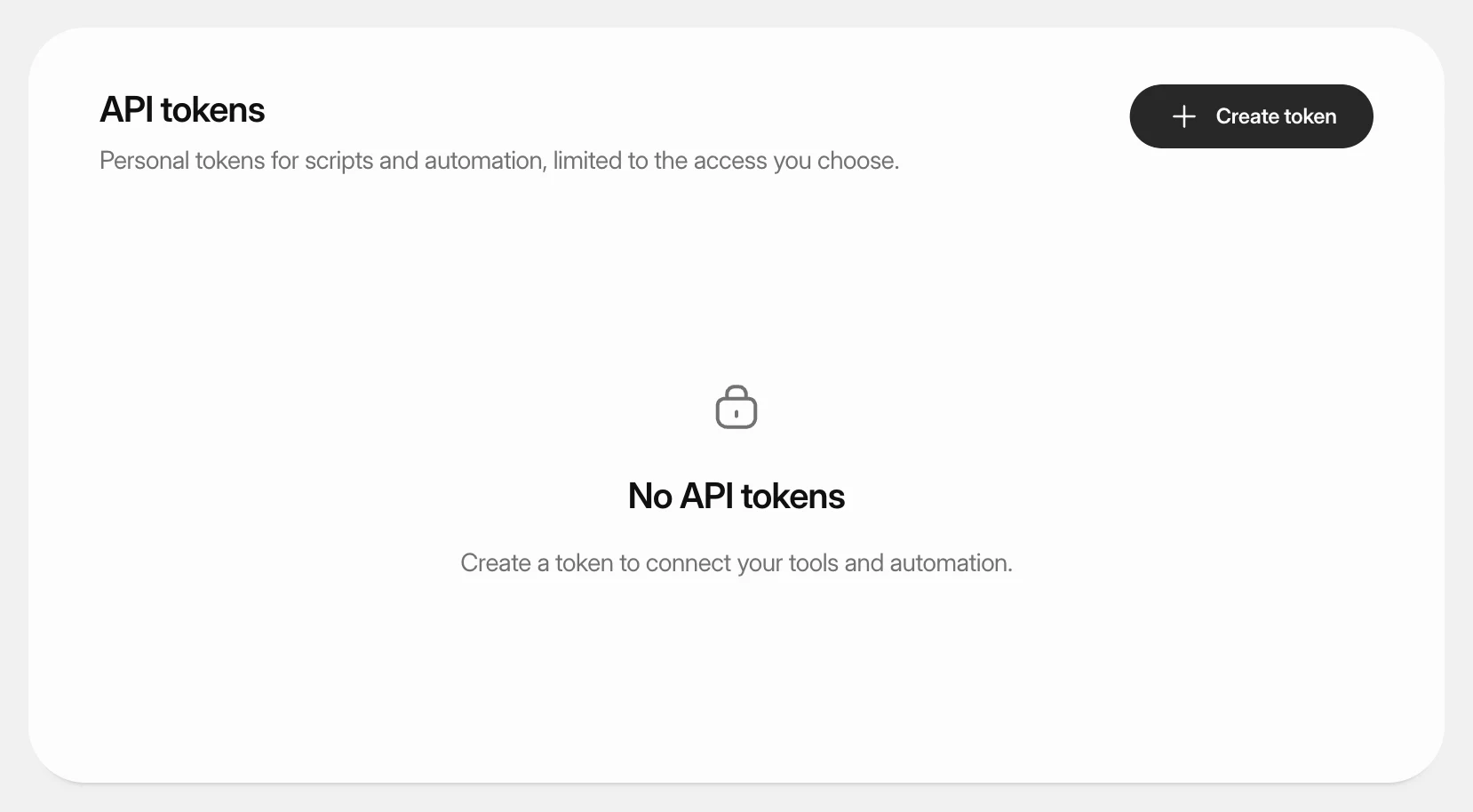 Create an API tokenCreate a personal token so scripts and automation tools can work with Nuvlo, limited to the areas and the time you choose.
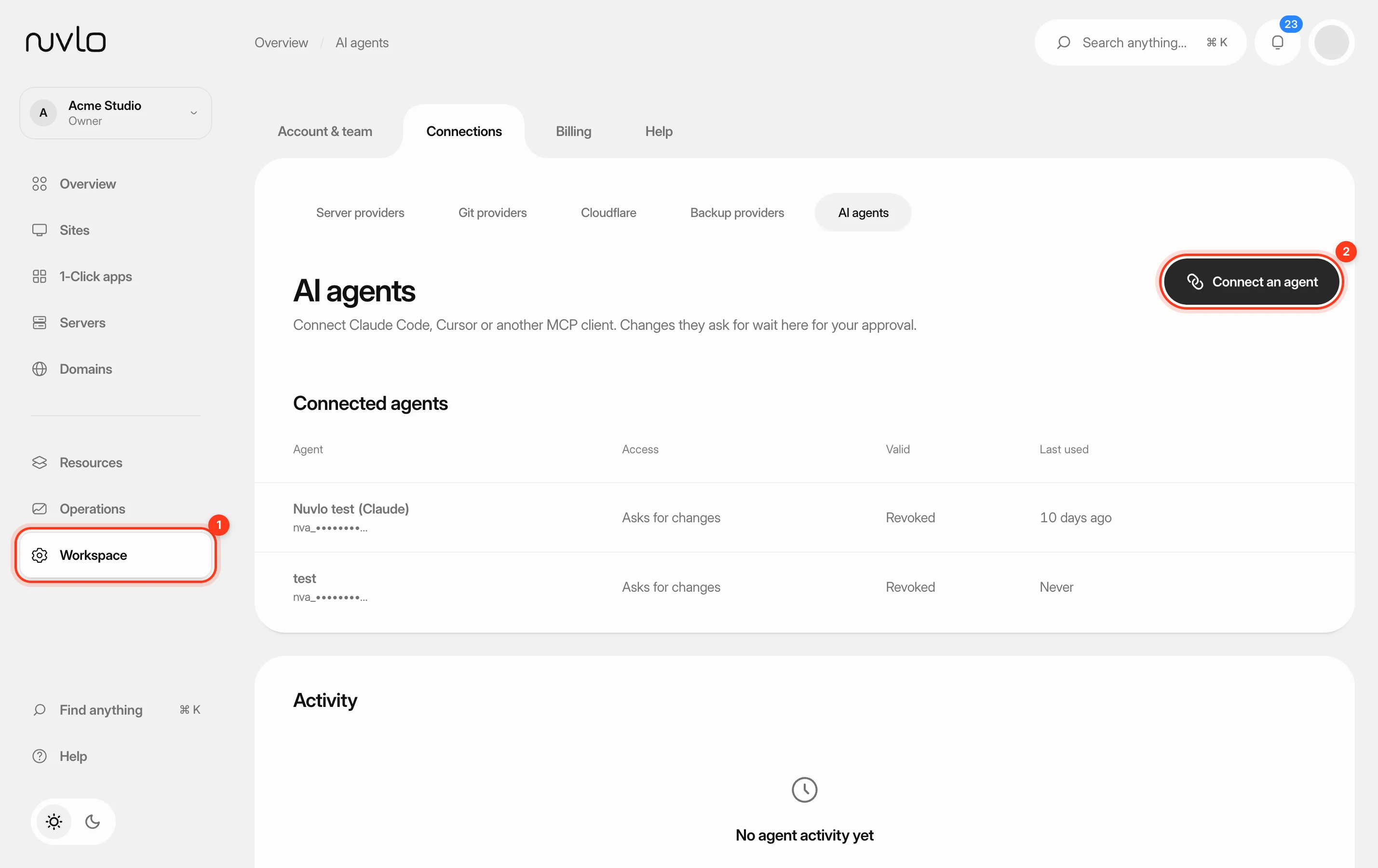 Connect an AI agentLet Claude, ChatGPT, Cursor, VS Code, Claude Code or another MCP client read your sites and ask for changes. Changes wait for your approval unless you allow undoable ones to run on their own.
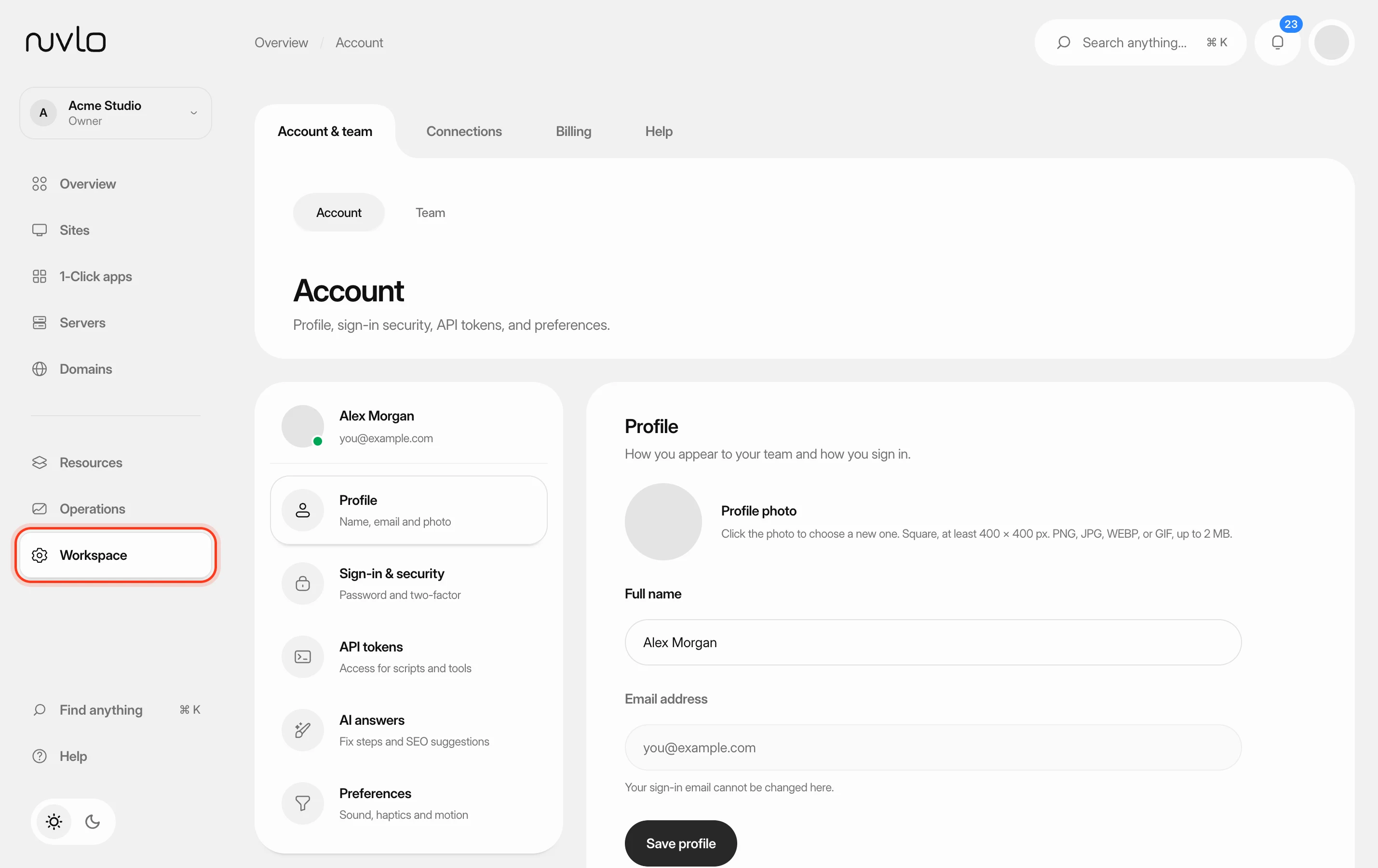 Update your profile and preferencesChange your name and profile photo, send yourself a password reset link, and choose how the dashboard sounds, moves and looks.
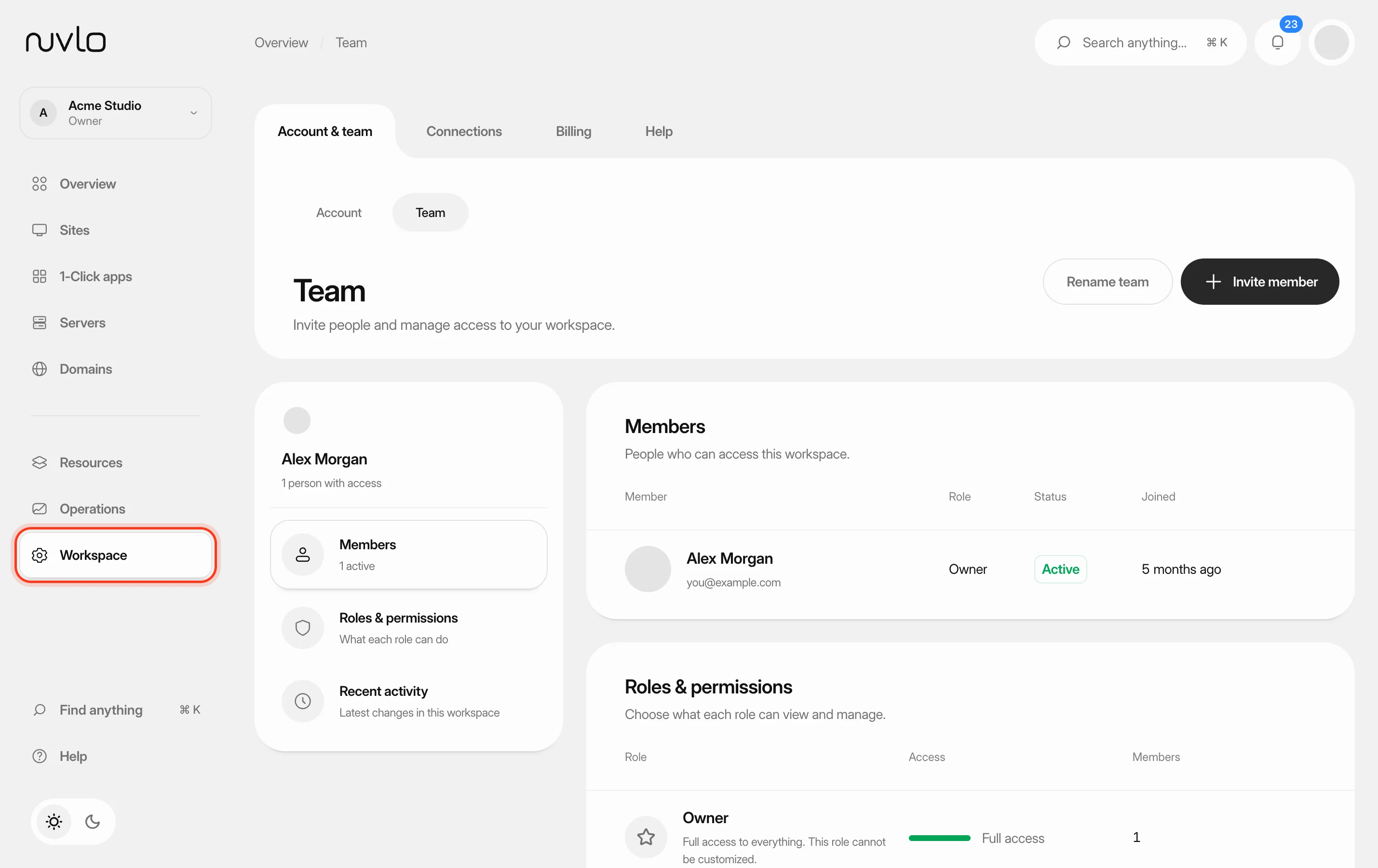 Invite and manage team membersInvite people to your workspace, choose their role, and change or remove their access later. You can also switch between your own workspace and the teams you belong to.